

Requirements
- Maven runs on Java. Install a JDK and check it:
java --version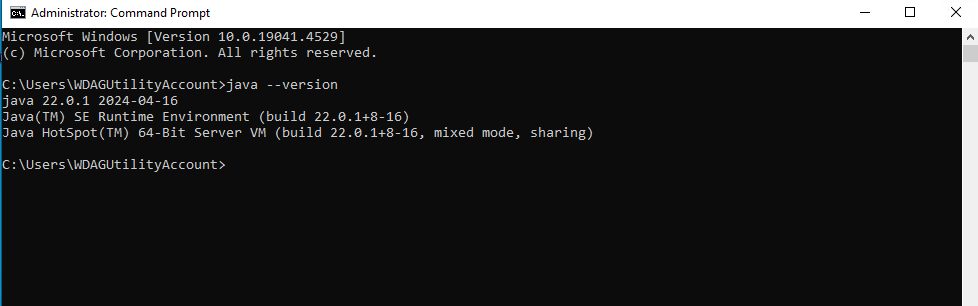
- You need administrator rights to change the system environment variables.
Step 1: Download Maven
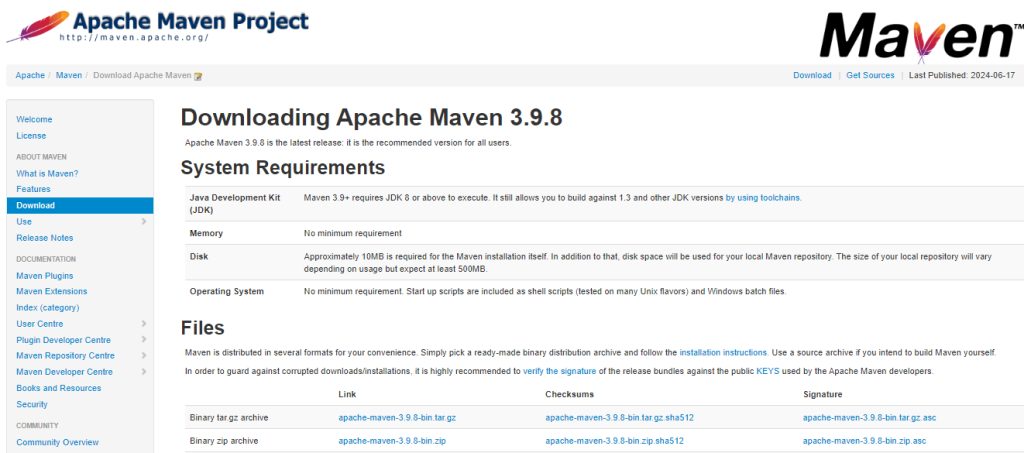
Open the Apache Maven download page and download the Binary zip archive (apache-maven-x.y.z-bin.zip).
Step 2: Extract it
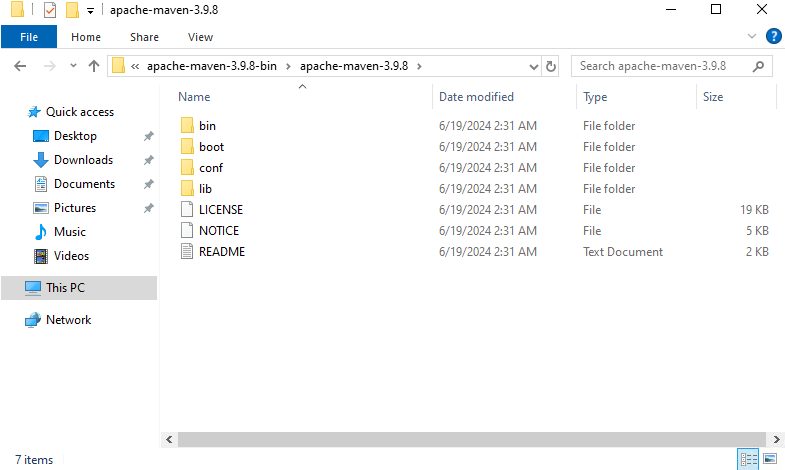
Extract the zip file to a folder such as C:\Program Files\Apache\maven. Inside you will find a folder like apache-maven-3.9.6.
Step 3: Set the environment variables
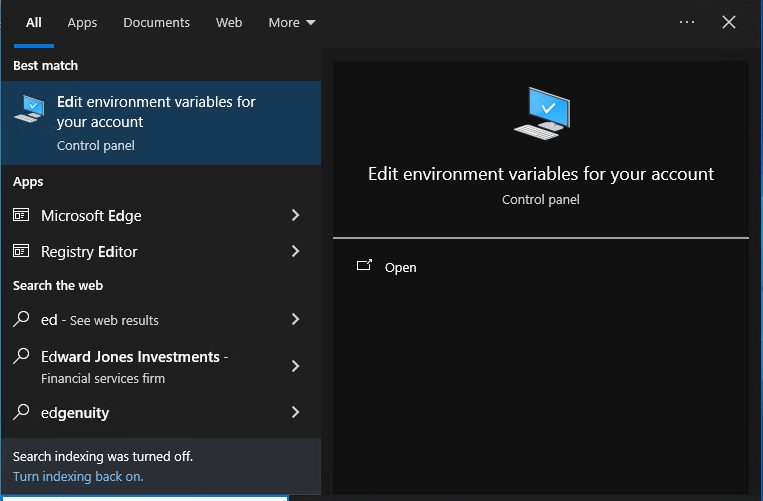
- Search for environment variables in the Start menu and open Edit the system environment variables. Click Environment Variables.
- Under System variables, click New. Name:
MAVEN_HOME(orM2_HOME). Value: the Maven folder, for exampleC:\Program Files\Apache\maven\apache-maven-3.9.6.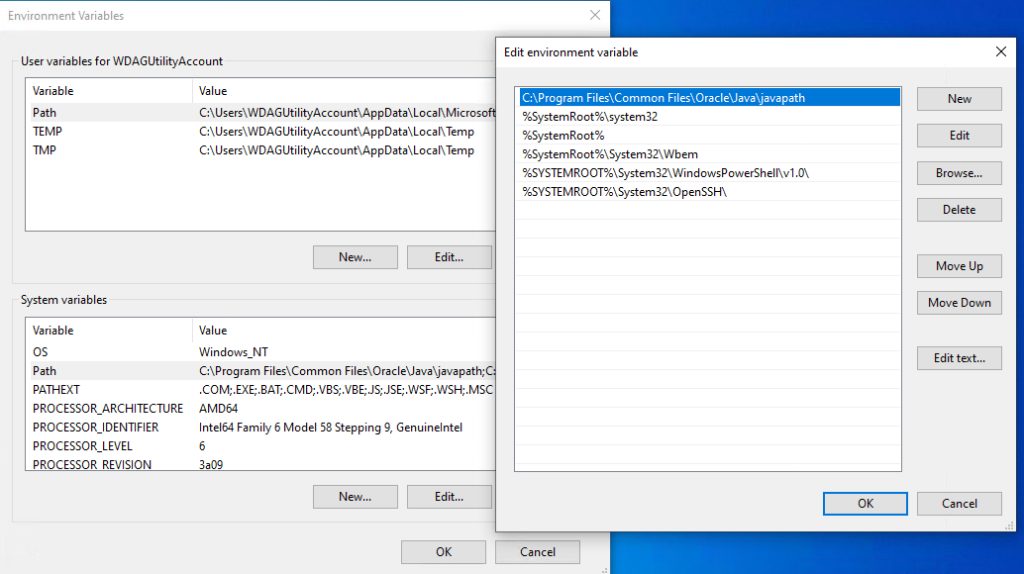
- Check that
JAVA_HOMEis set to your JDK folder. If not, add it too. - Select Path, click Edit, click New and add
%MAVEN_HOME%\bin.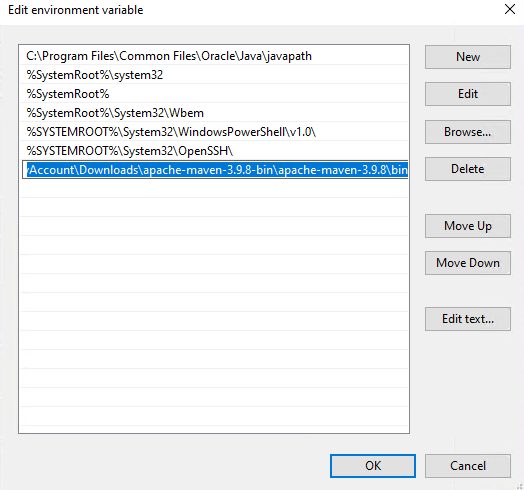
- Click OK in all windows.
Step 4: Check Maven
Open a new Command Prompt:
mvn -v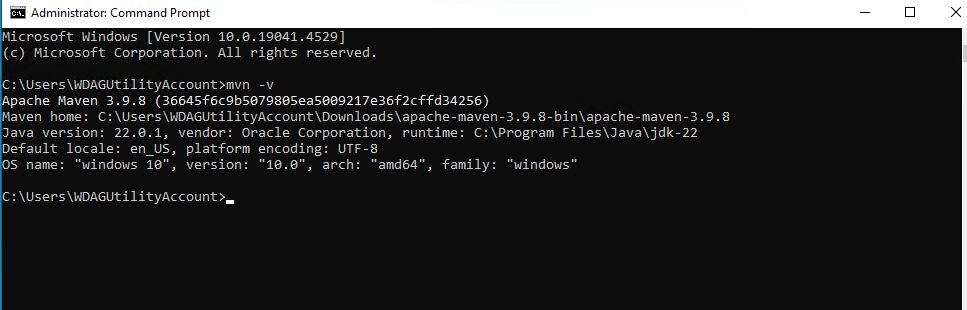
You see the Maven version, the Java version and your operating system.
Troubleshooting
- If
mvn -vis not found, check that%MAVEN_HOME%\binis in the Path, and open a new window. - Make sure Java is installed and
JAVA_HOMEis right. - Use an administrator account to change system variables.
Why use Maven
- Project management. A standard folder layout for projects.
- Dependency management. Maven downloads the libraries your project needs. You do not have to copy JAR files.
- Build automation. Define build steps (compile, test, package) once.
- Reproducibility. Builds are the same on every computer.
Next steps
Create a project:
mvn archetype:generate -DgroupId=com.example -DartifactId=my-app -DarchetypeArtifactId=maven-archetype-quickstart -DinteractiveMode=false
cd my-app
mvn package
Quick recap
- Install a JDK, extract Maven, set
MAVEN_HOMEand the Path. - Check with
mvn -v. - Use
mvn packageto build a project.