

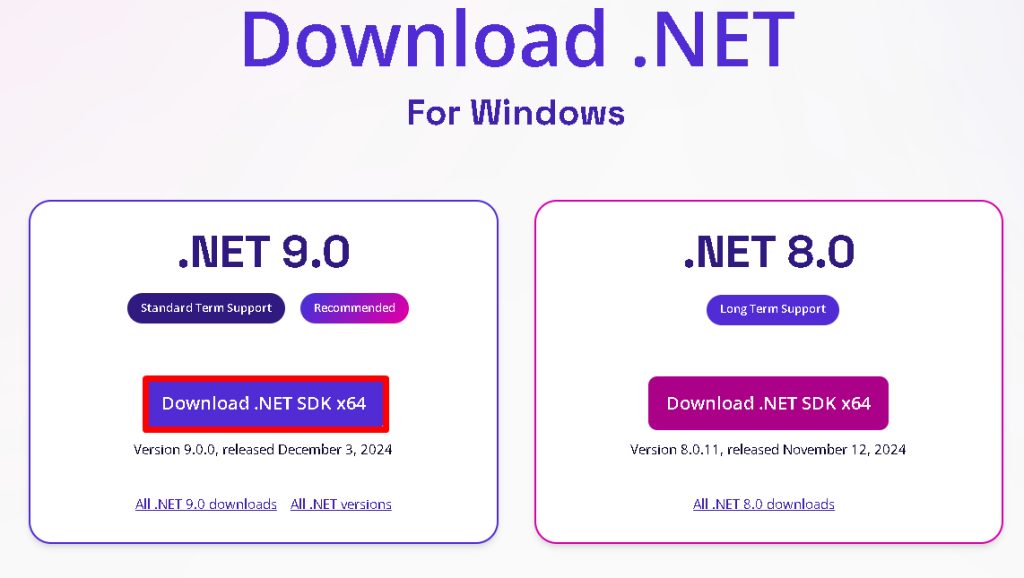
Step 1: Open the .NET download page
Go to the official .NET download page of Microsoft and choose the .NET SDK for Windows (x64). The SDK includes the ASP.NET Core runtime, which you need to build and run web apps.
Step 2: Run the installer
Open the downloaded file and follow the wizard.
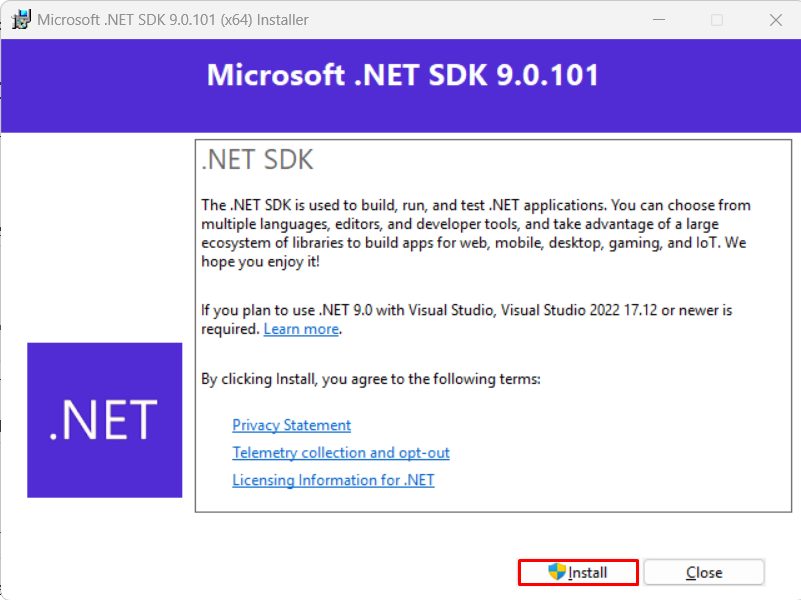
Step 3: Finish the installation
Click Install and wait until the installer shows the success page. Then click Close.
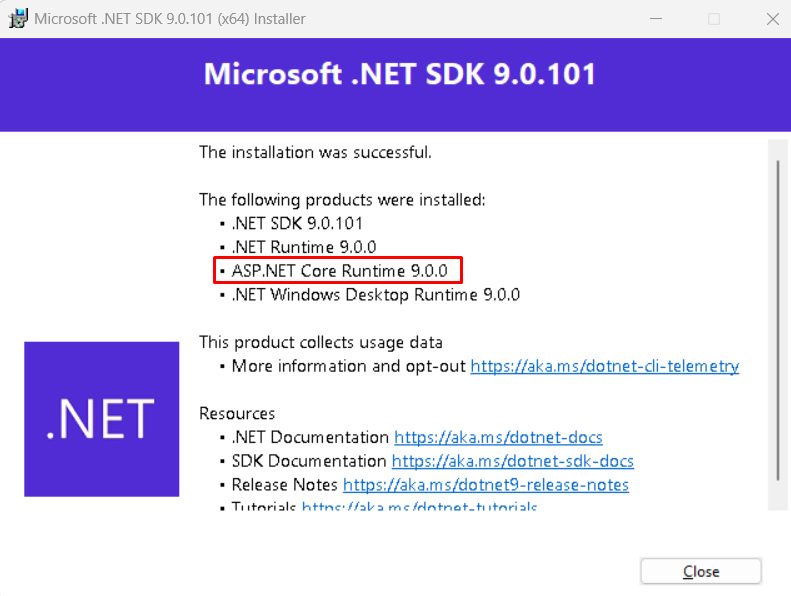
Step 4: Check the installation
Open a new Command Prompt or PowerShell and check the version:
dotnet --versionCreate a test web app:
dotnet new webapp -o TestWebApp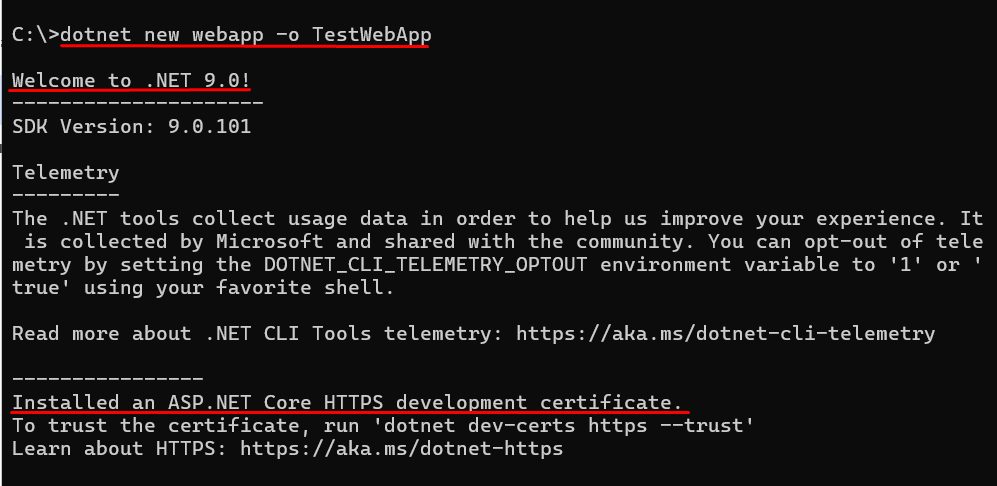
Go into the folder and run it:
cd TestWebApp
dotnet run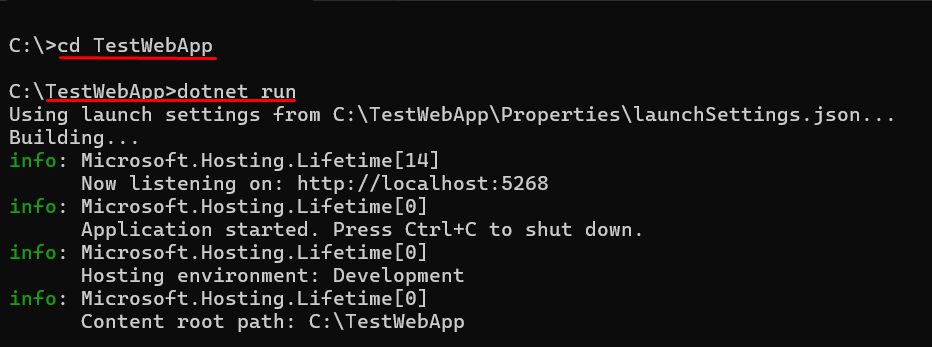
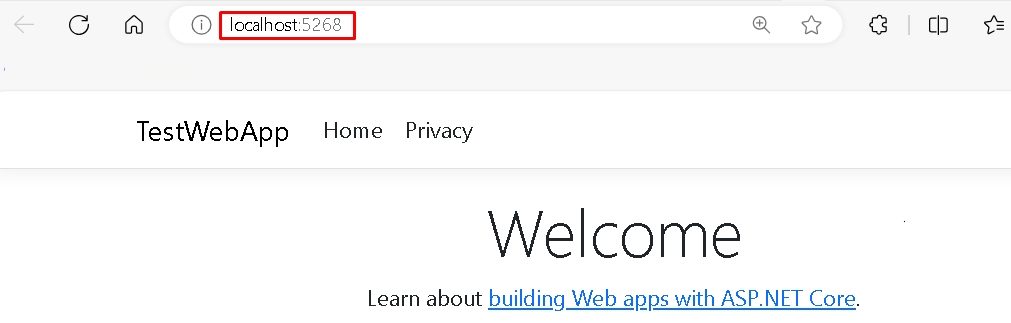
The output shows an address such as https://localhost:7000. Open it in your browser. The sample ASP.NET page appears.
Features of ASP.NET
- Cross-platform. Runs on Windows, Linux and macOS.
- High performance.
- Built-in dependency injection.
- Modern development. Supports MVC, Razor Pages, minimal APIs and Blazor.
- Security. Features such as authentication, authorization and data protection.
- Real-time web apps with SignalR.
- Good tools and libraries, with Visual Studio and Visual Studio Code.
Host ASP.NET on a server
To host an ASP.NET Core app on IIS, install the ASP.NET Core Hosting Bundle on the server and publish your app with dotnet publish.
Quick recap
- Install the .NET SDK.
- Check with
dotnet --version. - Create and run a test app with
dotnet new webappanddotnet run.