

What Bandicam is
Bandicam is a screen recorder for Windows. It records video of your screen, a region, a window or a webcam, with sound. It is often used for tutorials, meetings and demos.
Install
Step 1: Download Bandicam from the official website.
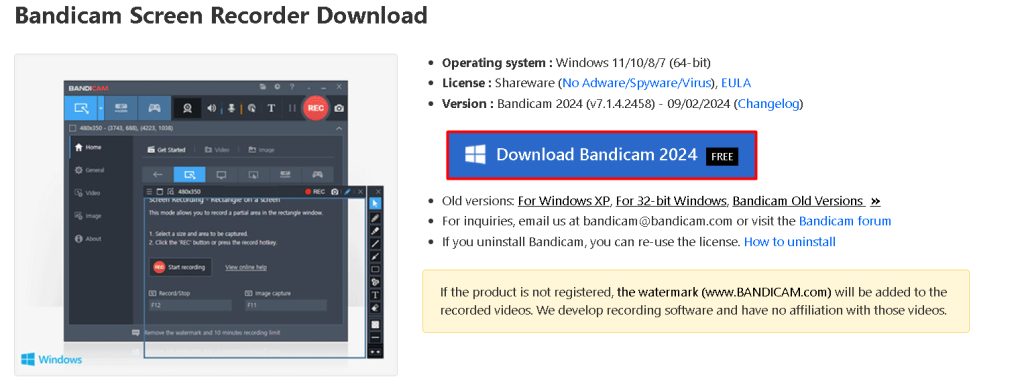
Step 2: Run the installer (the .exe file).
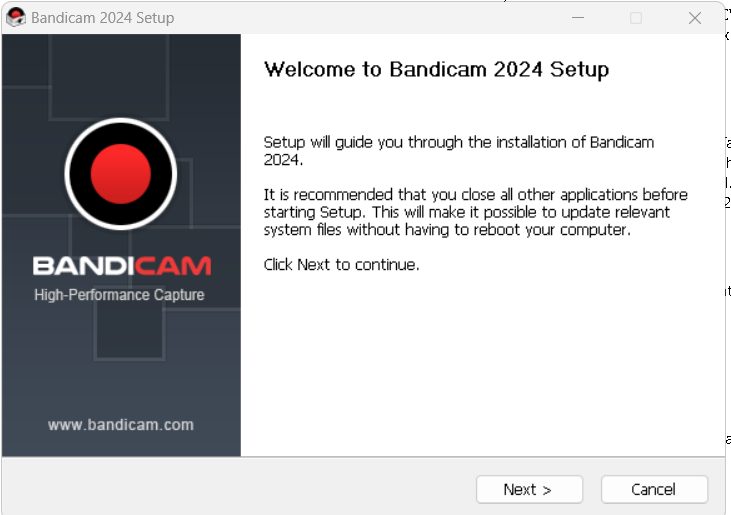
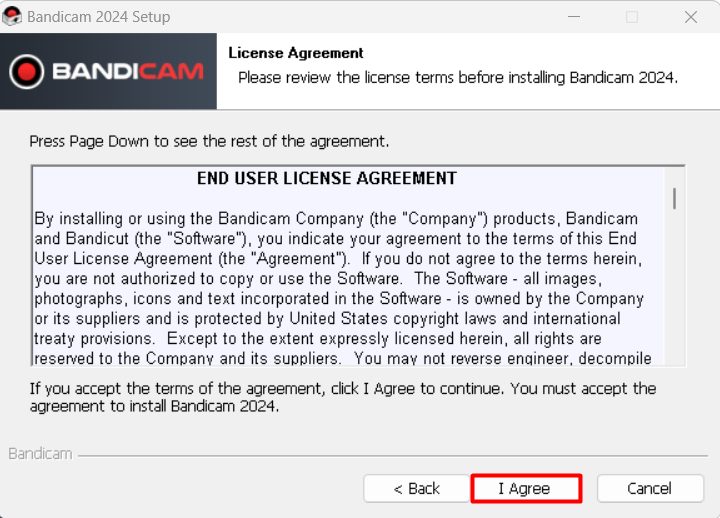
Step 3: Accept the license agreement.
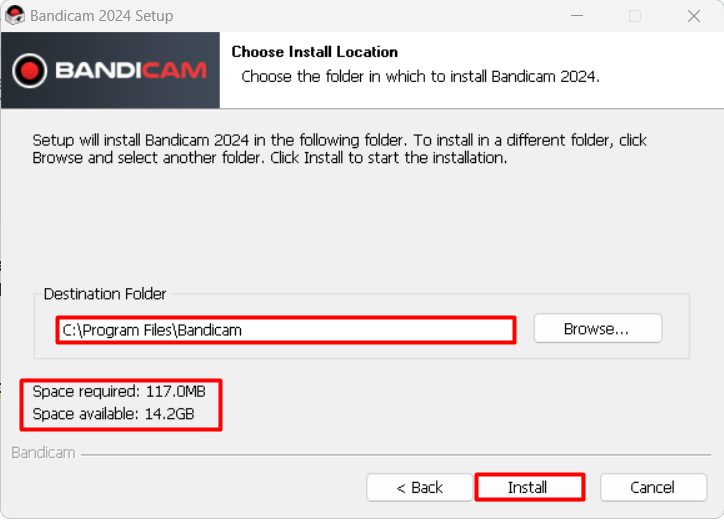
Step 4: Choose the installation folder.
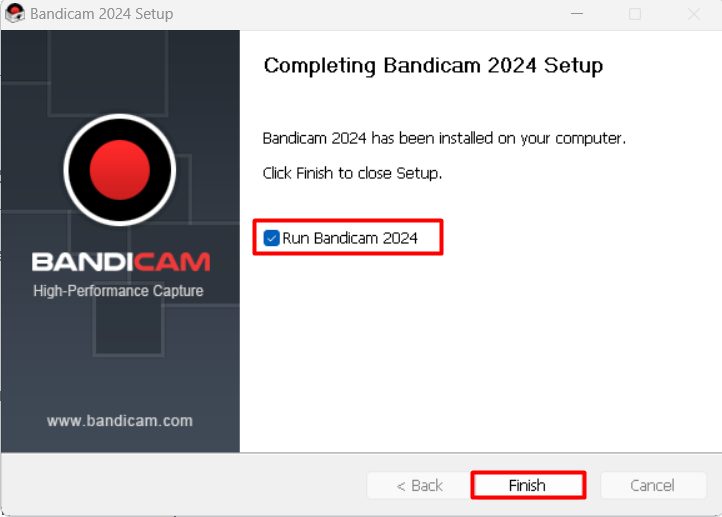
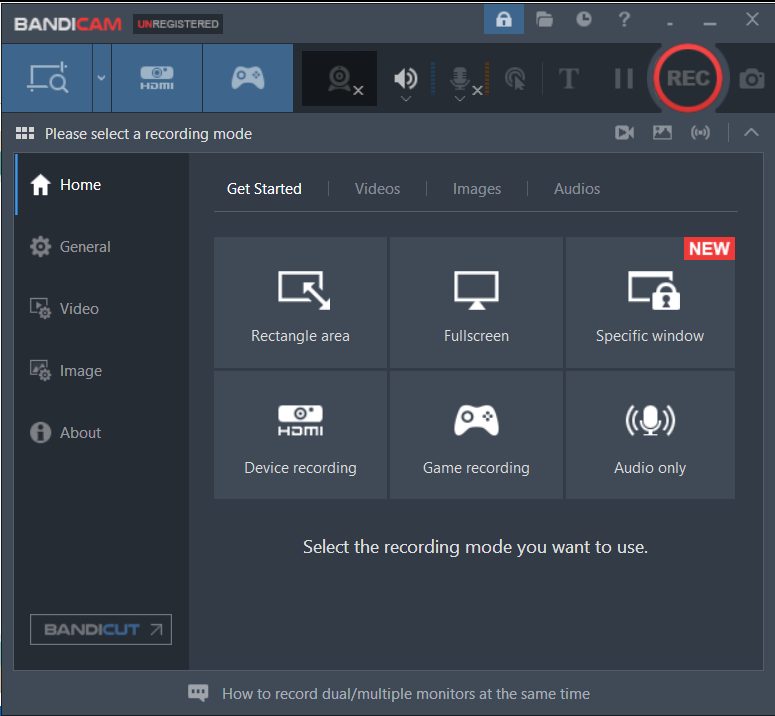
Step 5: Start Bandicam. Tick Run Bandicam at the end of the setup, or open it from the Start menu.
Main features
Recording modes
- Full screen. Records the whole screen.
- Region. Records a part of the screen that you choose.
- Around mouse. Records an area around the mouse cursor. It is good for tutorials.
- Game recording. A mode that is tuned for fast-moving 3D content, such as software demos with DirectX or OpenGL.
More features
- High-quality video recording.
- Webcam recording at the same time.
- Simple video editing and improving.
- Scheduled recording at a set time.
- Mouse effects, such as a click highlight.
- Real-time drawing on the screen.
- Audio recording from the microphone and from the speakers.
- Chroma key to remove the background of a webcam video.
Tips
- The free version adds a watermark and limits the length of recordings. A license removes these limits.
- Record to a fast disk (an SSD) to avoid dropped frames.
- Set the folder for your recordings under General, Output folder.
Quick recap
- Download, run the installer and accept the license.
- Choose a recording mode and press the record button.
- A license removes the watermark.