

Requirements
- A Windows computer (Windows 10 or newer for the current IDE).
- An internet connection to download the installer.
- A USB cable and an Arduino board to use it.
Step 1: Download the Arduino IDE
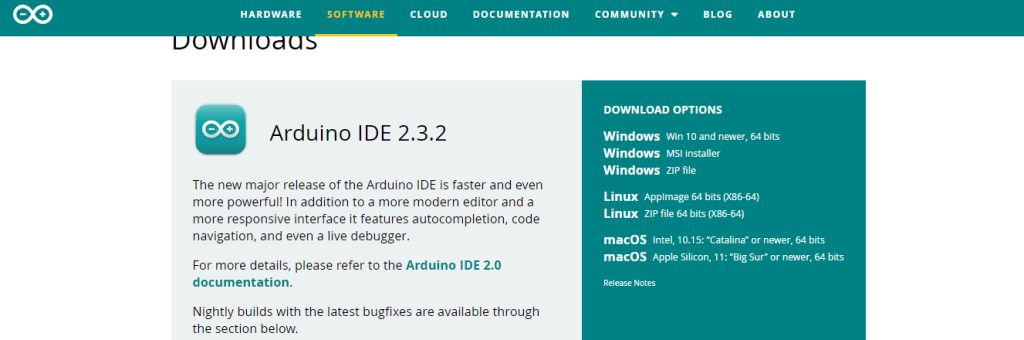
Open the official Arduino website, go to the Software page and download the Windows installer.
Step 2: Install
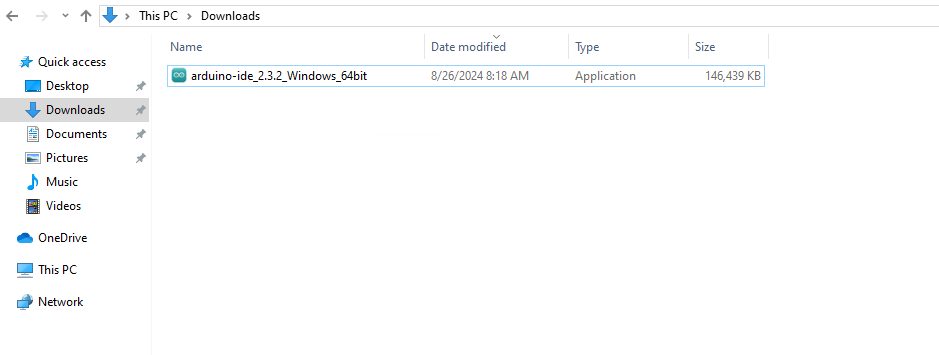
- Run the installer.
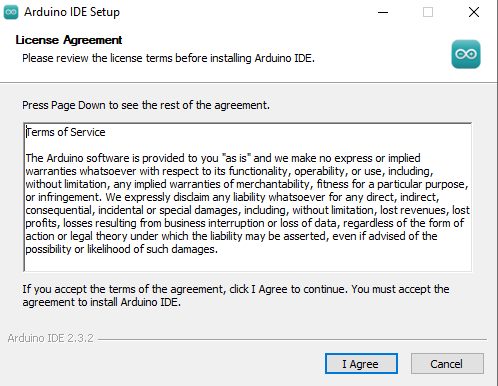
- Accept the license agreement.
- Choose the installation options. Keep the defaults.
- Choose the install location.
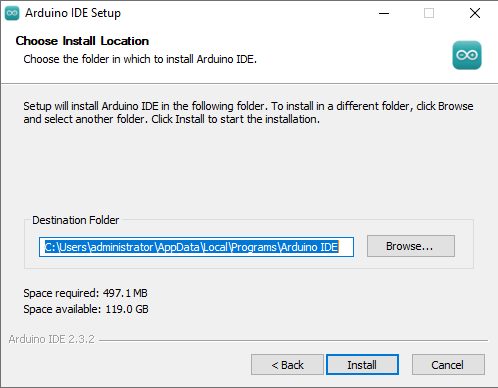
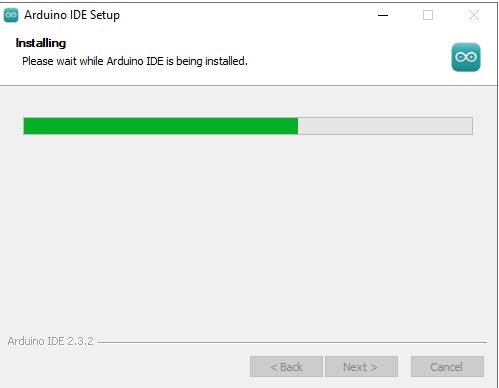
- Click Install. If Windows asks to install USB drivers, allow it.
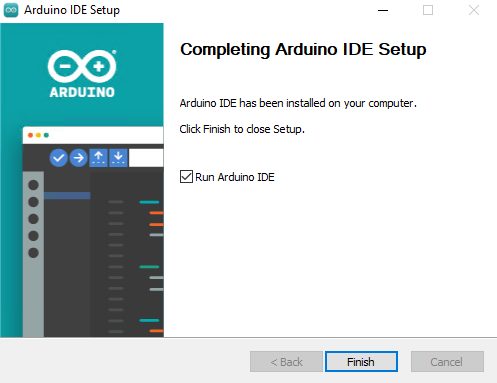
- Click Finish when it is done.
Step 3: Check the installation
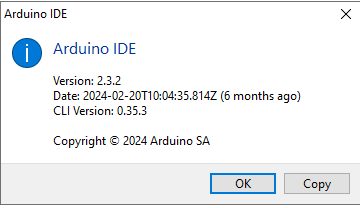
Open the Arduino IDE from the Start menu. Go to Help, then About Arduino IDE to see the version.
Use the IDE
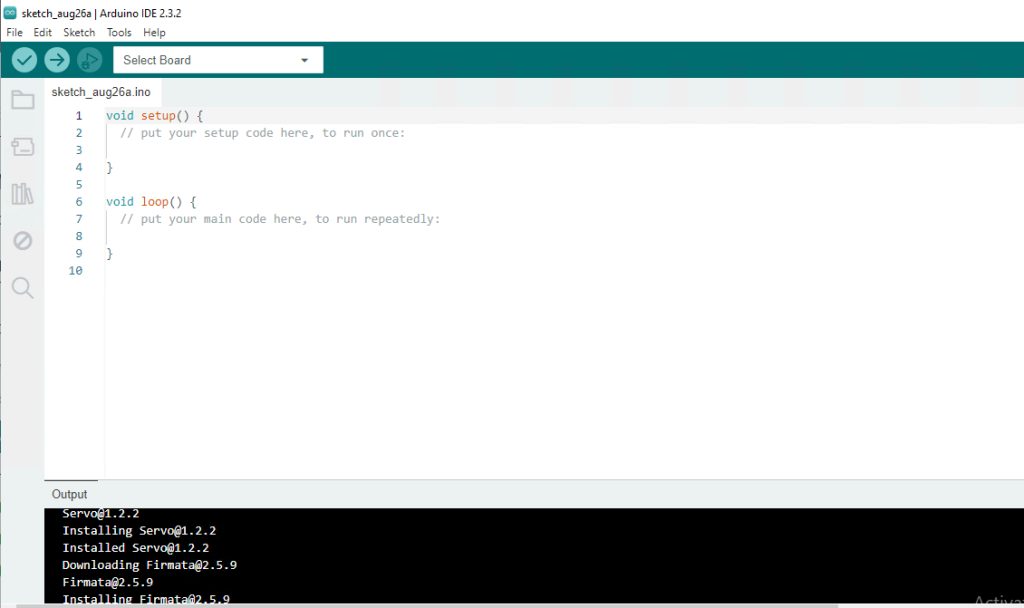
- Code editor. Where you write your sketch.
- Output window. Shows messages, errors and warnings.
- Message area. Shows information about the current action.
Write your first sketch (blink an LED)
void setup() {
  pinMode(13, OUTPUT);
}

void loop() {
  digitalWrite(13, HIGH);   // turn the LED on
  delay(1000);              // wait for a second
  digitalWrite(13, LOW);    // turn the LED off
  delay(1000);              // wait for a second
}- Connect the board with the USB cable.
- Choose your board under Tools, then Board, and the port under Tools, then Port.
- Click the Upload button (the arrow). The LED on pin 13 starts to blink.
Notes
- You must select the specific board before you upload.
- If the board is not found, install its USB driver, or try another USB cable or port.
- Add extra libraries from Sketch, then Include Library, then Manage Libraries.
Quick recap
- Download the installer from arduino.cc and run it.
- Select the board and port, then upload a sketch.
- Use the Library Manager for extra libraries.