

Step 1: Install Chocolatey
Open PowerShell as administrator. Check the execution policy:
Get-ExecutionPolicy
Allow scripts for this session only:
Set-ExecutionPolicy Bypass -Scope Process -Force
Run the install command from the Chocolatey website:
Set-ExecutionPolicy Bypass -Scope Process -Force; [System.Net.ServicePointManager]::SecurityProtocol = [System.Net.ServicePointManager]::SecurityProtocol -bor 3072; iex ((New-Object System.Net.WebClient).DownloadString('https://community.chocolatey.org/install.ps1'))Check it:
choco -v
Step 2: Install the Dart SDK
choco install dart-sdk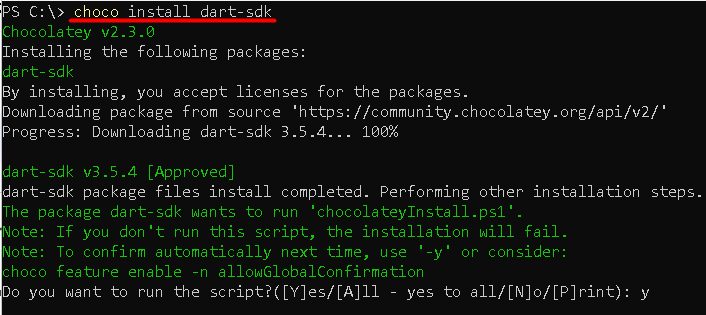
Step 3: Set the environment variables
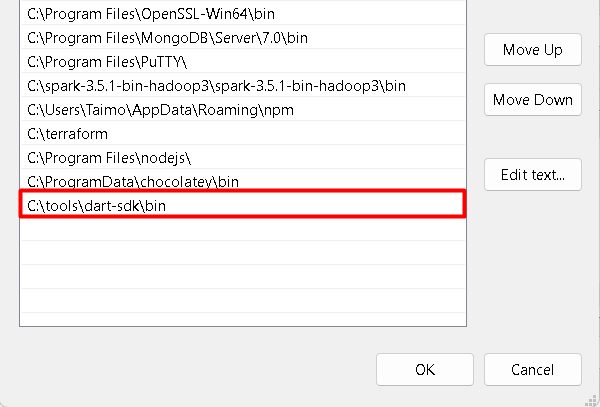
Chocolatey adds Dart to the PATH. If dart is not found after you open a new window, add the bin folder of the SDK (for example C:\tools\dart-sdk\bin) to the PATH under System Properties, Environment Variables.
Step 4: Check the installation
Open a new PowerShell window:
dart --version
Parts of the Dart SDK
- Dart VM. Runs Dart code.
- dart2js. Compiles Dart to JavaScript for the web.
- dartdevc. A compiler for fast development in the browser.
- Core libraries. Collections, I/O, math, async and more.
- pub (package manager). Installs packages from pub.dev (
dart pub get). - Analyzer. Finds errors and style problems.
- Standard tools.
dart format,dart test,dart compileand others.
A first program
Create hello.dart:
void main() {
  print('Hello, Dart!');
}
Run it:
dart run hello.dartQuick recap
- Install Chocolatey, then
choco install dart-sdk. - Open a new window and run
dart --version. - Run files with
dart run.