

Step 1: Install the JDK
Download the Java Development Kit from the Oracle site (or an OpenJDK build) and install it.
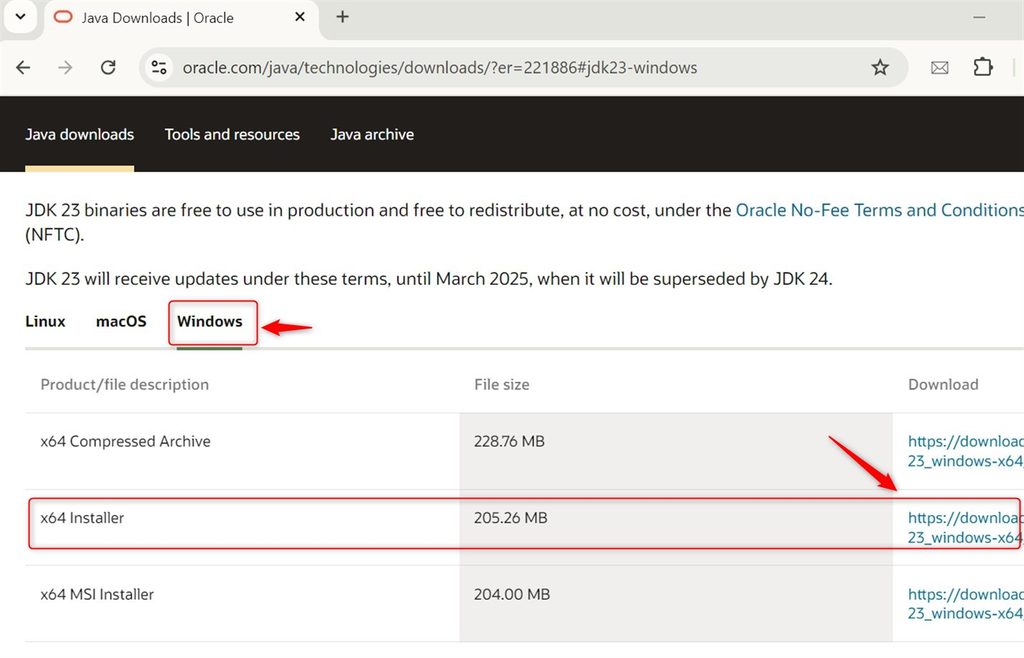
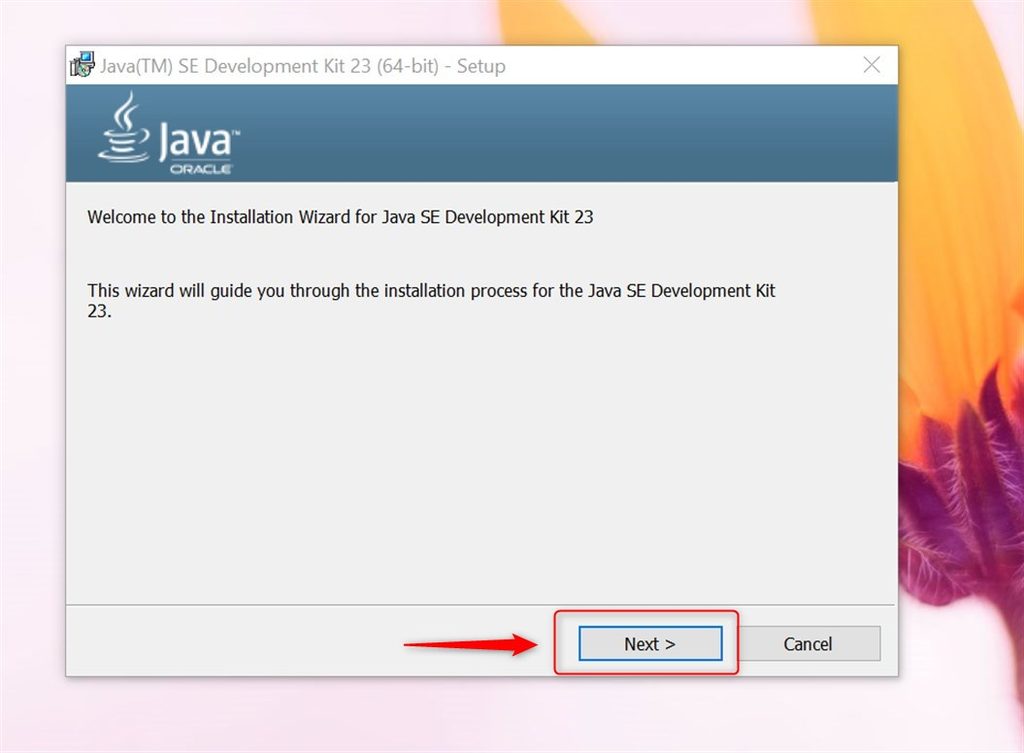
Check it in Command Prompt:
java -version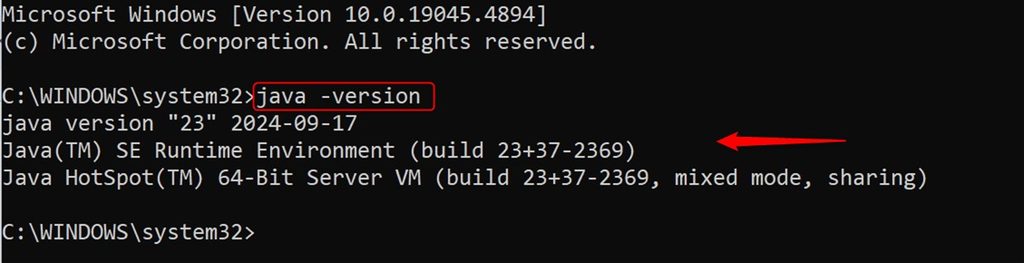
Step 2: Install the Eclipse IDE
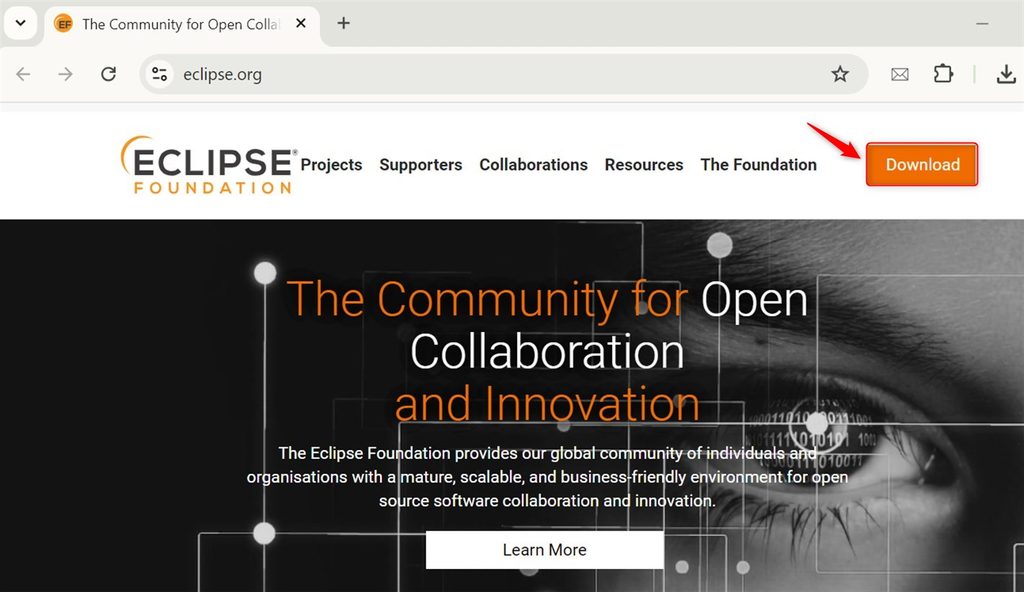
Download Eclipse IDE for Java Developers from the Eclipse website. Choose the version for your Windows architecture (64-bit in most cases).
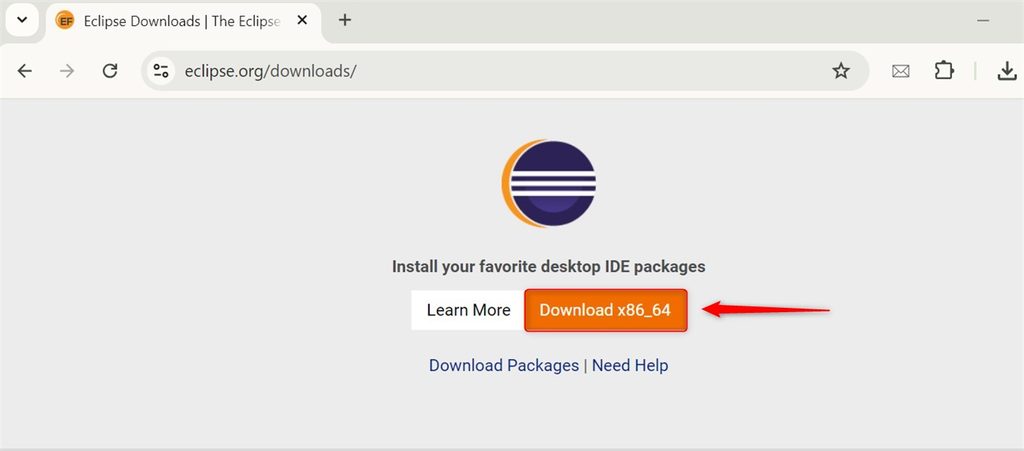
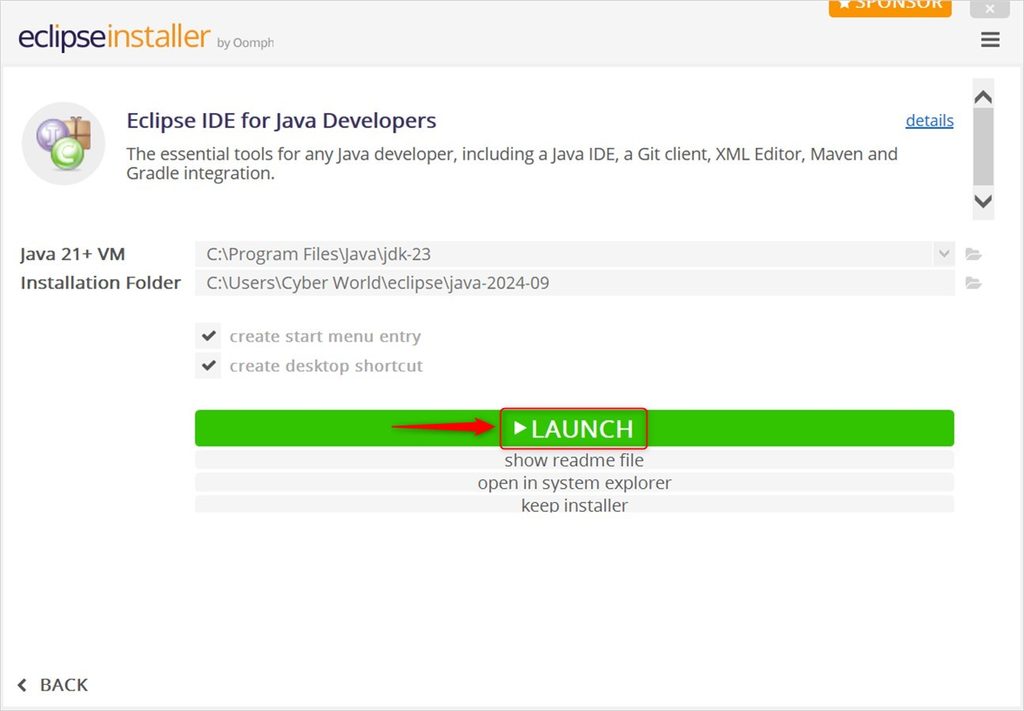
Extract the downloaded zip (or run the installer).
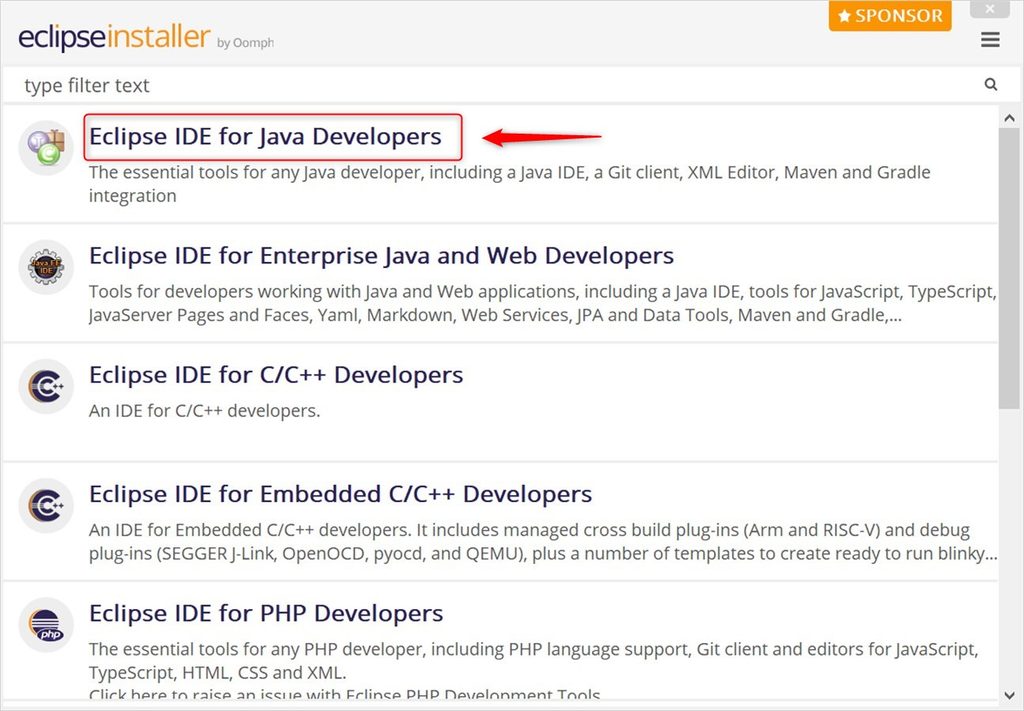
Start Eclipse.
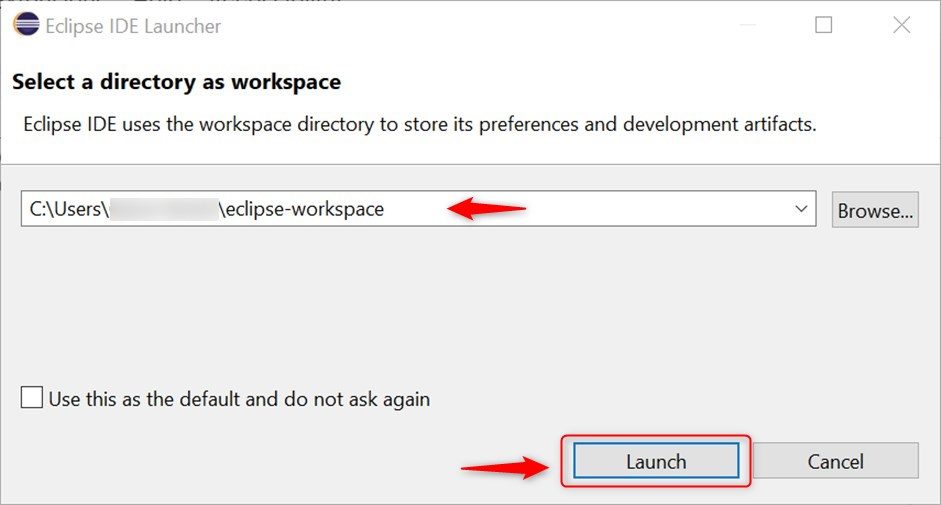
Choose a workspace folder.
Step 3: Download the Selenium Java client
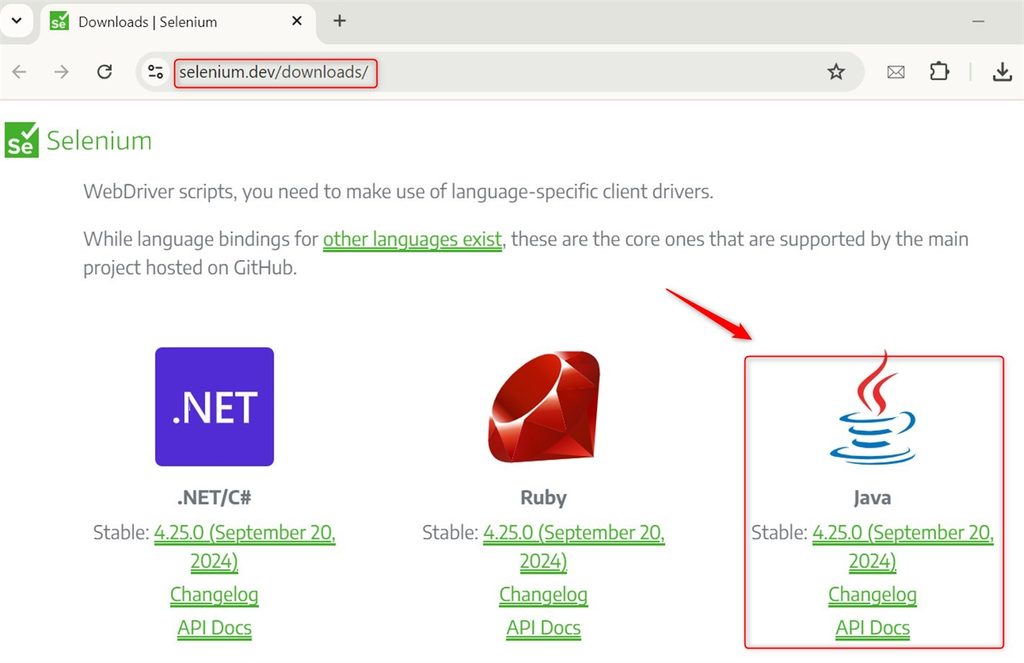
Go to the Selenium website, open Downloads and download the Java client (a zip file).
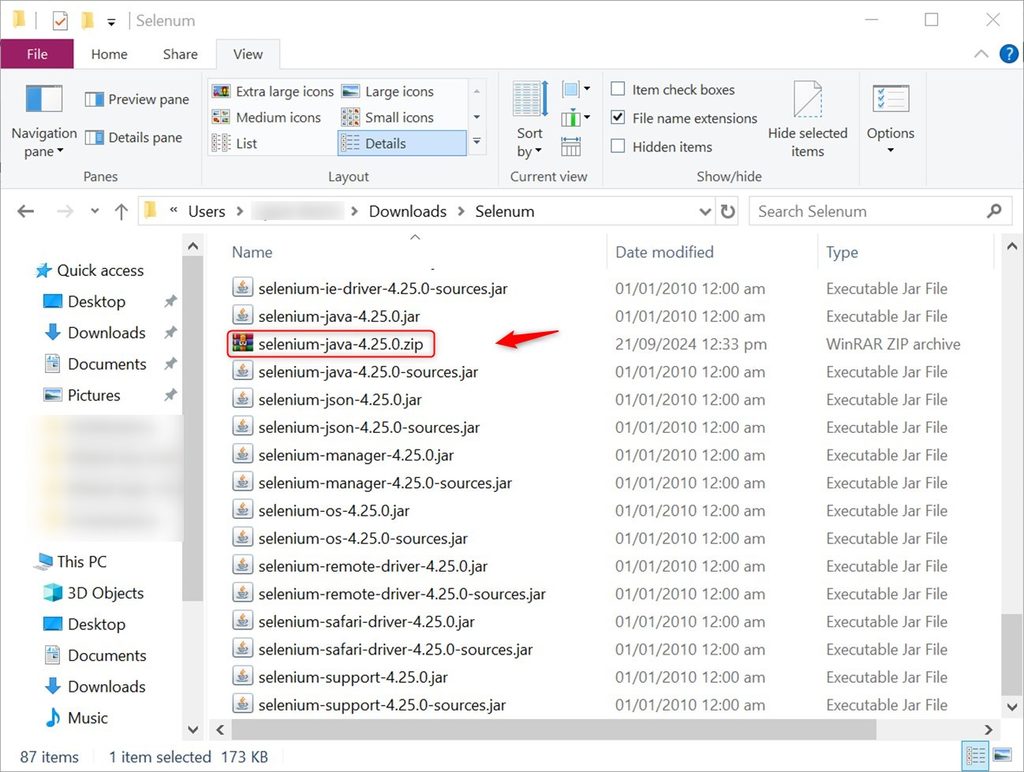
Extract it to a folder such as C:\selenium. It contains the .jar files and a libs folder.
Step 4: Configure Eclipse with WebDriver
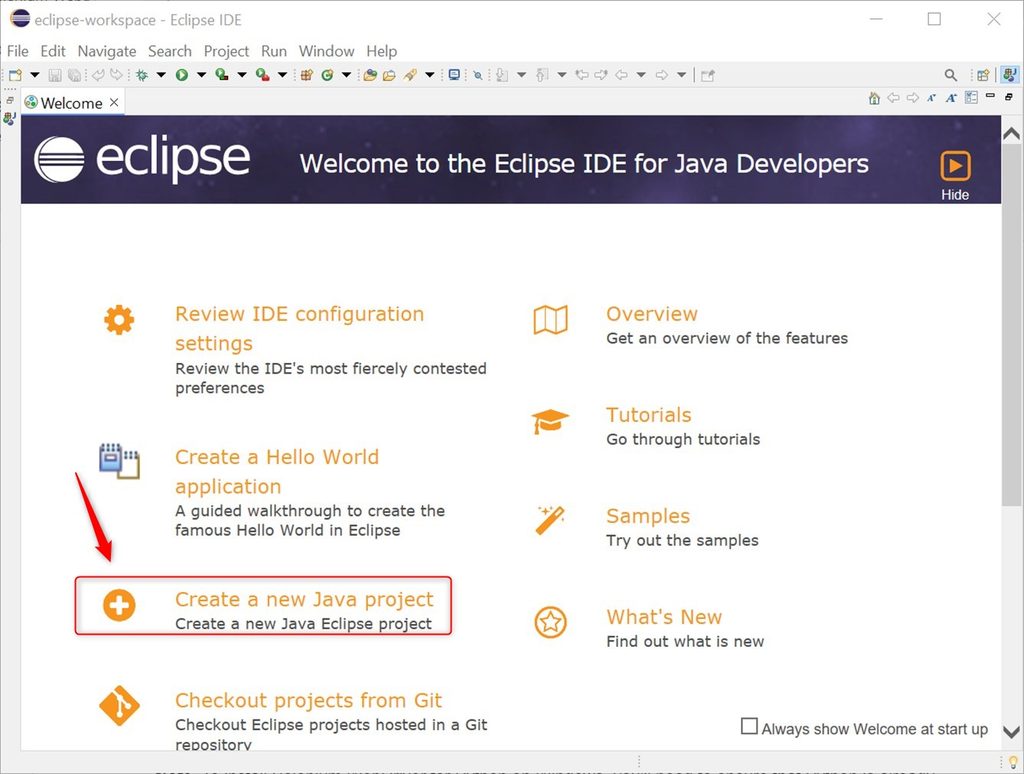
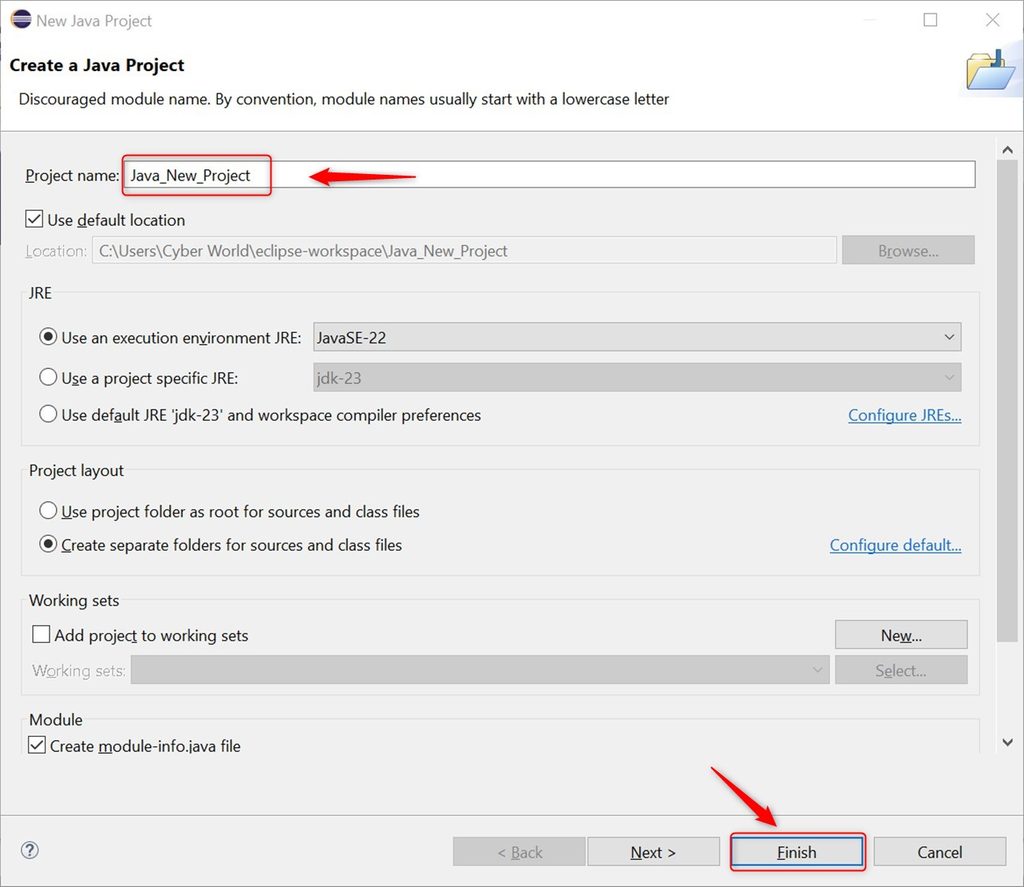
- Create a Java project: File, New, Java Project. Name it and click Finish.
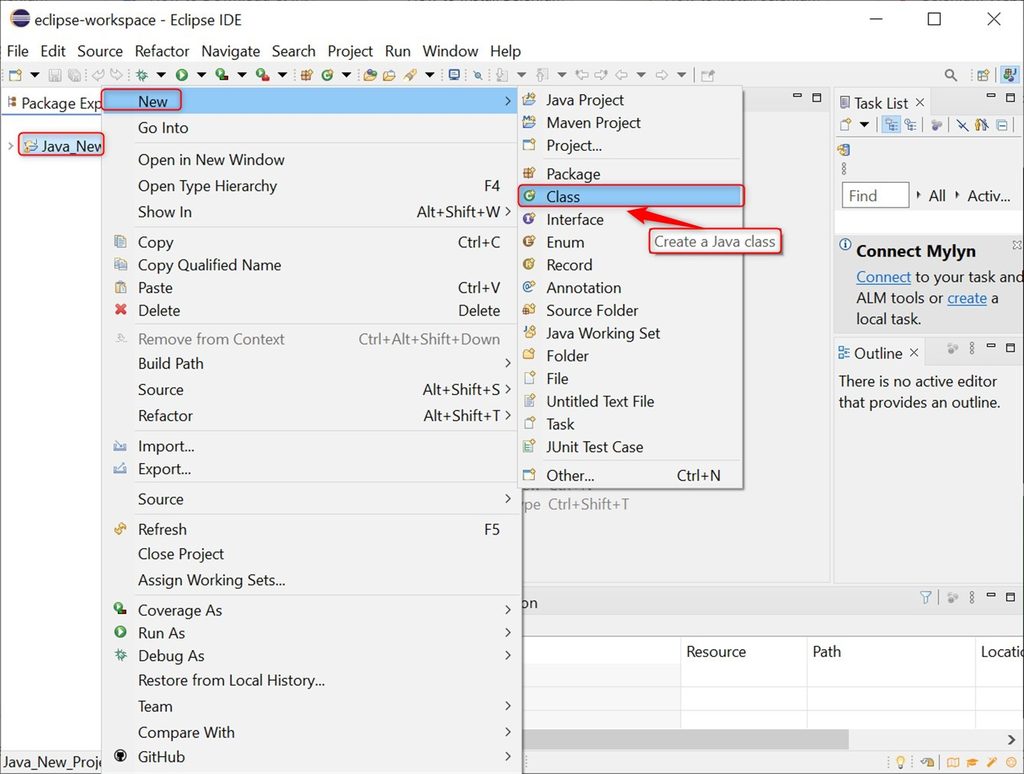
- Open the project properties (right-click the project, Properties) and go to Java Build Path.
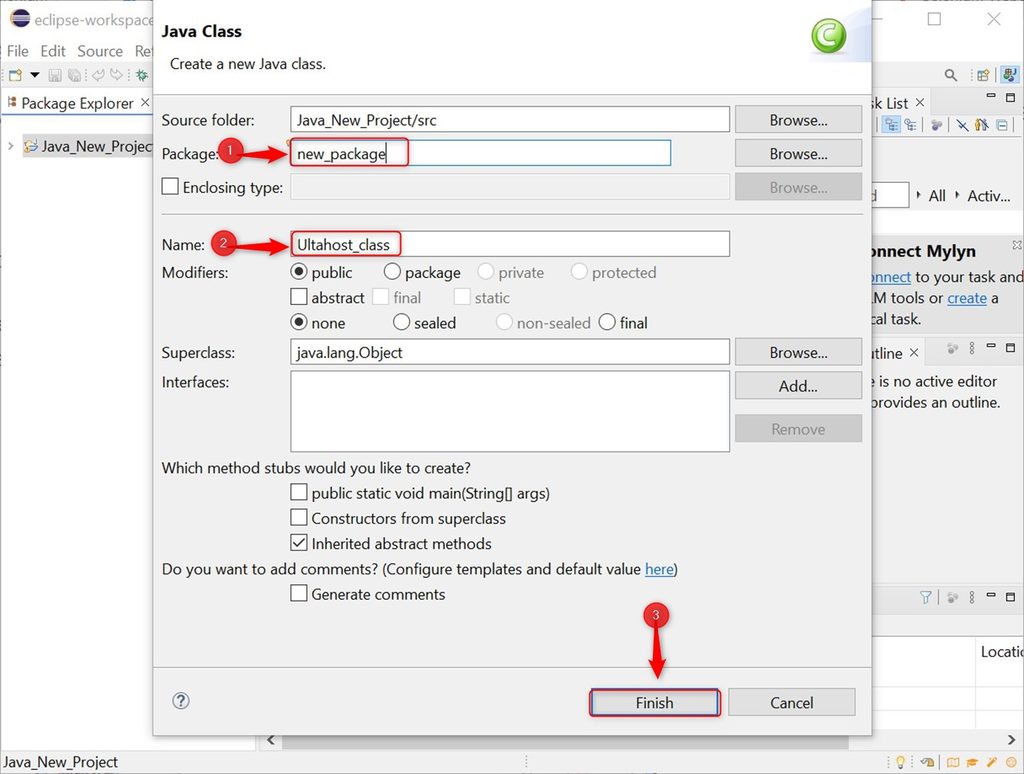
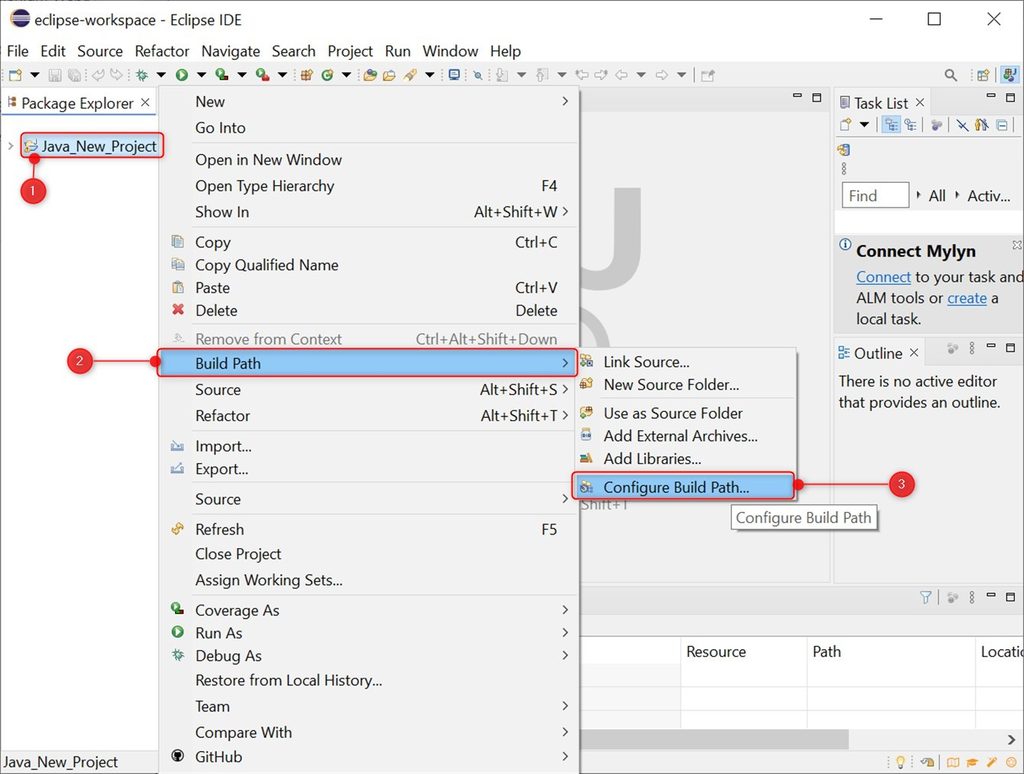
- On the Libraries tab click Add External JARs. Select the Selenium jar file.
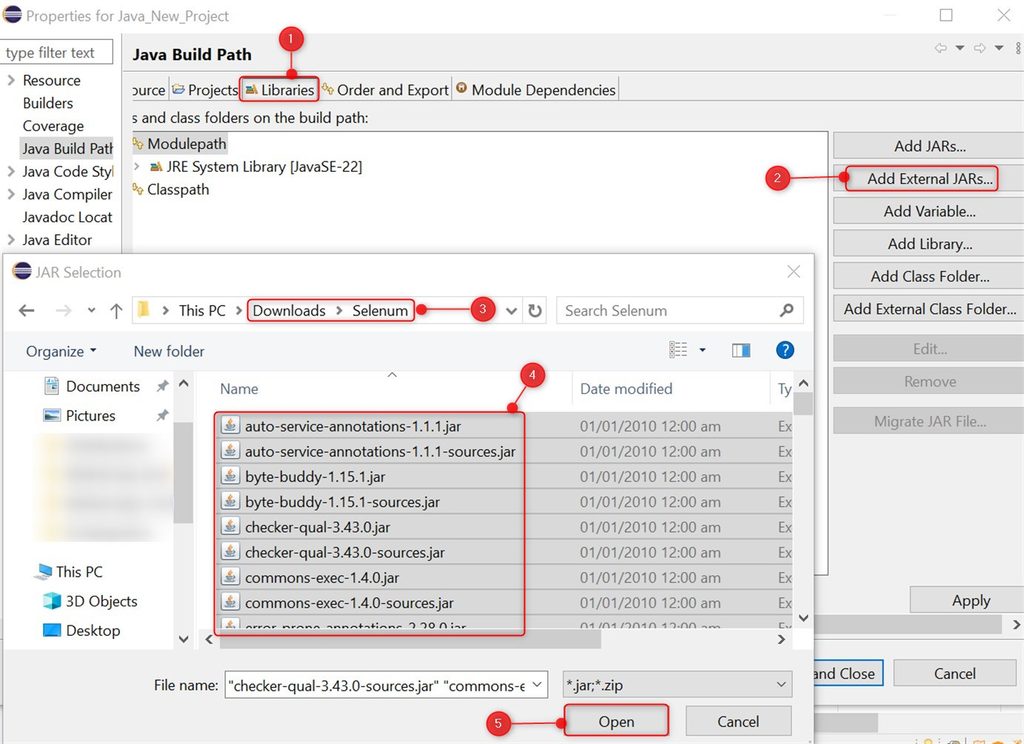
- Add the jar files from the
libsfolder too.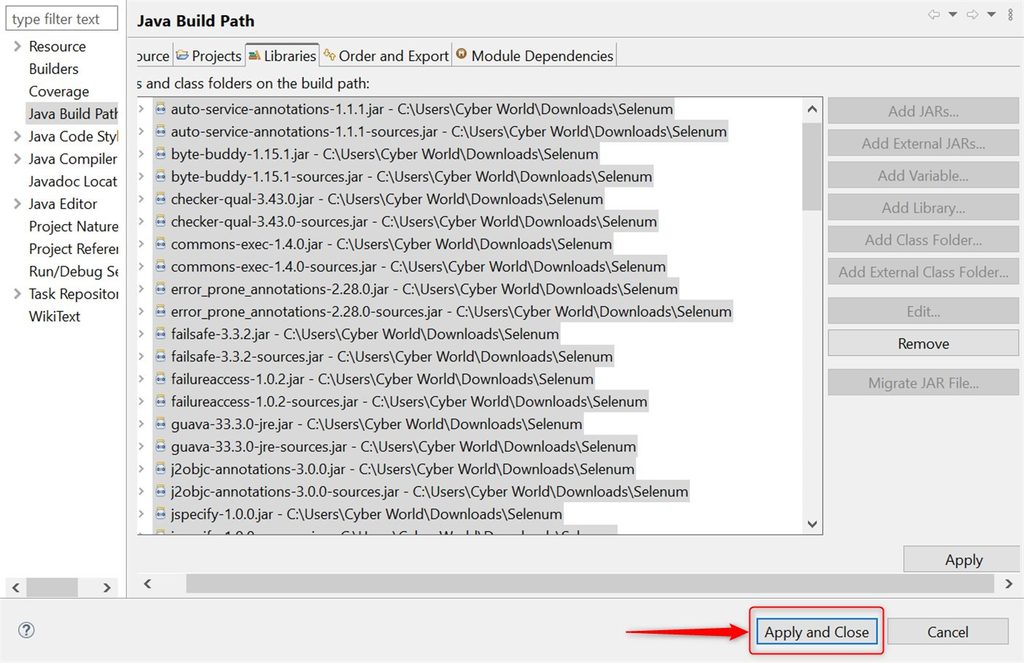
- Click Apply and Close.
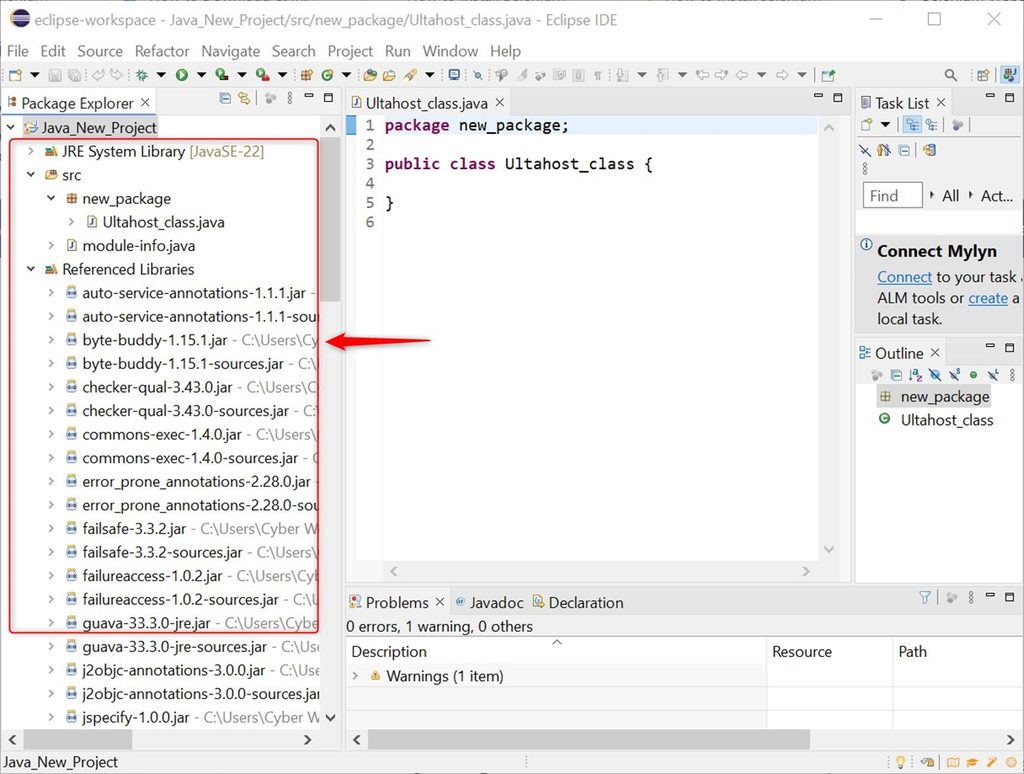
Step 5: Add a browser driver
Modern Selenium (4.6 and later) downloads the driver for Chrome, Firefox and Edge by itself with Selenium Manager. For older versions, download chromedriver.exe and set its path in your code.
A first test
import org.openqa.selenium.WebDriver;
import org.openqa.selenium.chrome.ChromeDriver;

public class FirstTest {
    public static void main(String[] args) {
        WebDriver driver = new ChromeDriver();
        driver.get("https://example.com");
        System.out.println(driver.getTitle());
        driver.quit();
    }
}
Run it with the green Run button.
Selenium for Python
If you prefer Python, install Python and then:
pip install seleniumA first test:
from selenium import webdriver

driver = webdriver.Chrome()
driver.get("https://example.com")
print(driver.title)
driver.quit()
Quick recap
- Install the JDK and Eclipse.
- Add the Selenium jar files to the build path.
- Or use
pip install seleniumfor Python.