

What BlueStacks is
BlueStacks is an Android emulator for Windows. It lets you run Android apps on your PC with a keyboard and a mouse.
Download
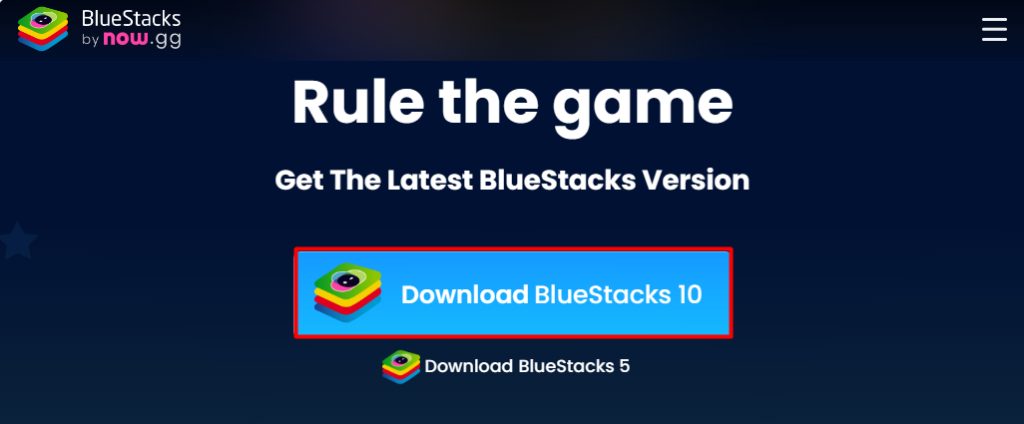
Go to the official BlueStacks website and click Download BlueStacks.
Install
- Open the installer file.
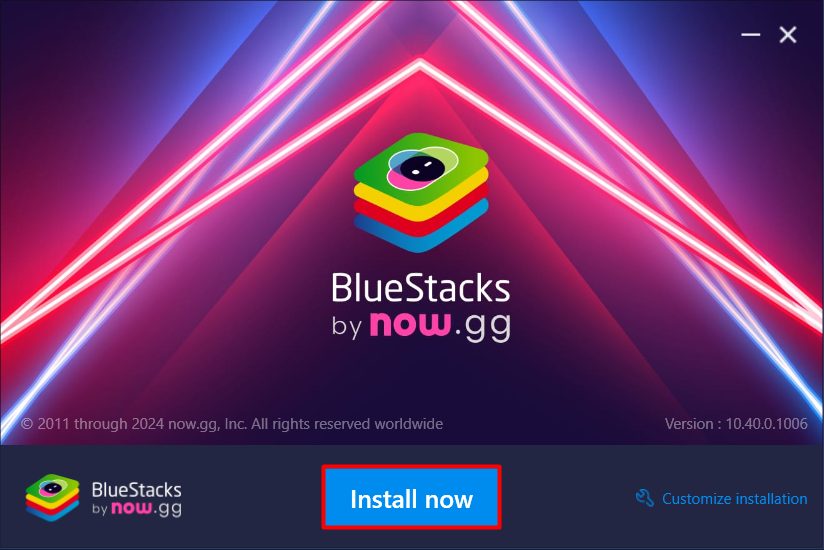
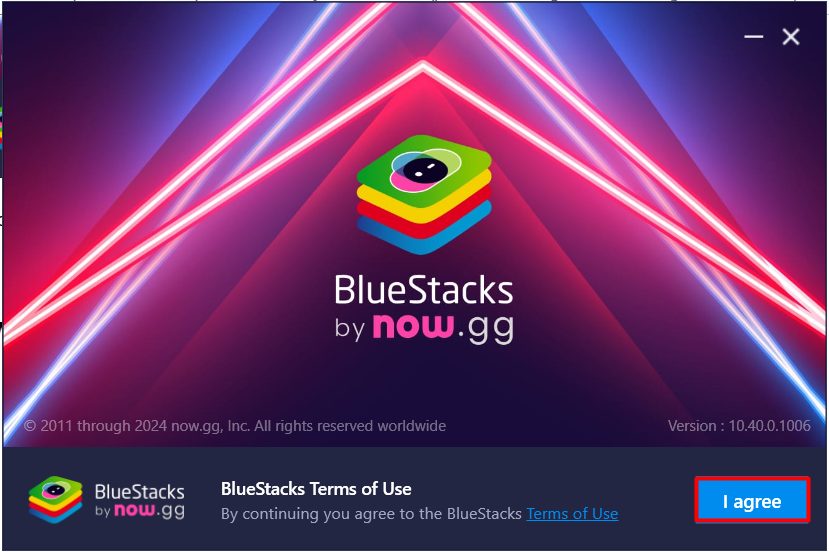
- Accept the terms if you are asked, and choose the install folder, or keep the default.
- Click Install now and wait. It downloads the files it needs.
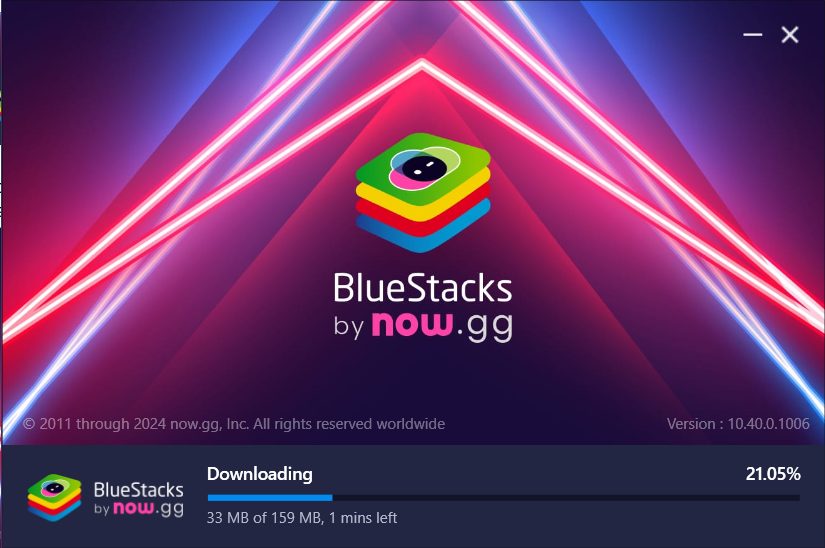
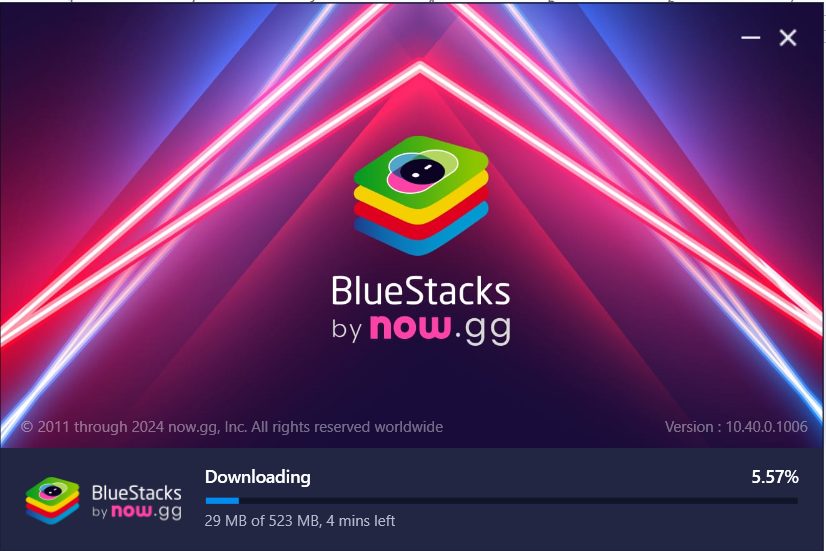
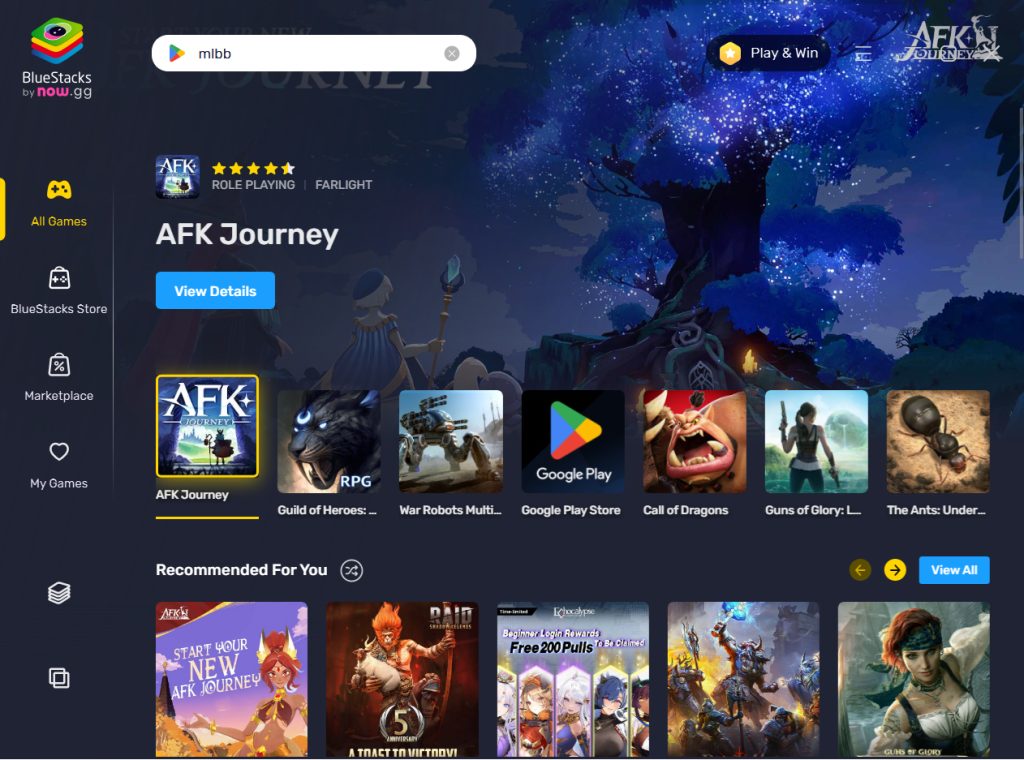
- When it ends, BlueStacks starts. Sign in with your Google account to use the Play Store.

System tips
- Turn on virtualization in the BIOS/UEFI for better speed.
- Have at least 4 GB of RAM and 5 GB of free disk space.
- Update your graphics drivers.
Benefits
- Access to Android apps on a big screen.
- A productivity boost. Use mobile-only apps for work, such as messengers and business apps.
- Good for testing. Developers can test apps on different Android versions.
Features
- Multi-instance support. Run several Android instances at once.
- Customization. Change the keys, screen size and more.
- Performance settings. Choose how much CPU and RAM to give.
Quick recap
- Download the installer, run it and click Install now.
- Sign in with a Google account.
- Give it enough RAM and turn on virtualization.