

Note: Use Burp Suite only on sites and apps that you own or are allowed to test.
System requirements
- Operating system: Windows 7 or later (64-bit).
- RAM: at least 4 GB (8 GB is better).
- Disk space: at least 1 GB.
- Java: the Windows installer of Burp includes its own Java runtime, so you do not need to install Java first.
Download
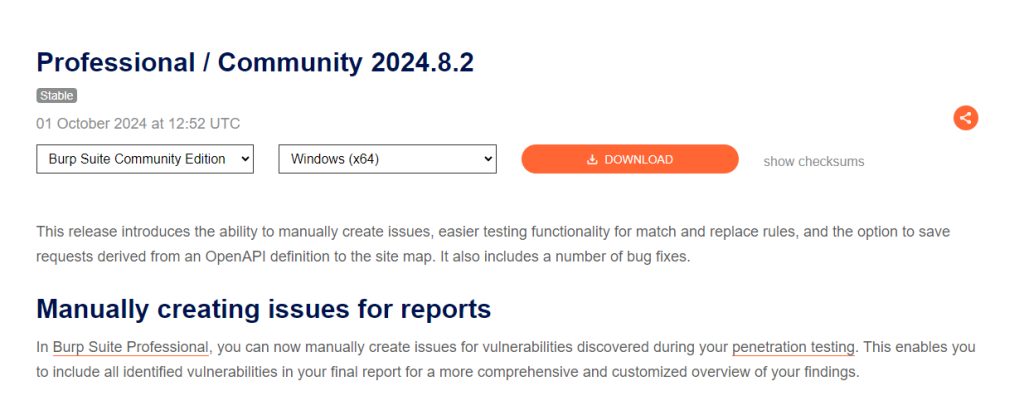
Open the official PortSwigger page for Burp Suite and download the Community Edition for Windows.
Install
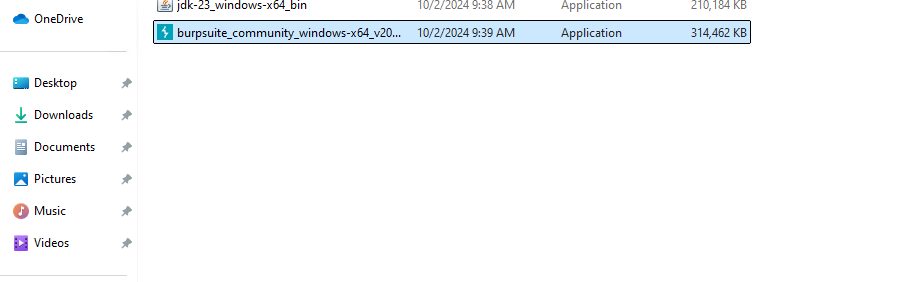
- Open the installer file in your Downloads folder.
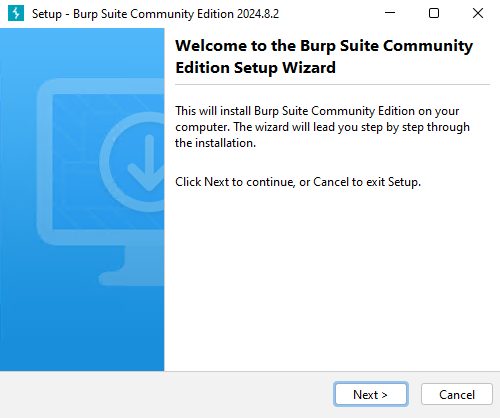
- The setup wizard opens. Click Next.
- Accept the license agreement.
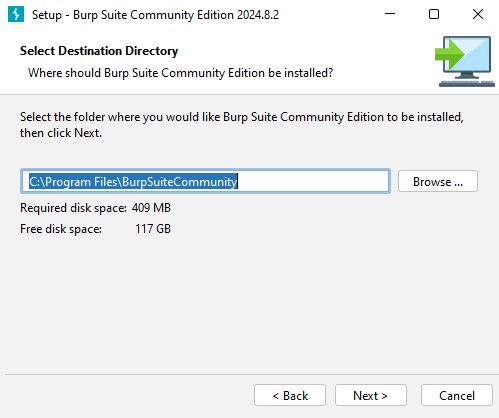
- Choose the destination folder.
- Choose the Start Menu folder for the shortcuts.
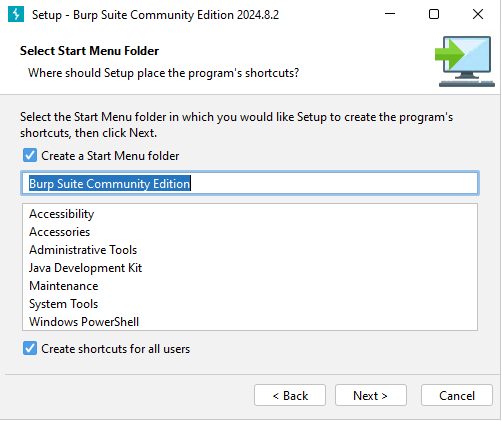
- Click Next to install. This can take a few minutes.
- Click Finish.
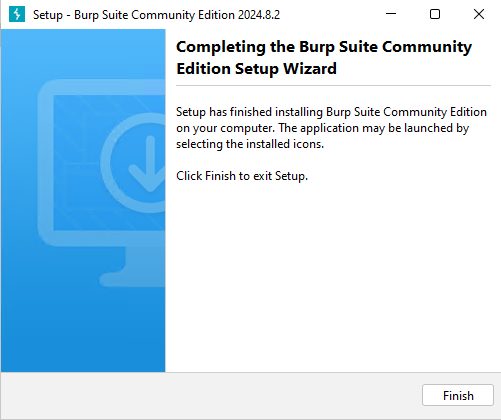
Start Burp Suite
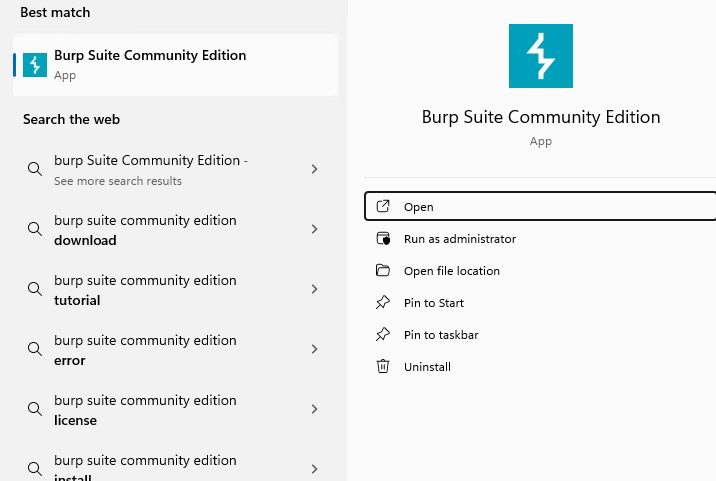
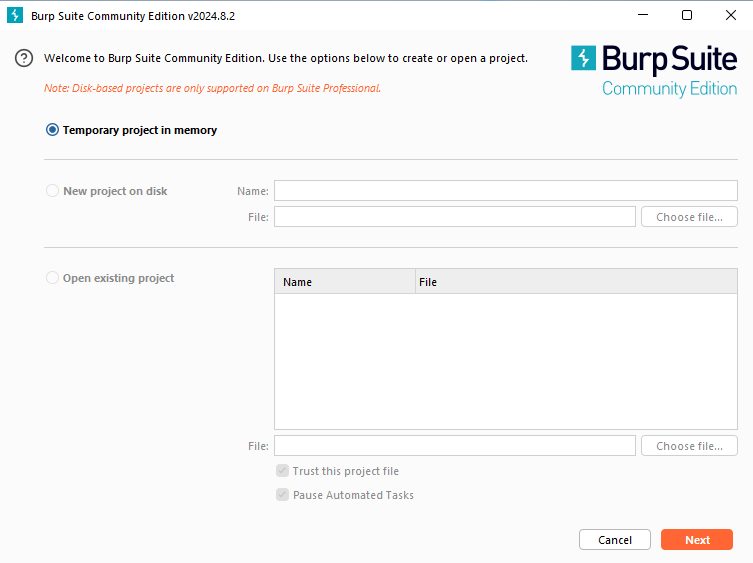
Open it from the Start menu. Choose Temporary project and Use Burp defaults, then click Start Burp.
Configure the browser proxy
Burp listens on 127.0.0.1 port 8080. Set your browser (for example Firefox) to use that proxy:
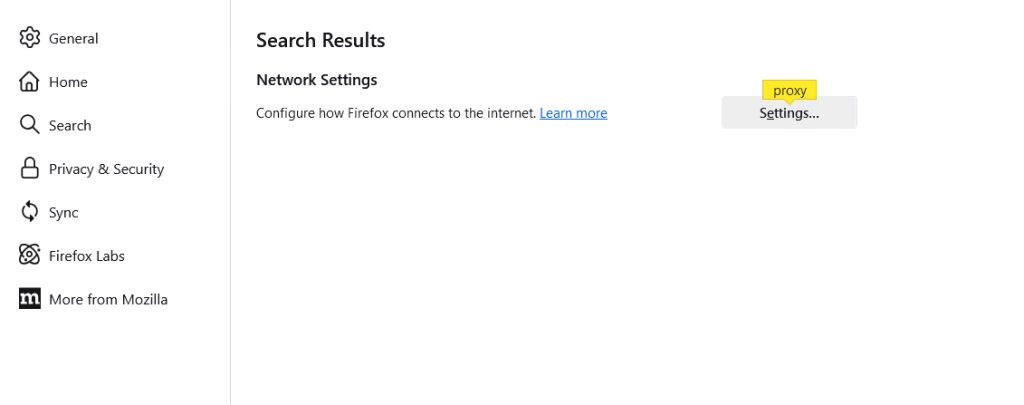
- In Firefox, open Settings, search for Network Settings and click Settings.
- Choose Manual proxy configuration. Set HTTP Proxy to
127.0.0.1and Port to8080, and tick Also use this proxy for HTTPS.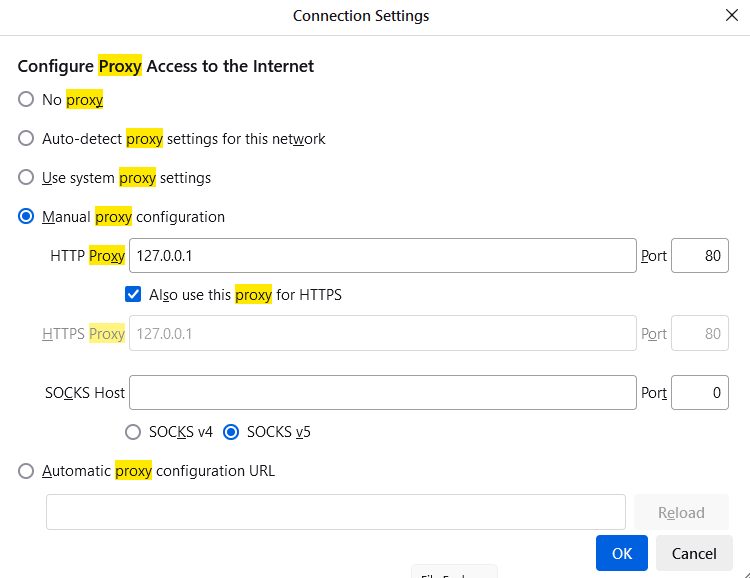
Install Burp's CA certificate
To intercept HTTPS traffic without errors, the browser must trust the Burp certificate.
- With the proxy on, open
http://burpsuitein the browser and click CA Certificate to download it.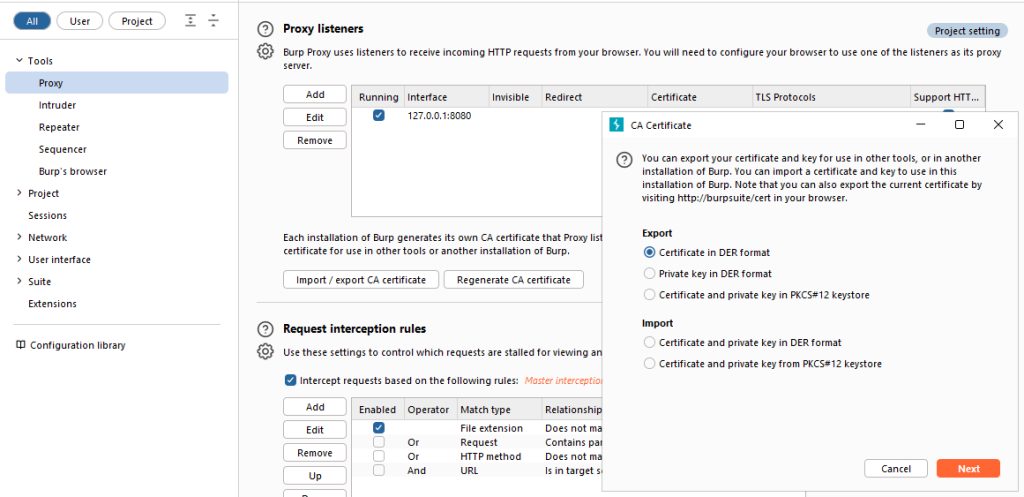
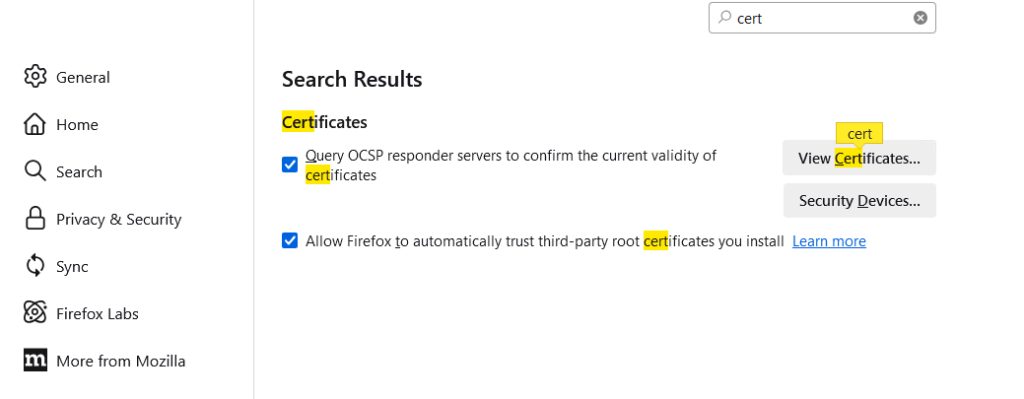
- In Firefox, open Settings, Privacy & Security, and click View Certificates.
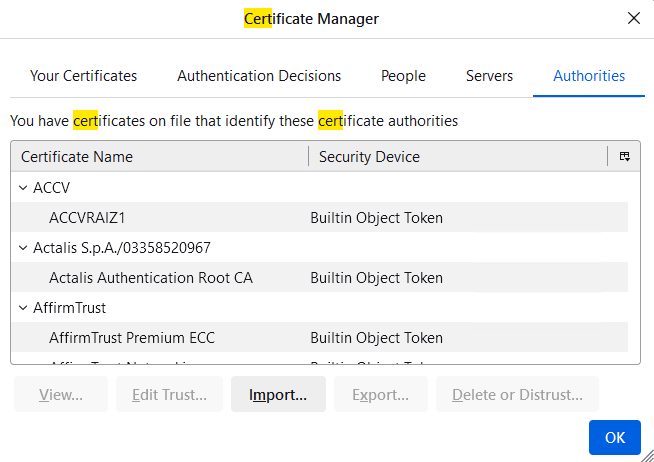
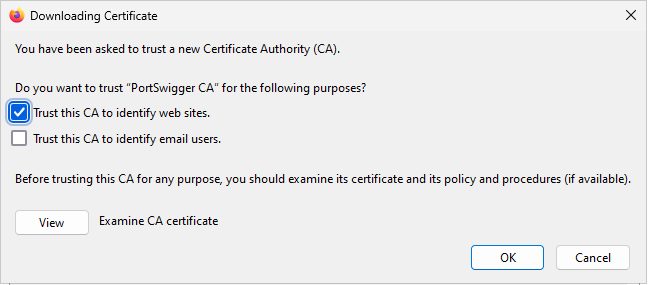
- Click Import, choose the Burp certificate and tick Trust this CA to identify websites.
Use Burp Suite
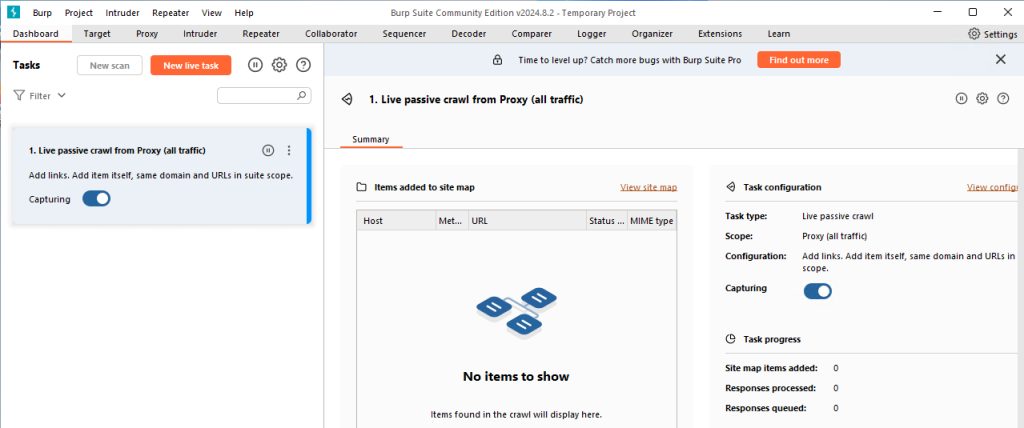
- Proxy. Intercept and change the traffic between your browser and the target.
- Scanner. Looks for vulnerabilities automatically (Professional edition).
- Intruder. Sends automated requests (limited in Community).
- Repeater. Change a request by hand and send it again.
- Sequencer. Checks how random session tokens are.
- Decoder. Encodes and decodes data.
- Comparer. Compares two sets of data.
Troubleshooting
- Check your browser's proxy settings.
- Some firewall or antivirus programs block Burp Suite. Allow it.
- Remember to turn off the proxy in the browser when you finish.
Quick recap
- Download the installer and run it.
- Set the browser proxy to
127.0.0.1:8080. - Import the Burp CA certificate to inspect HTTPS.