

What Chocolatey is
Chocolatey installs, updates and removes Windows programs from the command line, like apt on Linux. It helps admins and developers set up machines fast and the same way every time.
Method 1: Command Prompt
Step 1. Open Command Prompt as administrator.
Step 2. Run the official install command from the Chocolatey website. It looks like this:
@"%SystemRoot%\System32\WindowsPowerShell\v1.0\powershell.exe" -NoProfile -InputFormat None -ExecutionPolicy Bypass -Command "[System.Net.ServicePointManager]::SecurityProtocol = 3072; iex ((New-Object System.Net.WebClient).DownloadString('https://community.chocolatey.org/install.ps1'))" && SET "PATH=%PATH%;%ALLUSERSPROFILE%\chocolatey\bin"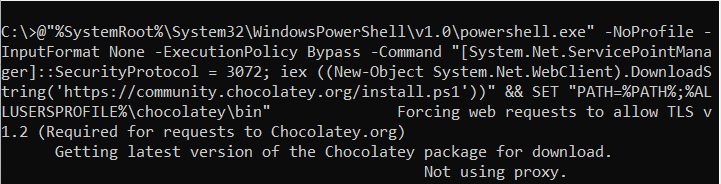
What the script does:
- Turns on TLS 1.2 for web requests.
- Downloads the latest Chocolatey package.
- Extracts and installs it.
- Sets the
ChocolateyInstallenvironment variable. - Sets up the package repository.
- Creates a shim for the
chococommand. - Adds Chocolatey to the PATH.
You may see notes to close and reopen your shell. Do that, then check:
choco -v
Method 2: PowerShell
Step 1. Open PowerShell as administrator.
Step 2. Check the execution policy:
Get-ExecutionPolicy
If it says Restricted, change it.
Step 3. Set the policy. AllSigned is safer, Bypass is less strict:
Set-ExecutionPolicy AllSigned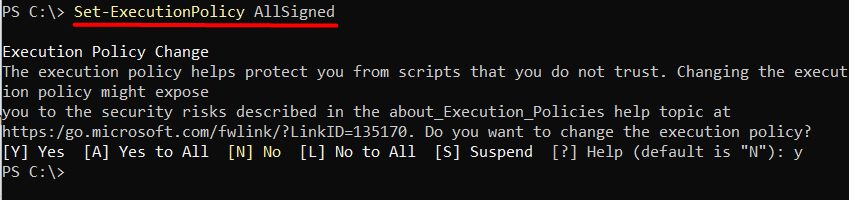
Set-ExecutionPolicy Bypass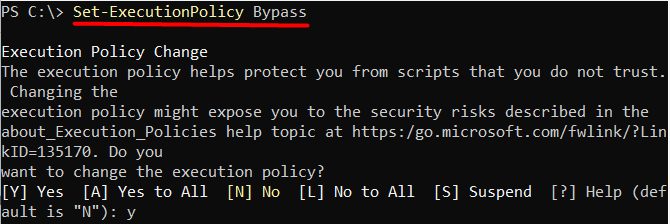
Step 4. Run the install command (from the Chocolatey website):
Set-ExecutionPolicy Bypass -Scope Process -Force; [System.Net.ServicePointManager]::SecurityProtocol = [System.Net.ServicePointManager]::SecurityProtocol -bor 3072; iex ((New-Object System.Net.WebClient).DownloadString('https://community.chocolatey.org/install.ps1'))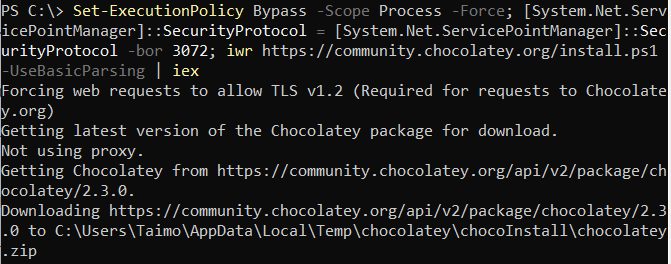
Warning: Read any script before you run it. Always get the install command from the official Chocolatey page.
Common commands
| Command | What it does |
|---|---|
choco install <package> | Installs a package and what it needs |
choco upgrade <package> | Upgrades a package (choco upgrade all upgrades everything) |
choco uninstall <package> | Removes a package |
choco search <word> | Searches the repository |
choco list | Lists installed packages |
Example:
choco install git -yUse cases
- DevOps and CI. Install tools on build machines automatically.
- IT administration. Manage software on many computers.
- Personal use. Set up a new PC with one script.
Best practices
- Keep Chocolatey updated:
choco upgrade chocolatey. - Install packages only from trusted sources.
- Update your packages often.
Quick recap
- Run the official install command as administrator.
- Check with
choco -v. - Use
choco installfor software.