

What Code::Blocks is
Code::Blocks is a free, open-source IDE (development environment) for C, C++ and Fortran. It runs on Windows, Linux and macOS.
Step 1: Download the installer
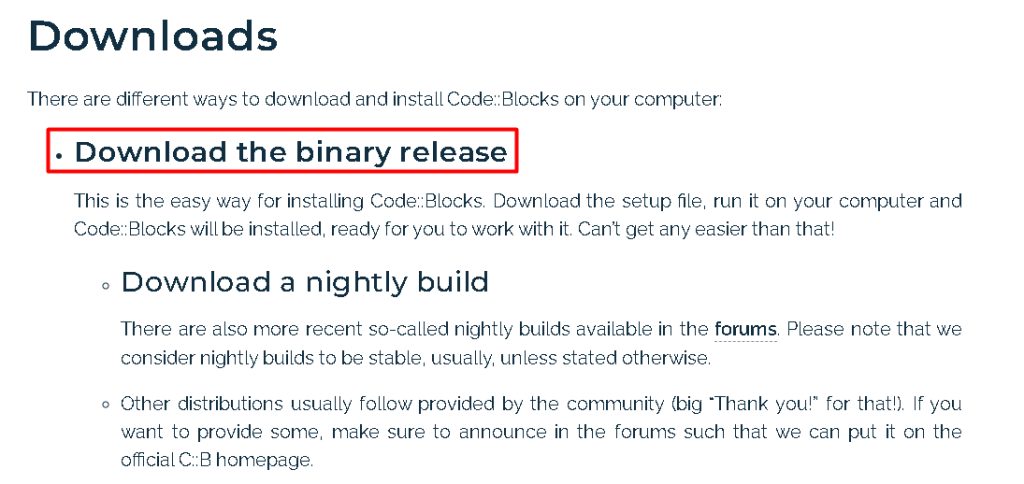
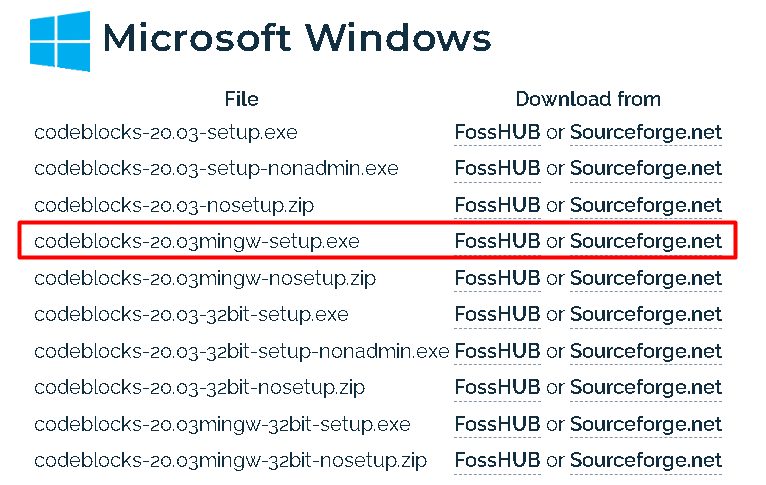
Open the official Code::Blocks website, go to Downloads and choose Download the binary release. For Windows pick the file with the name that contains mingw (for example codeblocks-20.03mingw-setup.exe). It includes the GCC compiler.
Step 2: Run the installer
Open the downloaded file and click Next.
Step 3: Choose the installation options
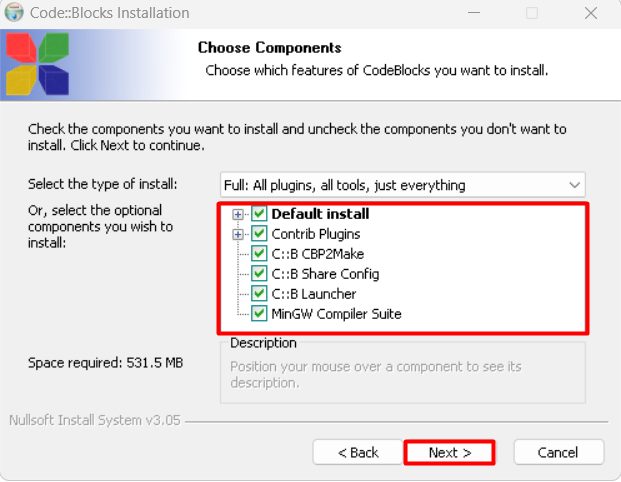
Accept the license and choose the components. The default (Full) is a good choice.
Step 4: Install the compiler and plugins
Keep the plugins ticked. Make sure the MinGW compiler is part of the install.
Step 5: Complete the installation
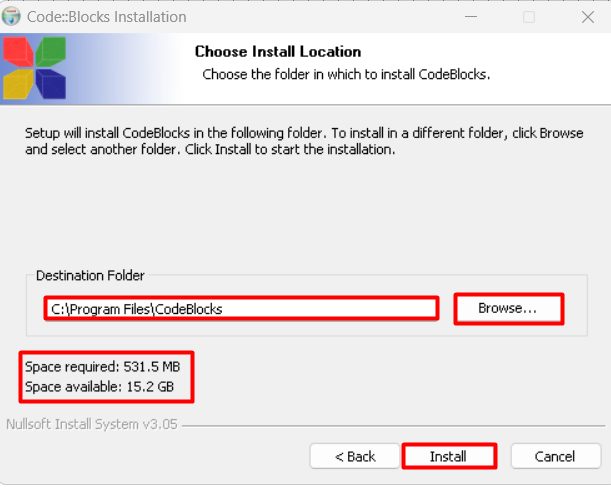
Click Install and wait. Finish the wizard and start Code::Blocks.
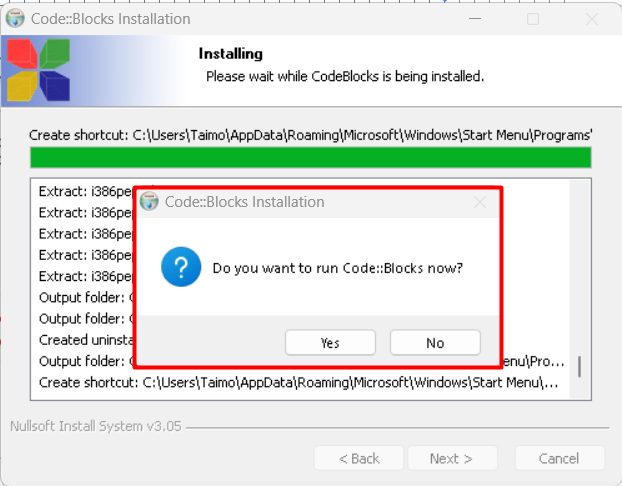
Step 6: First start
On the first start, Code::Blocks looks for compilers. Choose GNU GCC Compiler and click Set as default. You can start a new project with File, then New, then Project.
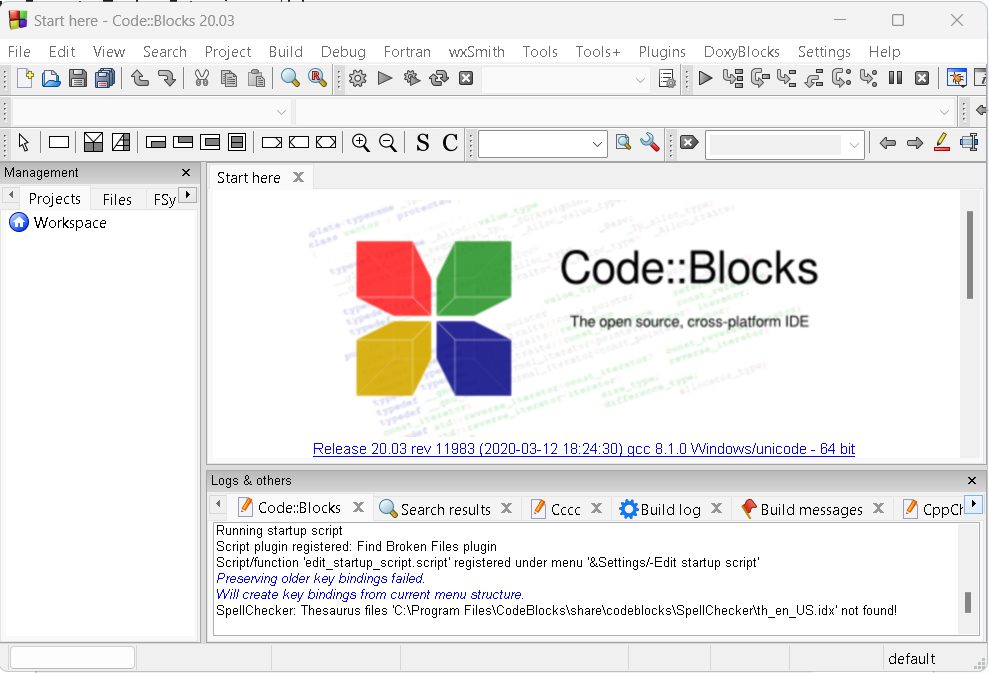
A first program
Create a Console application with C++ and use this code:
#include <iostream>
int main() {
    std::cout << "Hello, world!" << std::endl;
    return 0;
}
Press F9 to build and run.
Features
- Project management with many files and targets.
- Syntax highlighting and code completion.
- Debugging and testing with a built-in debugger.
- Plugins to extend the IDE.
- Better productivity with templates and shortcuts.
Troubleshooting
- If it says "compiler not found", download the installer with MinGW, or set the compiler path under Settings, Compiler.
- Run the installer as administrator if it fails.
- Use a path without spaces for your projects.
Quick recap
- Download the setup with mingw in its name.
- Set GNU GCC as the default compiler.
- Press
F9to build and run.