

Requirements
- Windows 7 or later.
- Administrator rights to install.
Method 1: Check the built-in curl
Windows 10 (version 1803 and later) and Windows 11 include curl.exe.
- Open the Start menu, type
cmdand open Command Prompt. - Type:
curl --version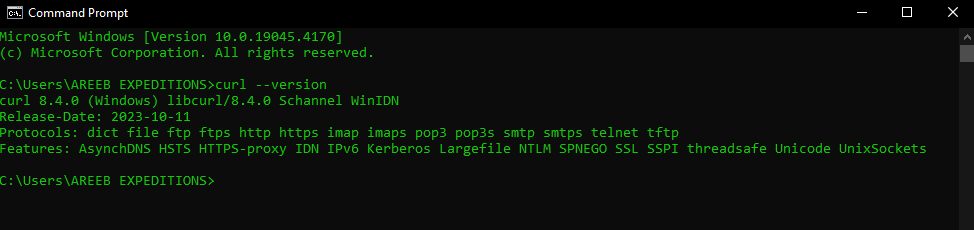
- If curl is there, you see the version number and you are done.
Method 2: Manual installation
- Go to the official curl website and download the Windows build (a zip file).
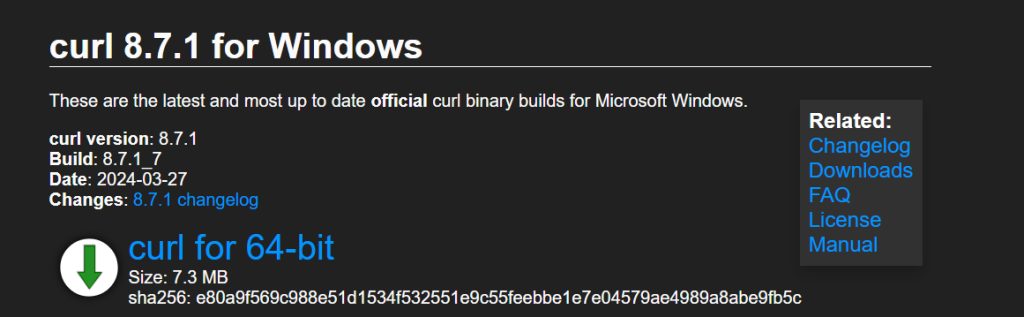
- Extract the zip to a folder, for example
C:\curl. Thecurl.exefile is in thebinfolder.
Add curl to the PATH
- Search for System Properties (or environment variables) in the Start menu.
- Click Environment Variables.
- Under System variables, select Path and click Edit.
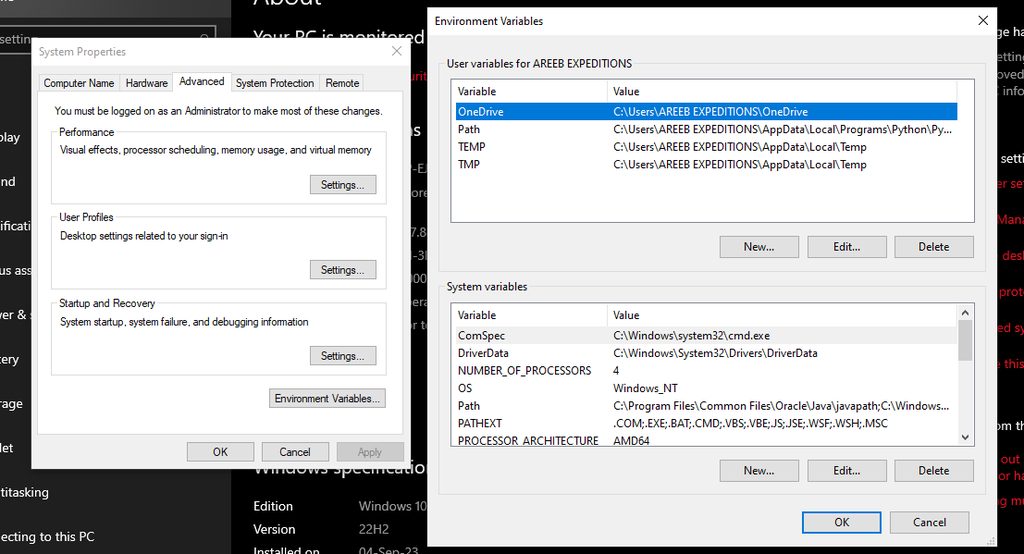
- Click New and add the path to the
binfolder, for exampleC:\curl\bin.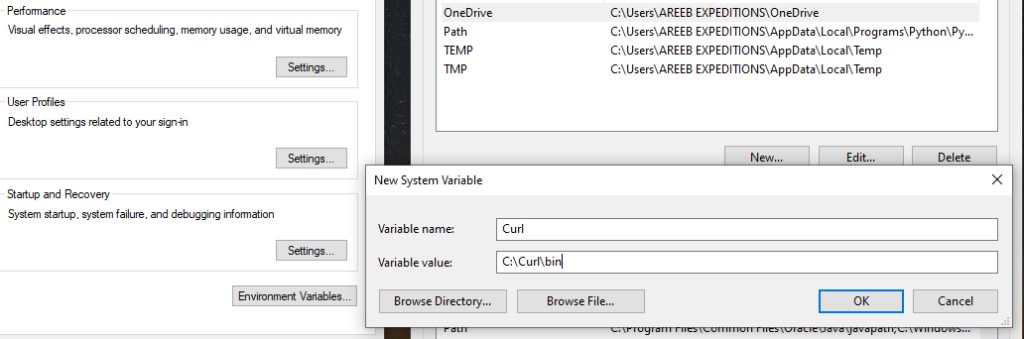
- Click OK in all windows.
- Open a new Command Prompt and check:
curl --versionMethod 3: Chocolatey
If you have the Chocolatey package manager, open PowerShell as administrator and run:
choco install curlUse curl
Get a web page:
curl example.com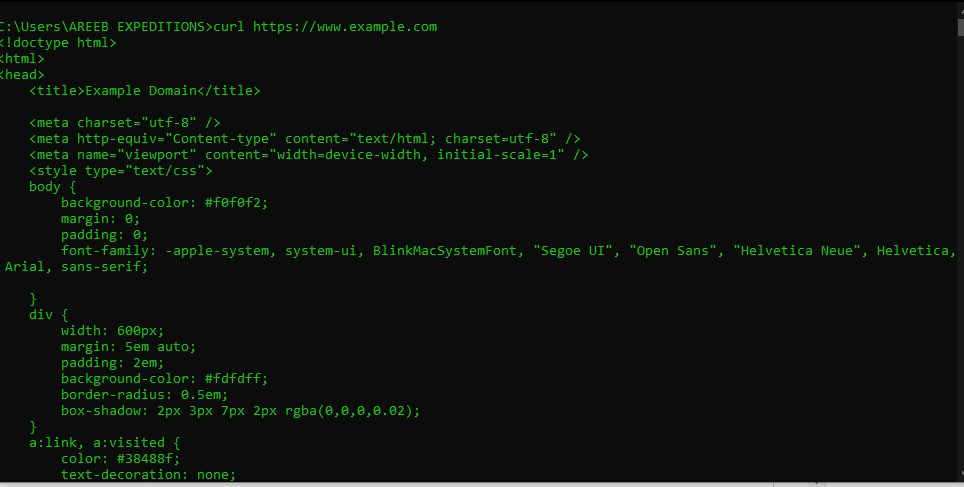
More examples:
curl -I https://example.com
curl -O https://example.com/file.zip
curl -X POST -d "name=test" https://example.com/form-Ishows only the headers.-Osaves the file with its remote name.-X POST -dsends data.
Note: In Windows PowerShell 5,
curl is an alias for Invoke-WebRequest. To use the real curl, type curl.exe.Quick recap
- Windows 10 and 11 already have
curl.exe. - Otherwise download it and add it to the PATH, or use
choco install curl. - Use
curl.exein PowerShell.