

Requirements
You need PHP on your computer. Check:
php -v
If PHP is not installed, install it first (for example with XAMPP, or by unzipping PHP from windows.php.net and adding its folder to the PATH). Check again after the install.

Download Composer
Go to the Composer website and download Composer-Setup.exe.
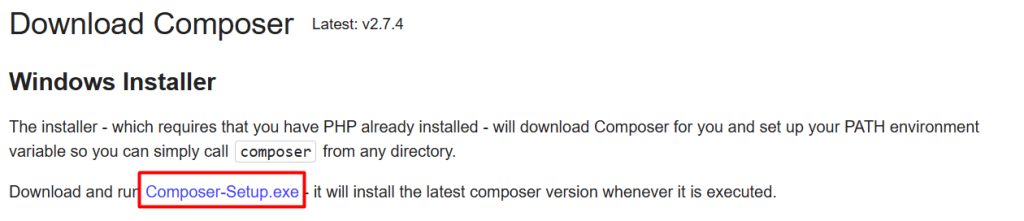
Run the installer
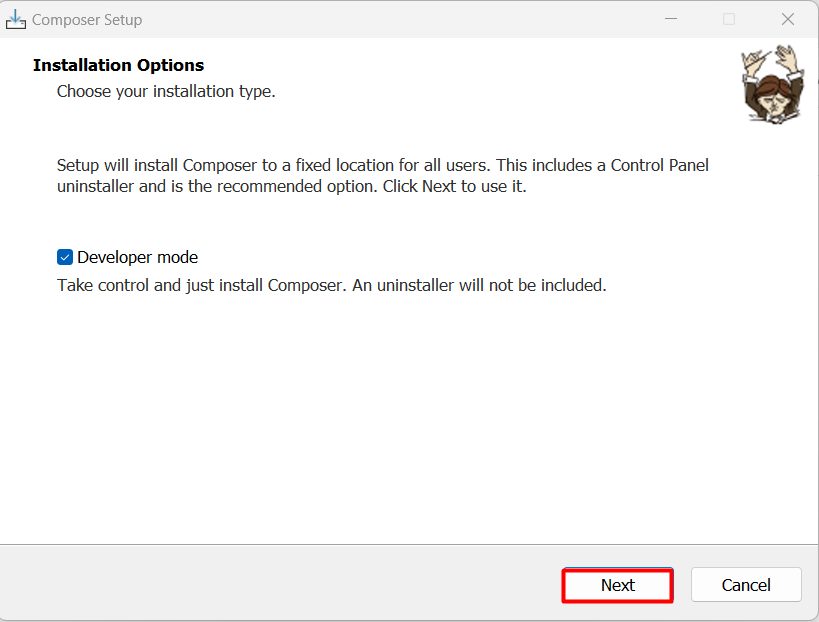
- Choose the install mode. Install for all users (needs admin rights) is the usual choice. Developer mode installs Composer in a way that lets you edit its files; it is for people who work on Composer itself.
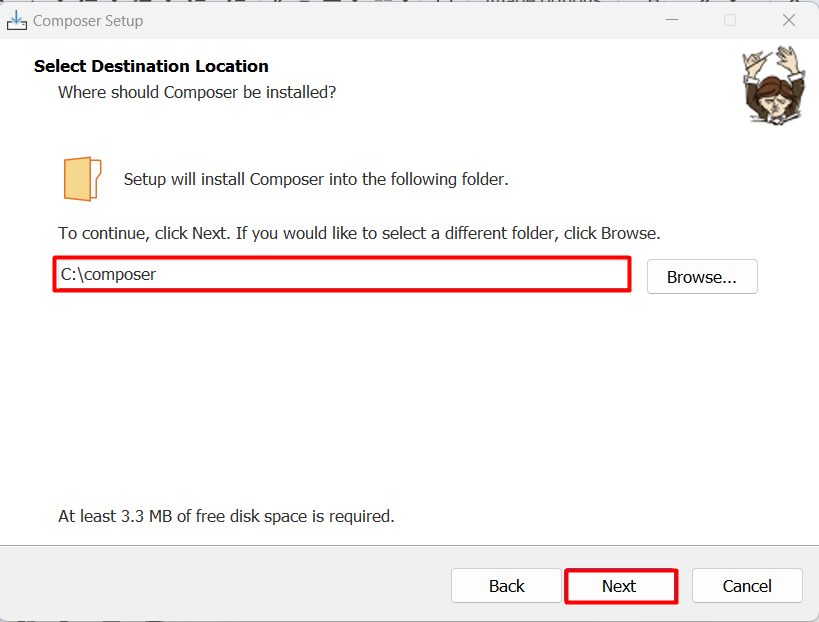
- Choose the install path for Composer.
- Choose the PHP executable. Point the installer to your
php.exe. If PHP is in the PATH, it finds it by itself. The installer may warn you about settings inphp.ini, such as theopensslextension. Fix them if it asks.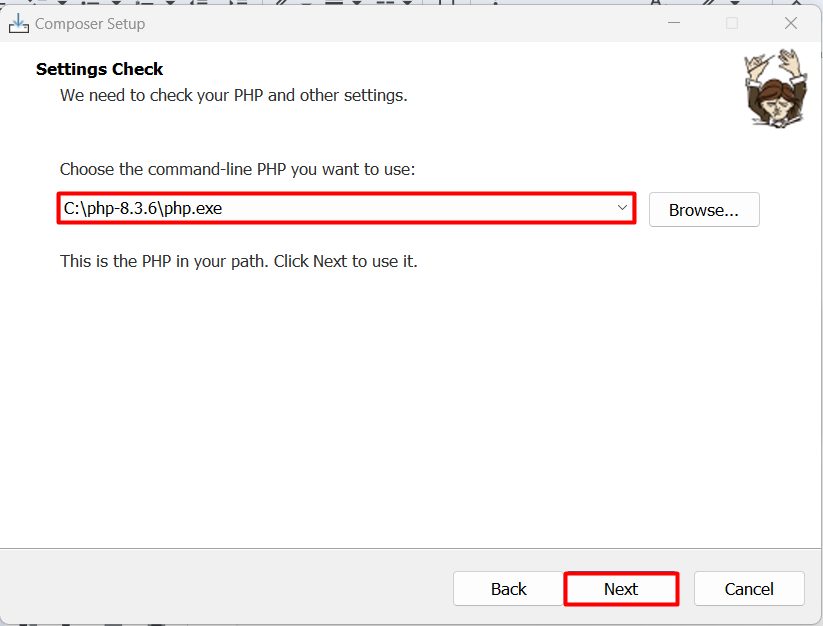
- Proxy settings. If you use a proxy, enter it. If not, leave it blank.
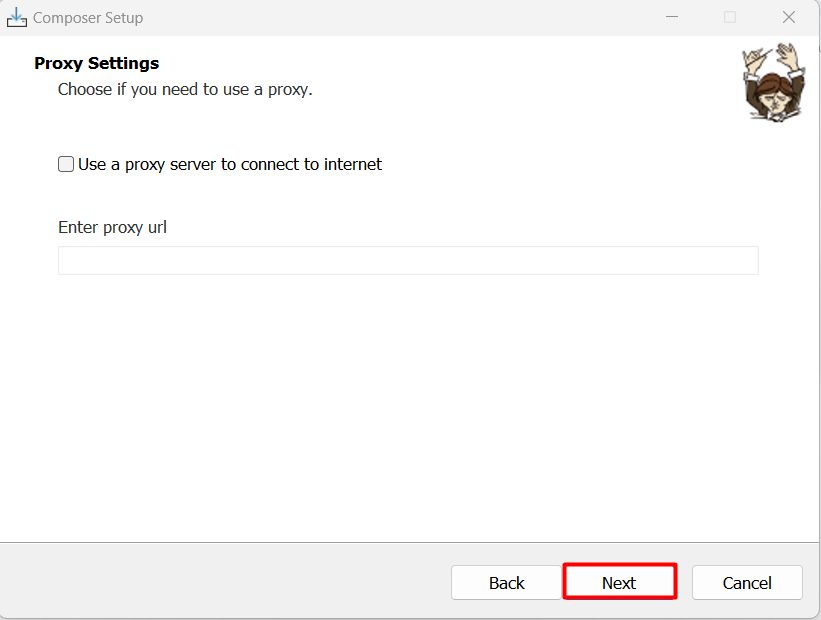
- Review and install.
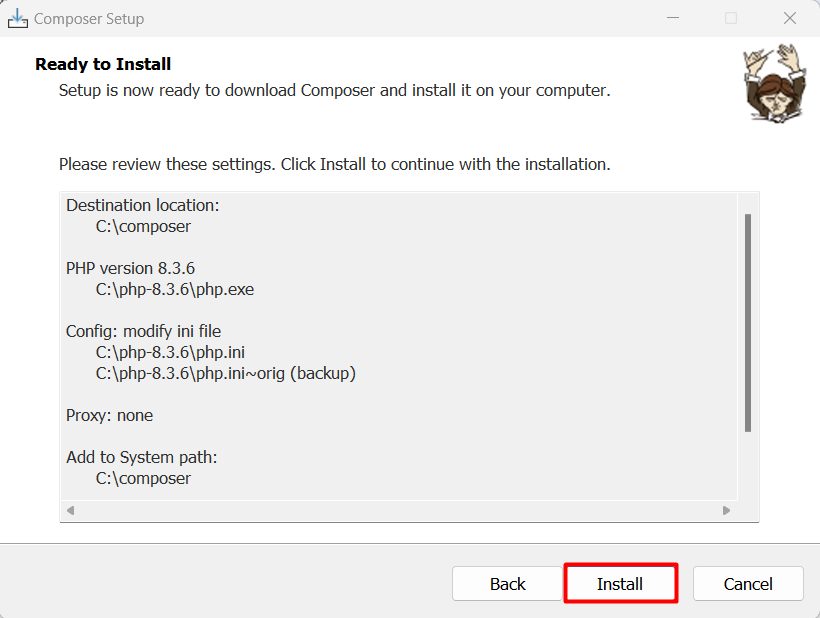
- Read the summary of the environment changes, and click Install.
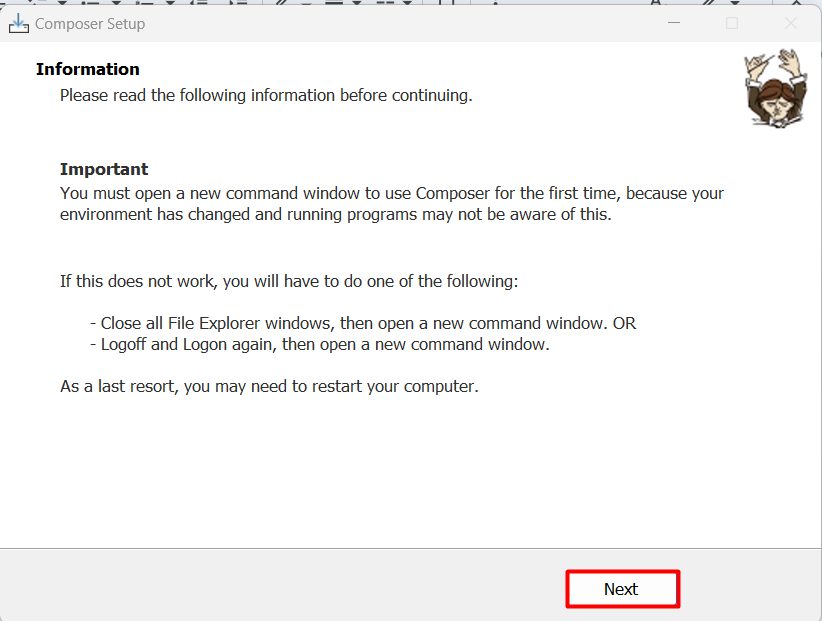
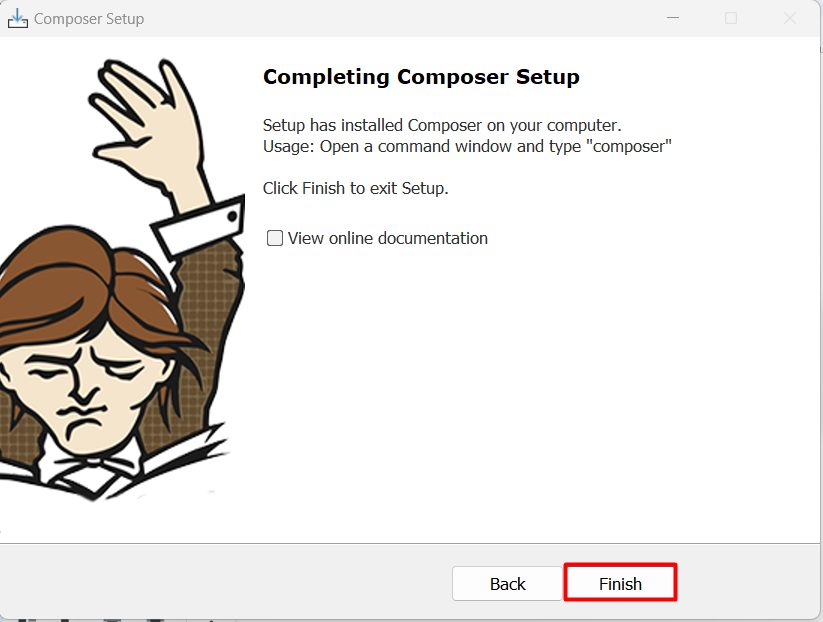
- Click Finish.
The installer adds Composer to the PATH.
Check the install
Open a new Command Prompt and run:
composer -V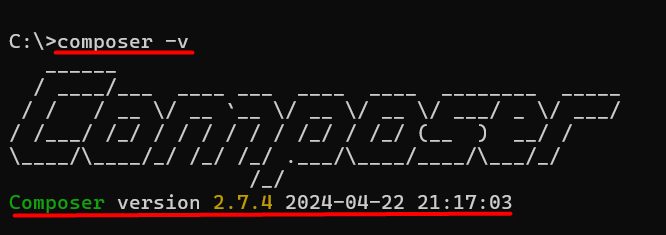
Use Composer
composer init
composer require vendor/package
composer install
composer update
Quick recap
- Install PHP first and check
php -v. - Run
Composer-Setup.exe. - Check with
composer -Vin a new Command Prompt.