

What Dev-C++ is
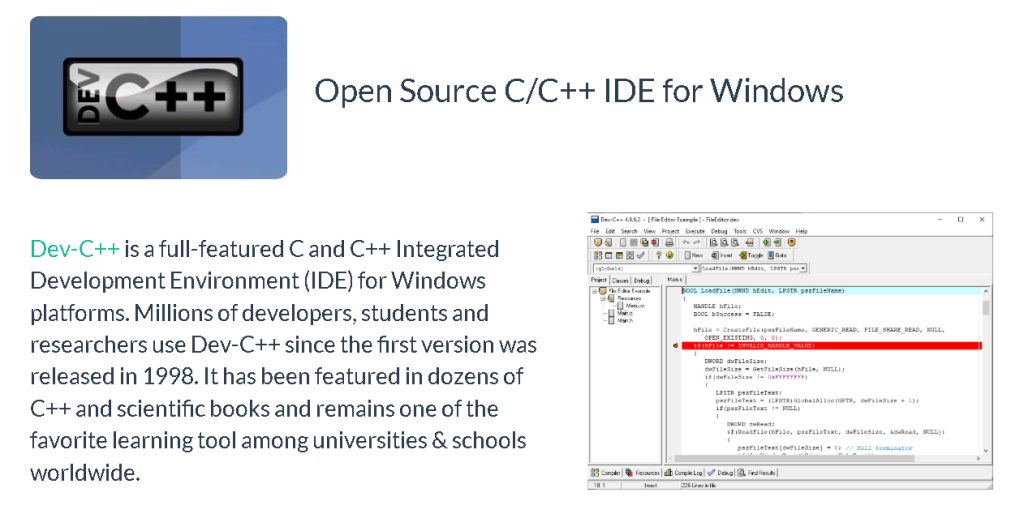
Dev-C++ is a free, open-source IDE for C and C++ on Windows. The installer includes a MinGW (GCC) compiler, so you can write and run programs at once.
Download
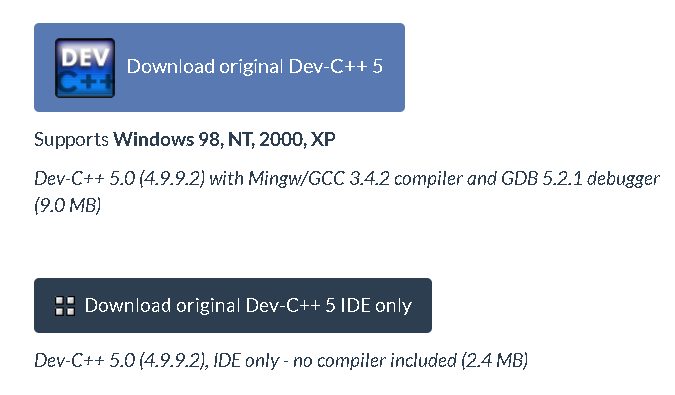
Open the Dev-C++ page on SourceForge (or the Embarcadero Dev-C++ page) and download the installer, for example the Orwell Dev-C++ 5.11 or a later release.
Install
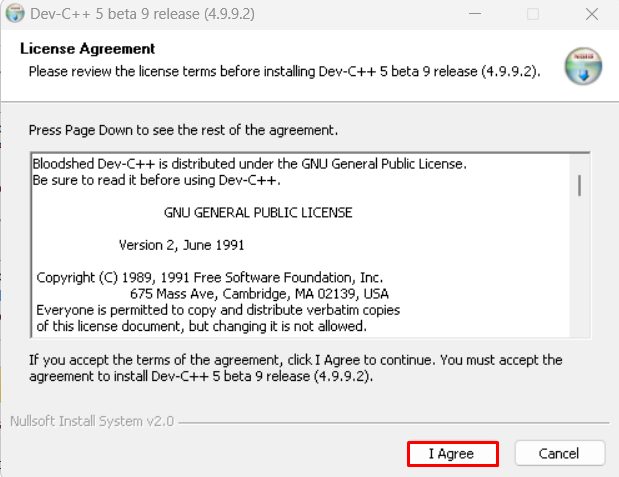
Step 1: Start the installer and accept the license
Run the file, choose the language and accept the license agreement.
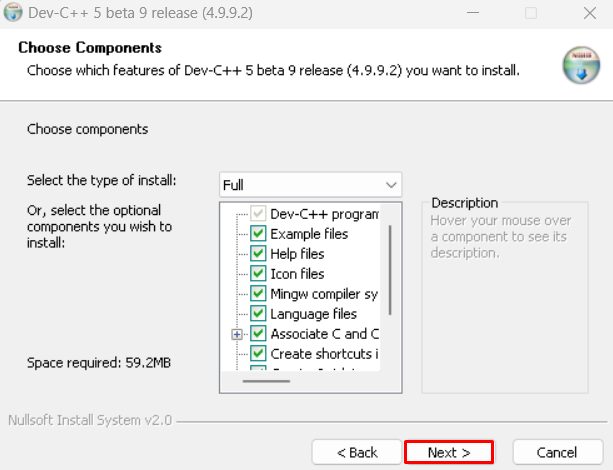
Step 2: Choose the components
- Dev-C++ IDE. The main program for writing and editing code.
- MinGW compiler. Turns your code into programs.
- Documentation. Help files.
- Sample projects. Example projects to learn from.
You can pick Full, Typical or Custom. Full is fine.
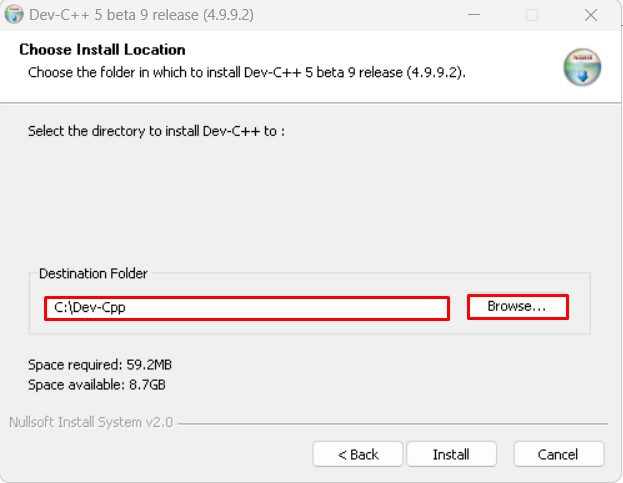
Step 3: Choose the install folder and install
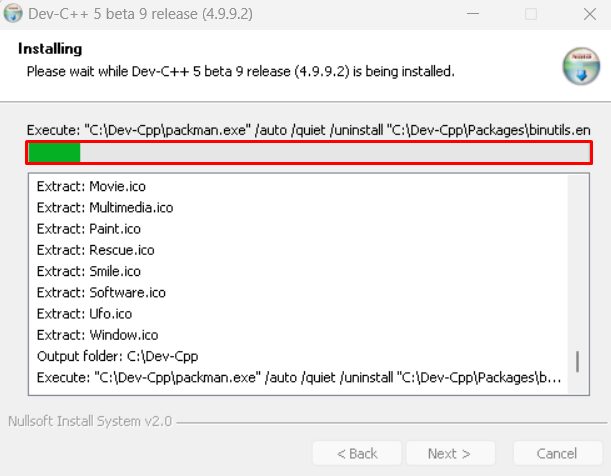
Click Install, and wait.
Step 4: Launch Dev-C++
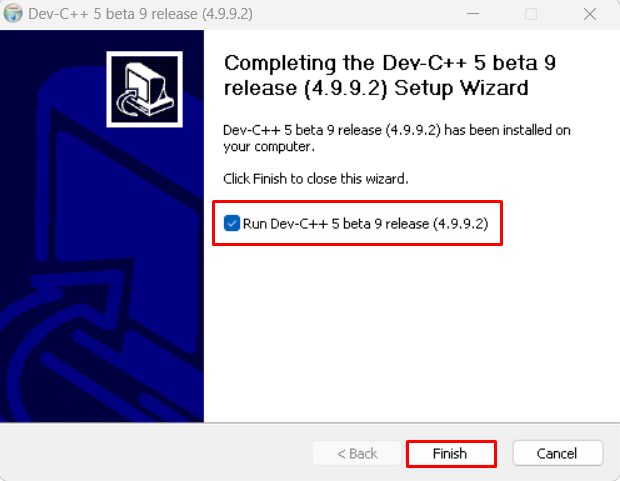
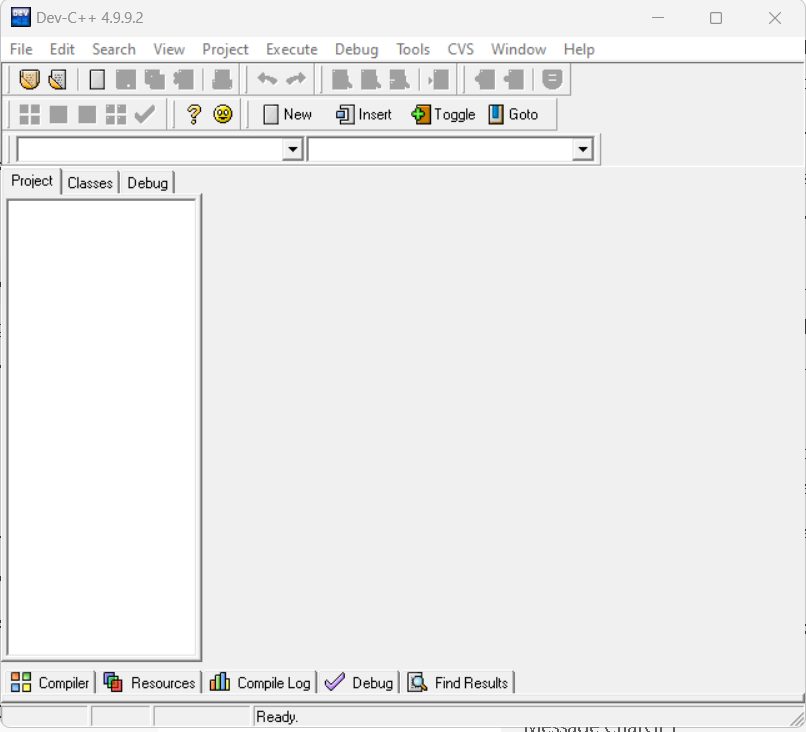
Click Finish with Run Dev-C++ ticked. On the first start, choose your language and theme.
A first program
Choose File, New, Source File and type:
#include <iostream>
using namespace std;

int main() {
    cout << "Hello, world!" << endl;
    return 0;
}
Press F11 to compile and run.
Features
- Integrated compiler (MinGW GCC).
- Code editor with syntax highlighting and code completion.
- Debugging tools.
- Project management.
- Customizable interface.
Quick recap
- Download the installer, keep the MinGW compiler ticked.
- Install and start Dev-C++.
- Press
F11to compile and run.