

System requirements
- Windows 10 (64-bit, version 2004 or newer) or Windows 11.
- A 64-bit processor with virtualization turned on in the BIOS.
- At least 4 GB of RAM.
Step 1: Turn on the WSL feature
Open PowerShell as administrator and run:
dism.exe /online /enable-feature /featurename:Microsoft-Windows-Subsystem-Linux /all /norestart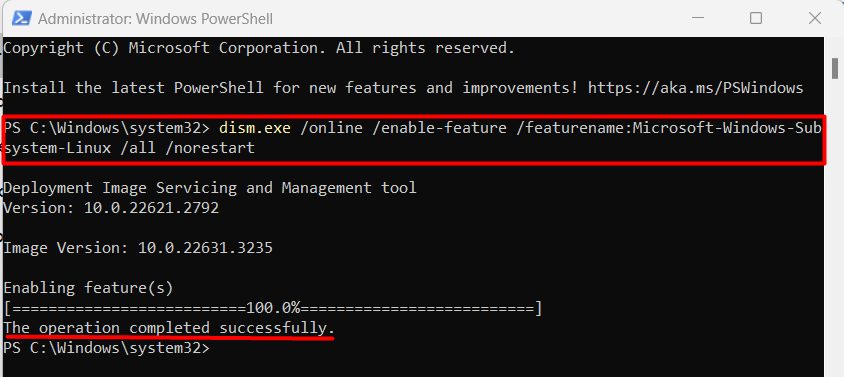
/onlineworks on the running system./enable-featureturns a feature on./featurenamenames the feature./norestartstops an automatic restart.
Step 2: Turn on Virtual Machine Platform
dism.exe /online /enable-feature /featurename:VirtualMachinePlatform /all /norestart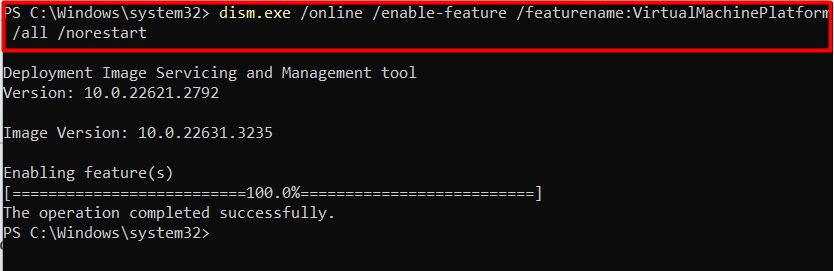
Restart the computer. Then set WSL 2 as the default:
wsl --set-default-version 2Step 3: Install Docker Desktop
- Download Docker Desktop for Windows from the Docker website.
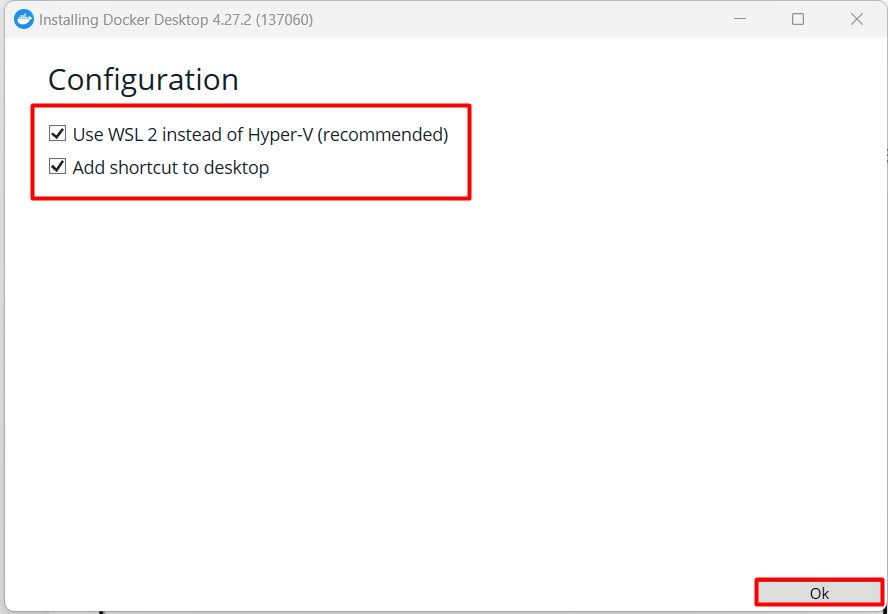
- Run the installer. Keep Use WSL 2 instead of Hyper-V ticked.
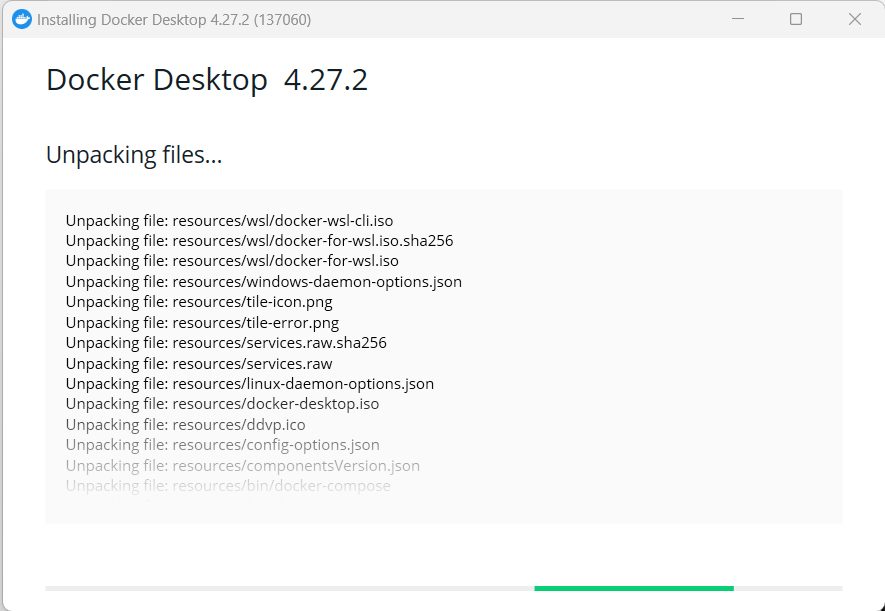
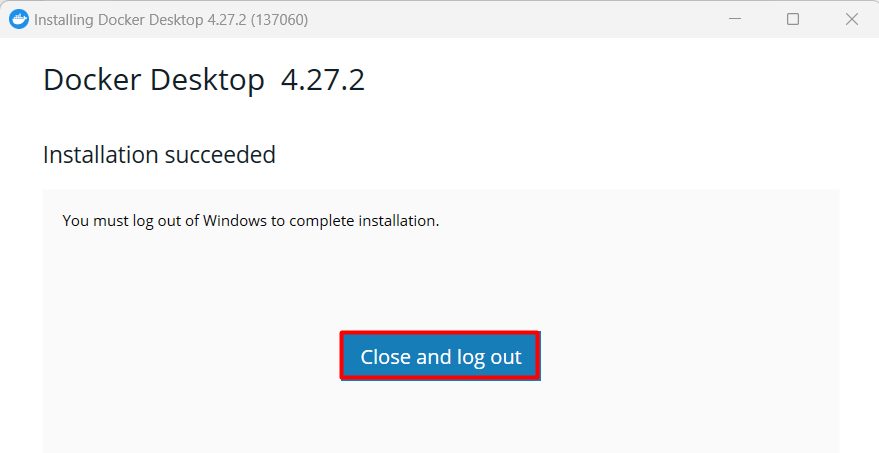
- Wait for it to finish, then click Close and restart if asked.

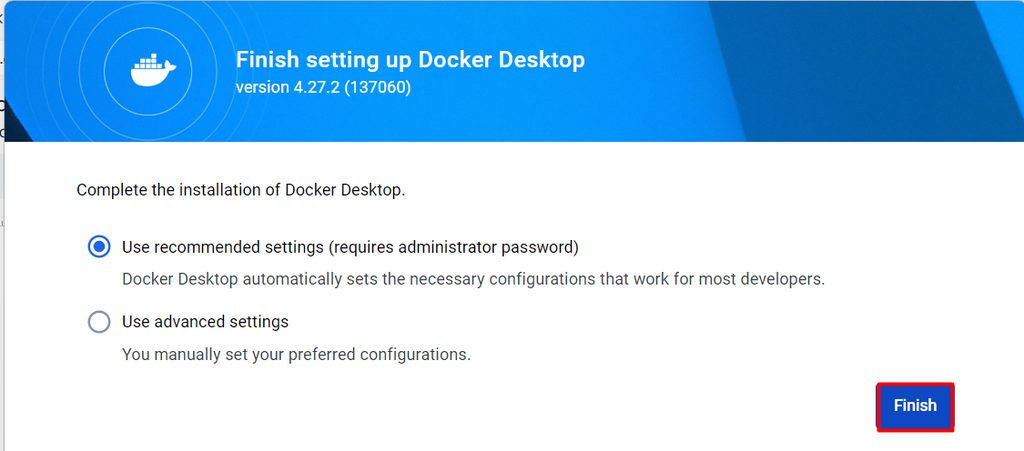
- Start Docker Desktop. Accept the service agreement and keep the recommended settings.
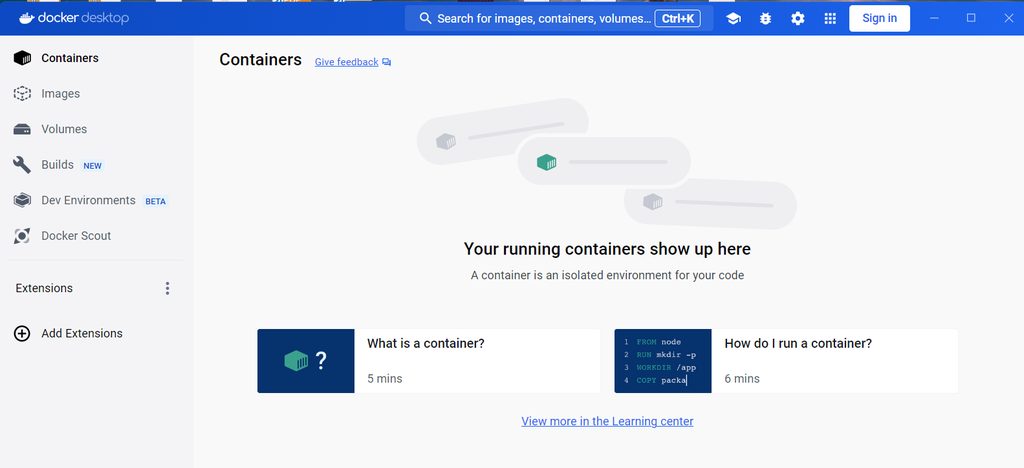
- Docker Desktop opens. You can see your containers there.
Check Docker
Open PowerShell and run:
docker --version
docker run hello-world
If you see a welcome message, Docker works.
What Docker is for
- Portability. Containers behave the same on every system.
- Isolation. Apps and their dependencies are kept apart.
- Efficiency. Containers share the kernel, so they are light.
- Scalability. Start many copies quickly.
- Teamwork. Developers and operators use the same images.
Advantages
- Consistency between development, testing and production.
- Lower resource use than virtual machines.
- Fast start and stop.
Note: Docker Desktop has license terms for larger businesses. Check them for your company.
Quick recap
- Turn on WSL and Virtual Machine Platform, and restart.
- Install Docker Desktop with the WSL 2 backend.
- Test with
docker run hello-world.