

About Eclipse
Eclipse is a free, open-source IDE (development environment). It is best known for Java, and it also supports C/C++, PHP and more through plugins.
The Eclipse Foundation offers several products:
- Desktop IDE packages. Complete IDEs for different languages.
- Eclipse Temurin. OpenJDK builds for running Java.
- Eclipse Che. A cloud IDE.
- Theia. An extensible IDE framework.
- Eclipse Jetty. A Java web server and servlet container.
- Eclipse GlassFish. A Java application server.
Before you start
Eclipse needs a Java runtime (JRE or JDK). Recent Eclipse versions need Java 17 or newer. The Eclipse installer can use an installed JDK; install one first if you do not have it.
Download
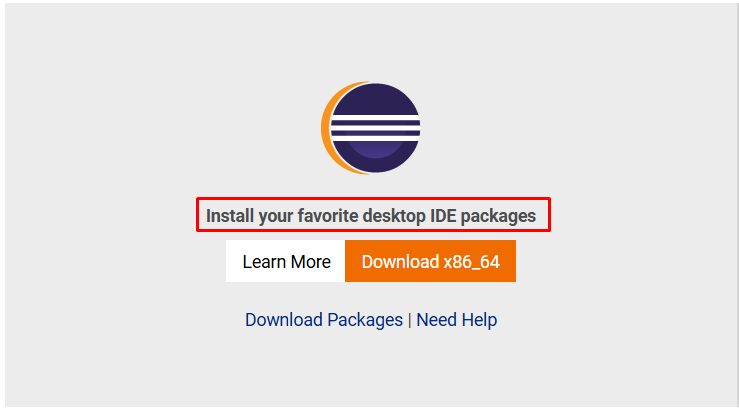
Open the Eclipse download page and download the Eclipse Installer for Windows.
Install
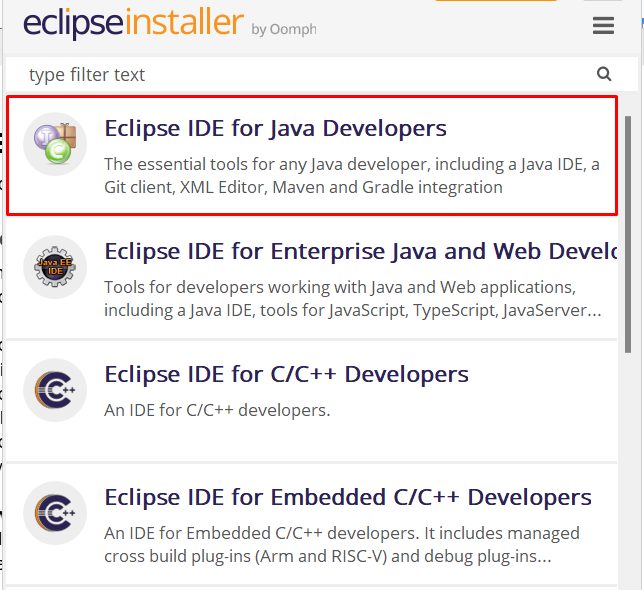
Step 1: Choose the package. Start the installer and choose the IDE package:
- Eclipse IDE for Java Developers. For Java applications.
- Eclipse IDE for Enterprise Java and Web Developers. For web and enterprise apps.
- Eclipse IDE for C/C++ Developers. For C and C++.
- Eclipse IDE for Embedded C/C++ Developers. For embedded systems.
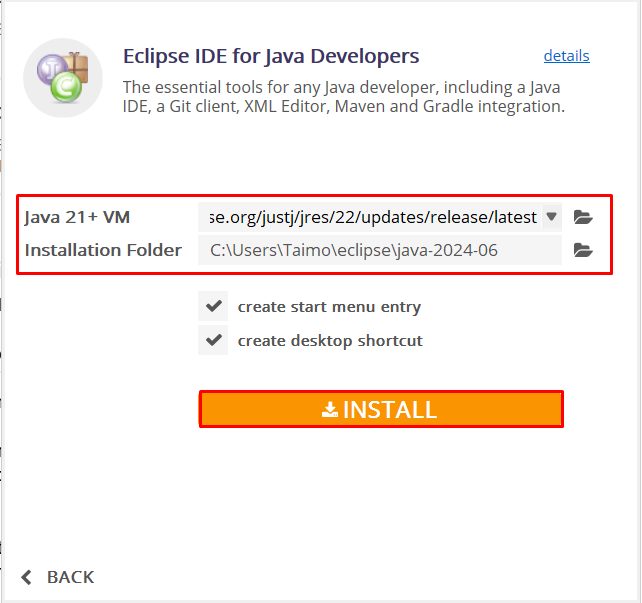
Step 2: Set the installation options. Choose the Java VM and the install folder.
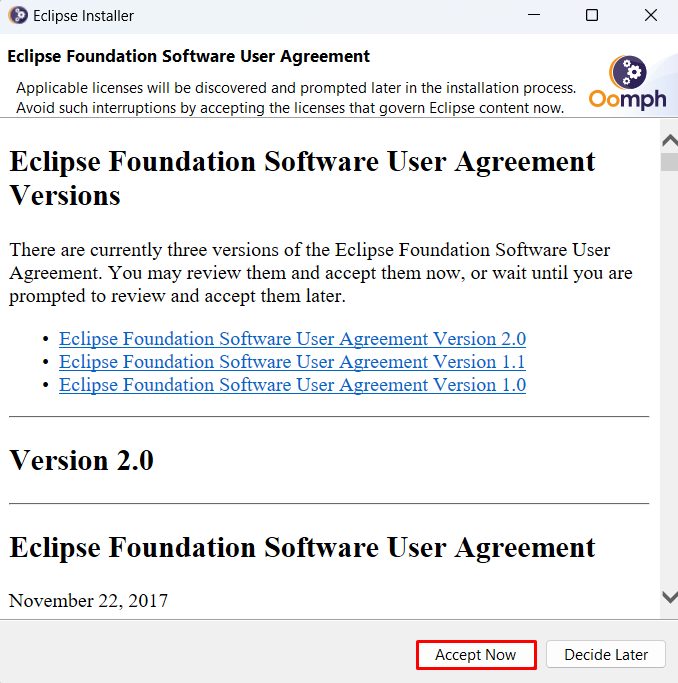
Step 3: Accept the license. Read the software user agreement and click Accept Now.
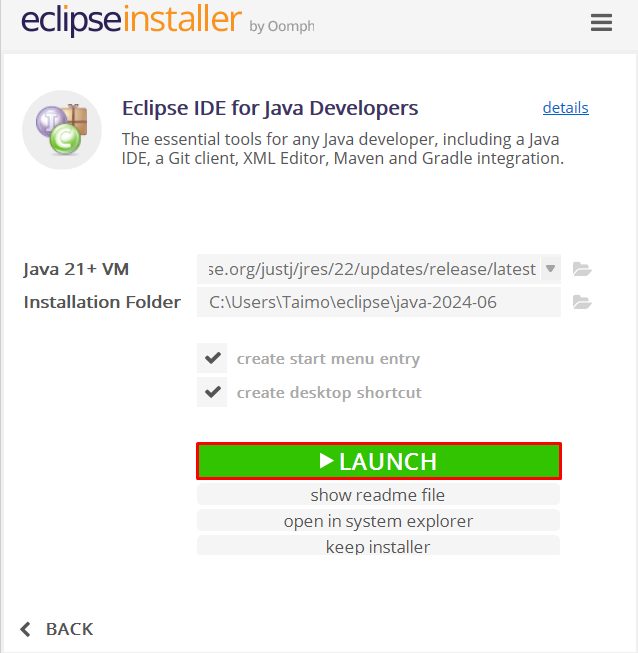
Step 4: Finish and start. Click Launch when the install ends. The options at the end are:
- Show Readme. Opens the readme file.
- Open in System Explorer. Opens the install folder.
- Keep Installer. Keeps the installer on your computer for later.
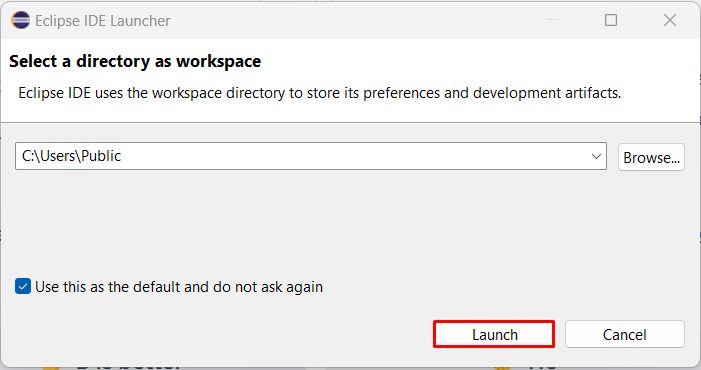
Step 5: Choose a workspace. The workspace is the folder where Eclipse keeps your projects. Pick a folder and click Launch.
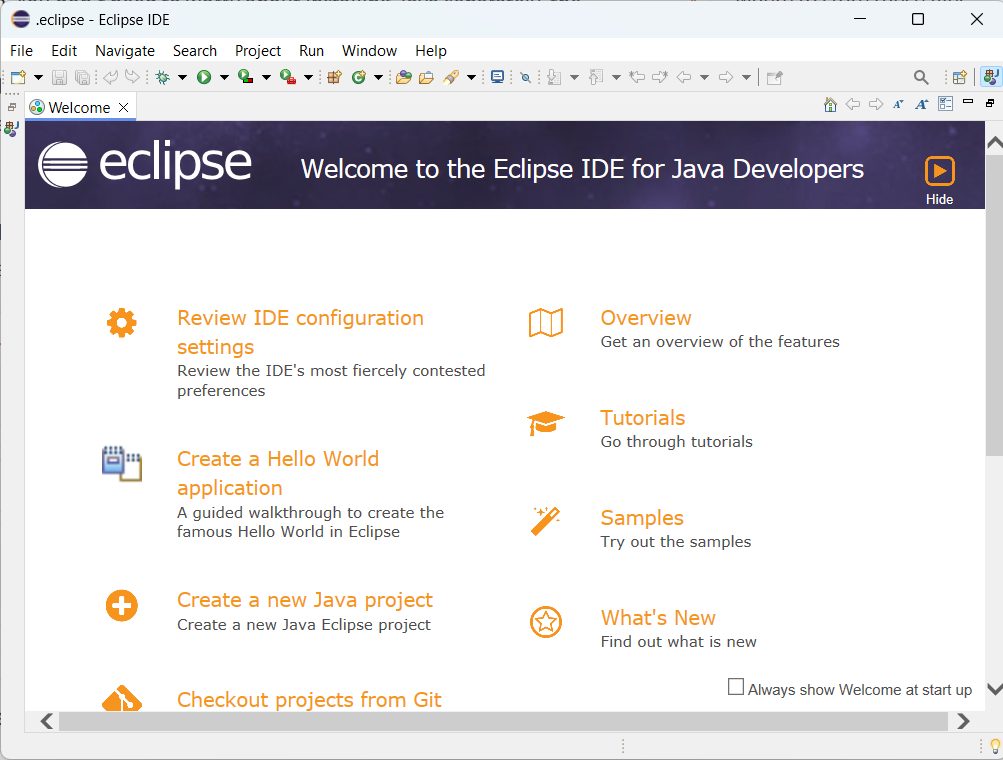
The Eclipse welcome page opens. Close it to see the workbench.
Create your first project
Choose File, New, Java Project, give it a name and click Finish. Right-click the src folder, choose New, Class, and write a main method. Run it with the green Run button.
Quick recap
- Install a JDK, then run the Eclipse installer.
- Pick the package that matches your language.
- Choose a workspace and start your project.