

Step 1: Download FFmpeg
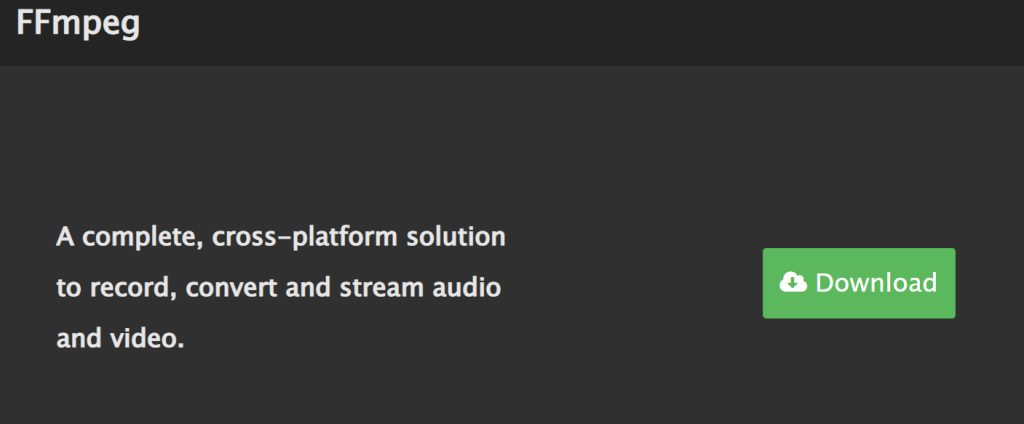
Open the FFmpeg website. Go to the official FFmpeg site and click Download.
Find the Windows builds. FFmpeg offers only source code on its own site. Under Get packages & executable files, click the Windows icon and choose one of the linked build providers (for example gyan.dev or BtbN).
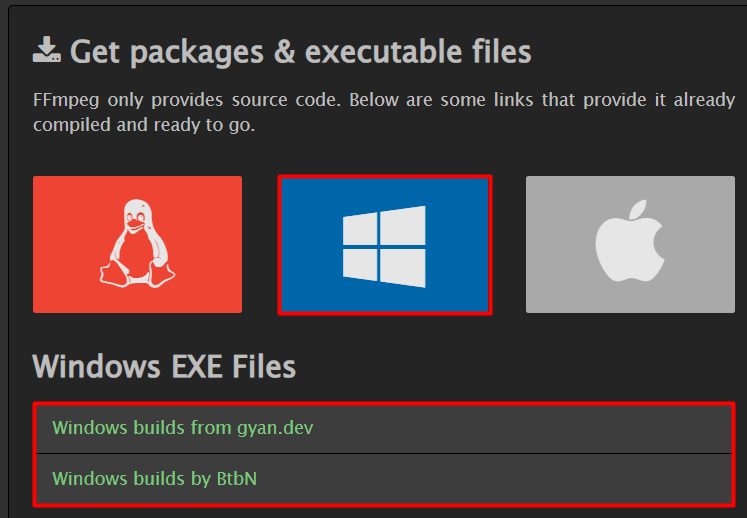
Understand the options
- Git master builds. The newest, less tested code.
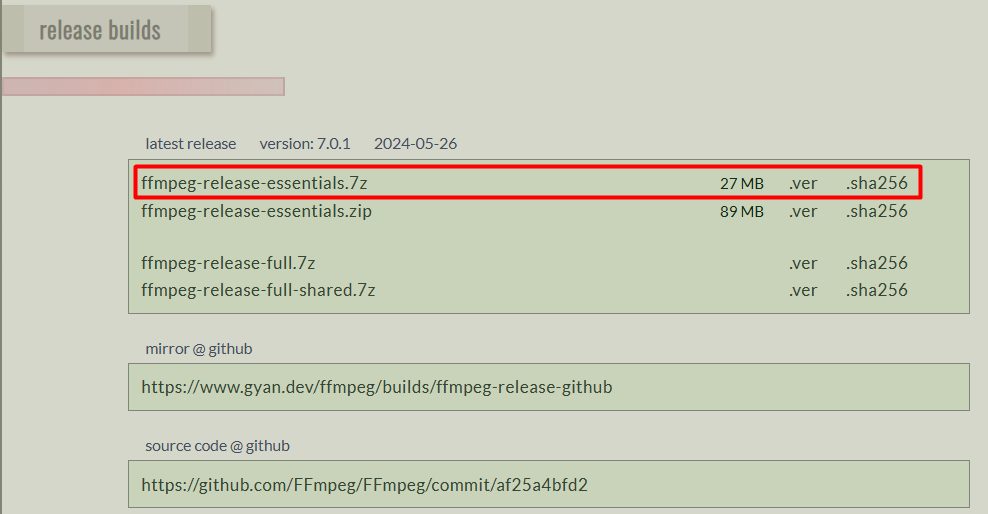
- Release builds. Stable, officially released versions. Choose these.
- Tools. Extra utilities.
- Libraries. Ready-made libraries for developers.
Download a release build. A ffmpeg-release-essentials.zip file is enough for most people.
Step 2: Unpack the archive
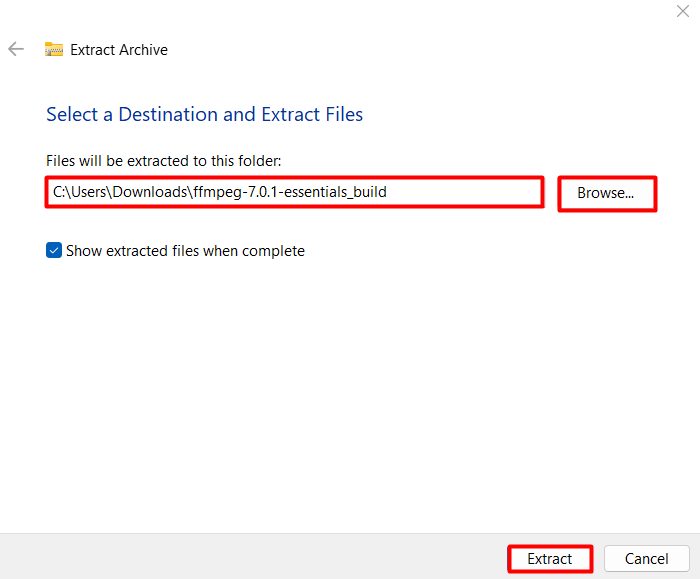
Extract the zip file. Move the extracted folder to a good place, such as C:\ffmpeg. The program files are in C:\ffmpeg\bin.
Step 3: Add FFmpeg to the PATH
- Search for environment variables in the Start menu and open Edit the system environment variables. Click Environment Variables.
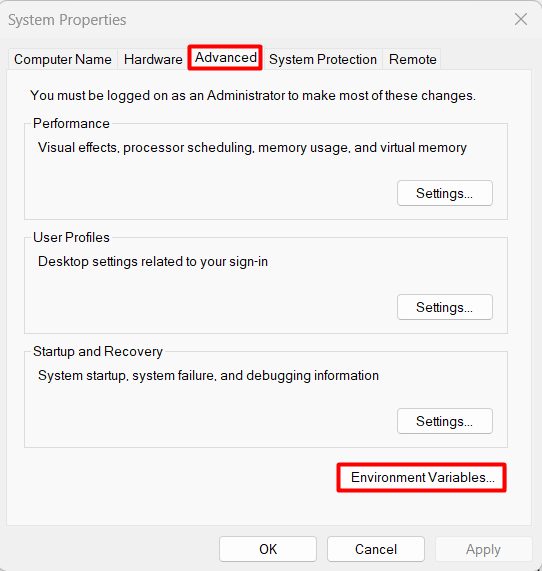
- Under System variables, select Path and click Edit.
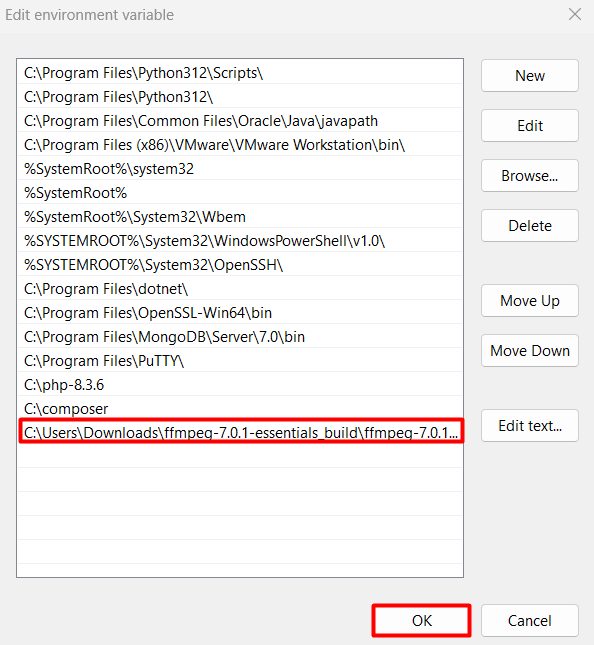
- Click New and add
C:\ffmpeg\bin. - Click OK in all windows.
Step 4: Check the install
Open a new Command Prompt.
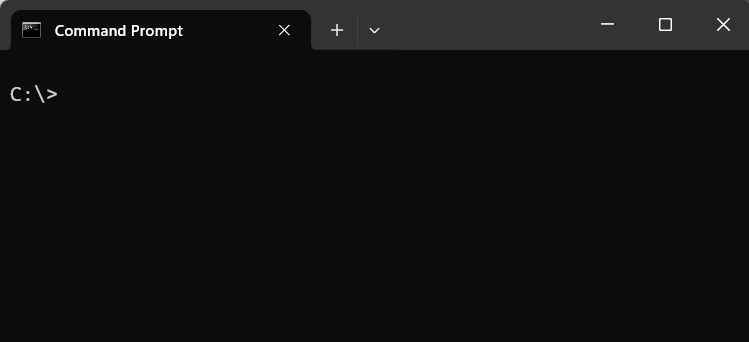
Type:
ffmpeg -version
If you see the version information, FFmpeg works.
First commands
ffmpeg -i input.mov output.mp4
ffmpeg -i video.mp4 -vn audio.mp3
Quick recap
- Download a release build and unzip it to
C:\ffmpeg. - Add
C:\ffmpeg\binto the PATH. - Check with
ffmpeg -versionin a new window.