

System requirements
- OS: Windows 10 or Windows 11 (64-bit).
- CPU: a 64-bit Intel or AMD processor with virtualization support.
- BIOS/UEFI: VT-x or AMD-V turned on.
- Graphics: a GPU that supports OpenGL 3.0 or higher.
- RAM: 16 GB is recommended (8 GB is a common minimum).
- Disk: about 250 MB for Genymotion and at least 1 GB for each virtual device.
- Internet: needed for the setup and to download devices.
Download
Open the Genymotion website and download the Windows installer. There are two files:
genymotion-X.Y.Z.exeinstalls only Genymotion. You need VirtualBox already.genymotion-X.Y.Z-vbox.exeincludes VirtualBox. Choose this if you are not sure.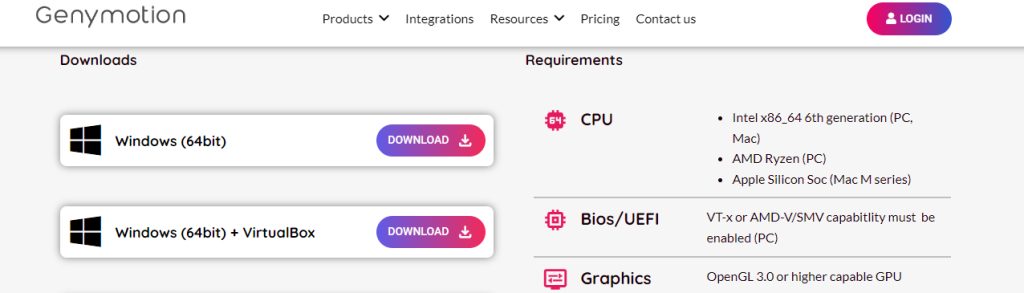
Install
- Run the installer and follow the setup wizard.
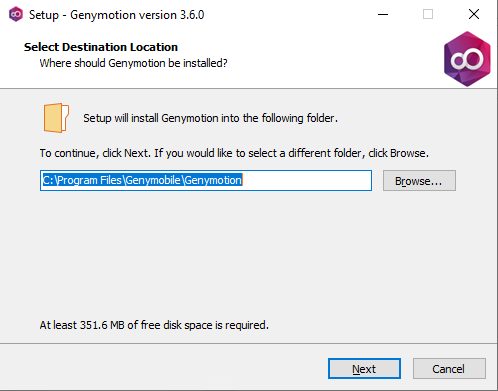
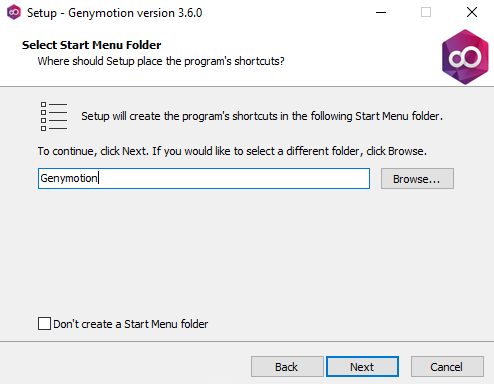
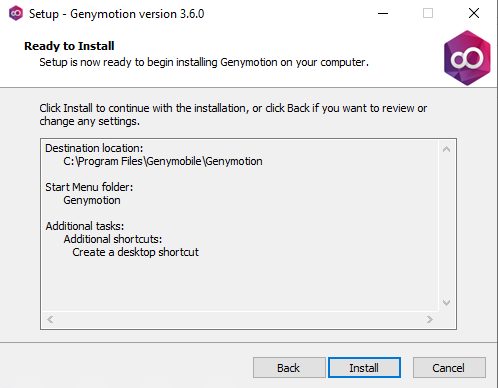
- Choose the install folder and the Start Menu folder, or choose not to create a Start Menu folder.
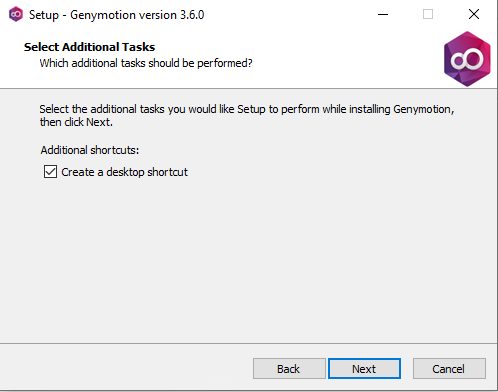
- Choose whether to create a desktop icon.
- Review the summary and click Install.
- When it is done, restart the computer.
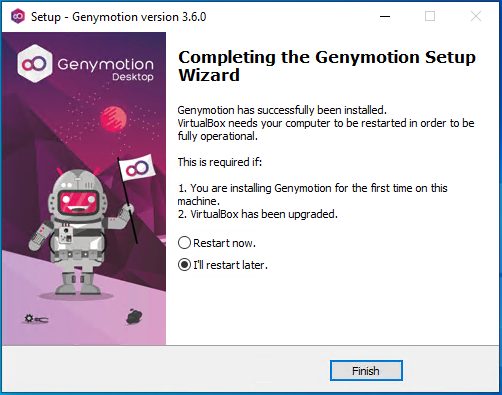
If you chose the installer with VirtualBox, the VirtualBox install runs after Genymotion.
Set up
Start Genymotion from the shortcut. On the first start, create a free account.
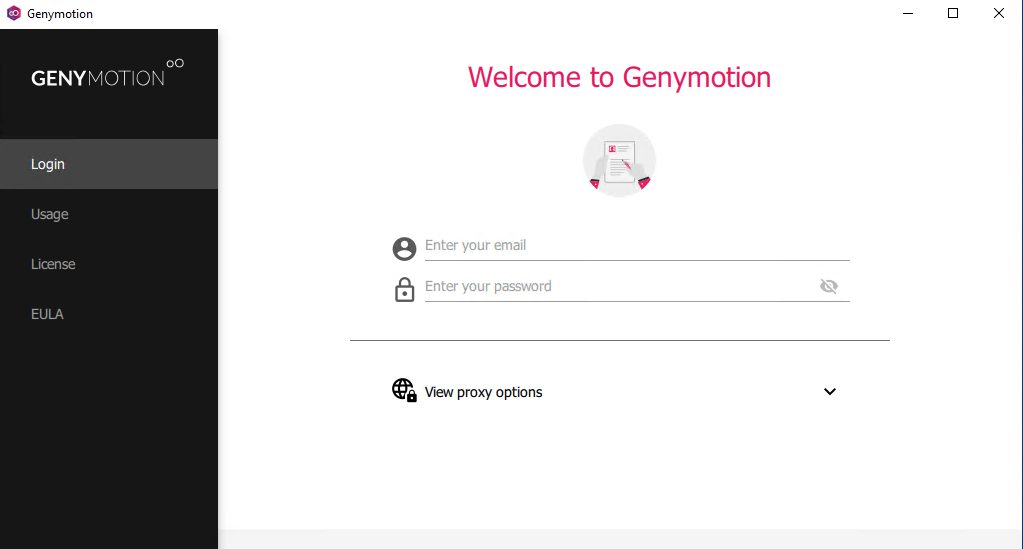
If you installed Genymotion without VirtualBox, it asks you to link it to your VirtualBox. Follow the steps.
Use Genymotion
- Genymotion has many ready-made virtual devices with different Android versions and screen sizes. Browse the list and pick one that matches your app.
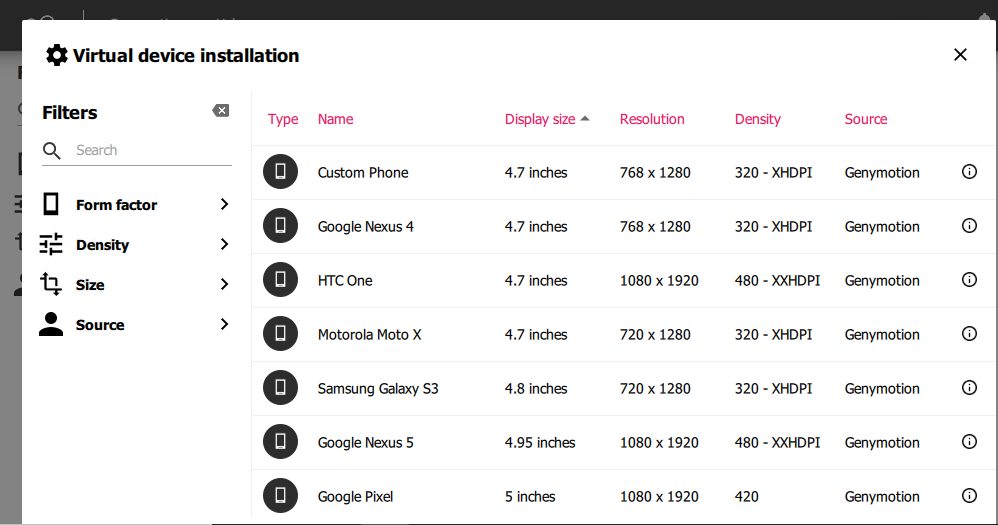
- Click Download next to the device. When it is ready, click Play (or Start). A window like a real Android phone opens.
- Useful features:
- Device controls. Power, volume, rotation and more.
- ADB access. Use the Android Debug Bridge for advanced work and for installing your app (adb install app.apk).
- Multiple devices. Create and run several virtual devices.
Notes
- Give your computer enough RAM, ideally 16 GB.
- Choose virtual devices that are close to the phones your users have.
- Keep Genymotion and VirtualBox updated.
- Personal use is free. Commercial use needs a license.
Quick recap
- Download the installer with VirtualBox, install and restart.
- Create an account and add a virtual device.
- Start the device and install your app with ADB.