

System requirements
RAM
- Minimum: 2 GB of free RAM.
- Recommended: 8 GB of total RAM.
CPU
- Minimum: any modern CPU.
- Recommended: a multi-core CPU.
Disk space
- Minimum: 3.5 GB.
- Recommended: an SSD with at least 5 GB of free space.
Windows 10 or later (64-bit) is advised.
Install PyCharm with the JetBrains Toolbox App
The Toolbox App installs and updates all JetBrains tools.
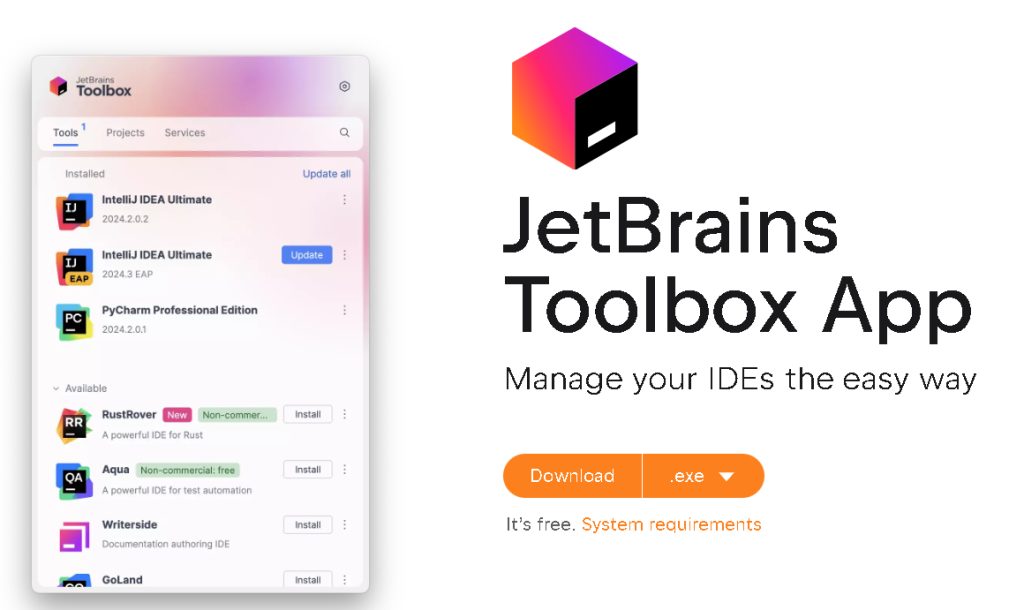
Download the Toolbox App
Open the JetBrains website and download the Toolbox App for Windows.
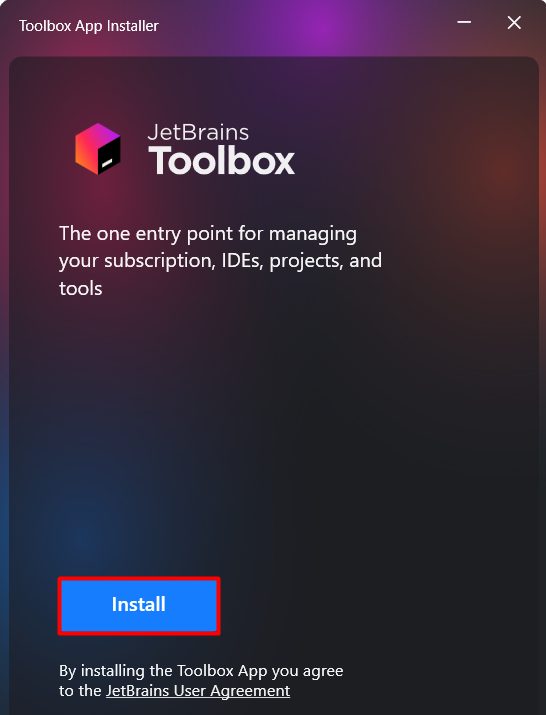
Install the Toolbox App
Run the downloaded file and follow the steps.
Install PyCharm
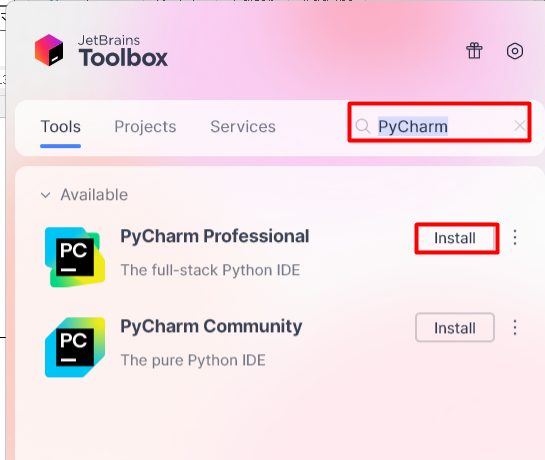
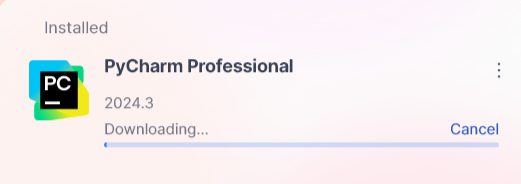
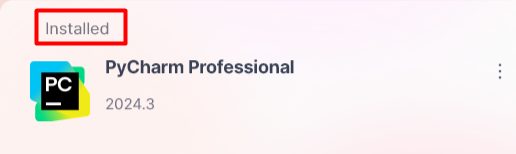
In the Toolbox App, find PyCharm and click Install. Choose PyCharm Community (free) or PyCharm Professional (paid, with a trial).
Use the standalone installer instead
Go to the PyCharm download page, download the .exe for Windows, run it, tick Create Desktop Shortcut and Add "bin" folder to the PATH, and click Install.
Start PyCharm
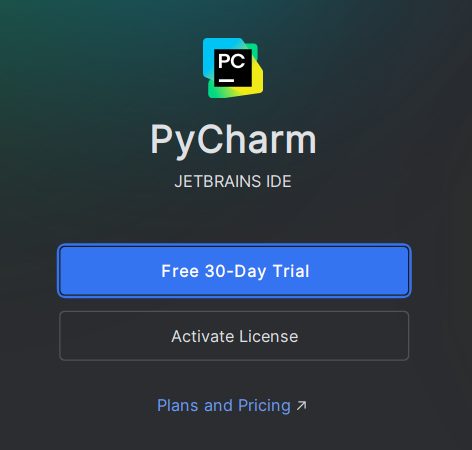
Open PyCharm from the Toolbox App or the Start menu. If you use the Professional edition, sign in with your JetBrains account or start the trial.
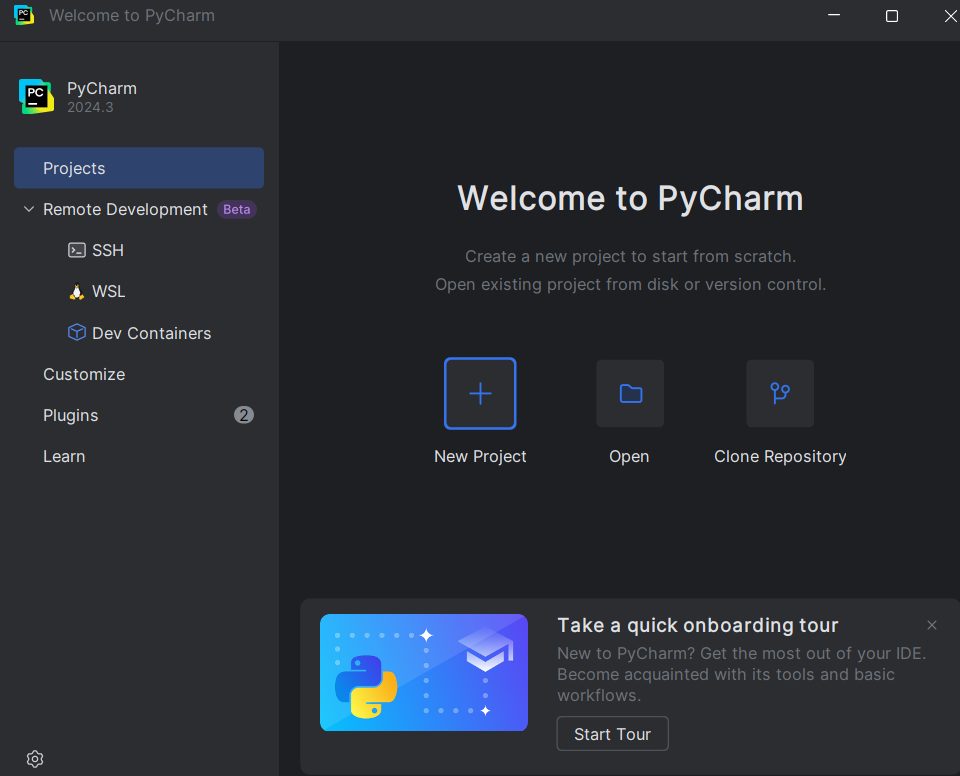
The welcome screen shows. Click New Project, choose the location and the Python interpreter (PyCharm can create a virtual environment for you), and click Create.
Features of PyCharm
- Smart code editor with completion and checks.
- Debugging and testing tools built in.
- Version control integration (Git).
- Web development support (Django, Flask).
- Database tools (in Professional).
- A customizable interface.
- Works on Windows, macOS and Linux.
Quick recap
- Install the JetBrains Toolbox App and add PyCharm from it.
- Or use the standalone installer.
- Create a project with a virtual environment.