

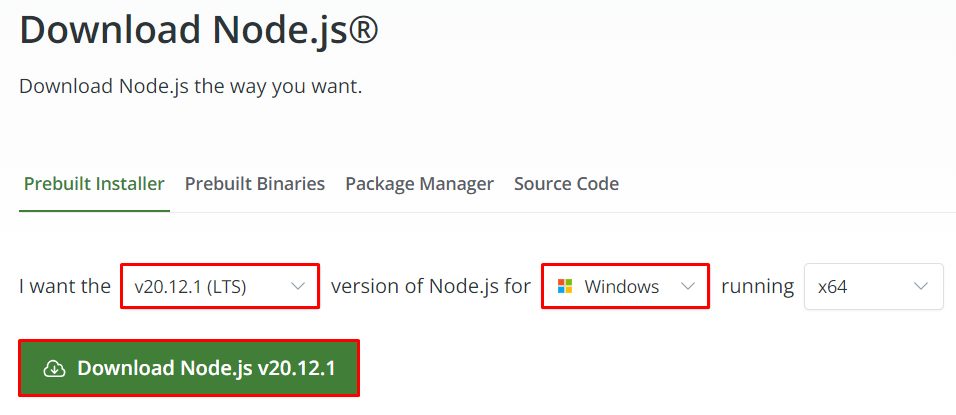
Step 1: Download Node.js
Open nodejs.org and download the Windows installer (LTS).
Step 2: Install Node.js
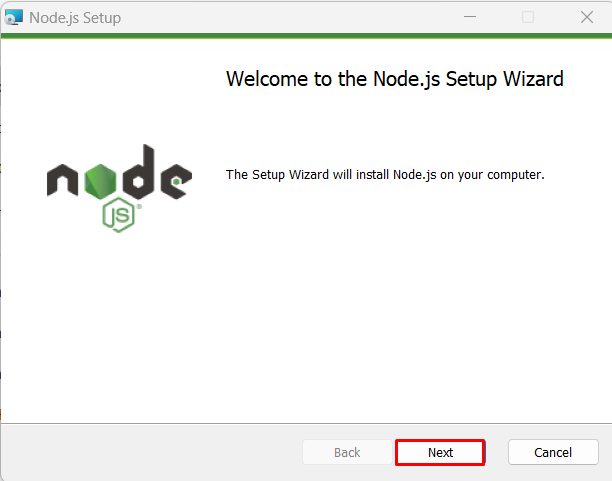
- Run the installer and click Next.
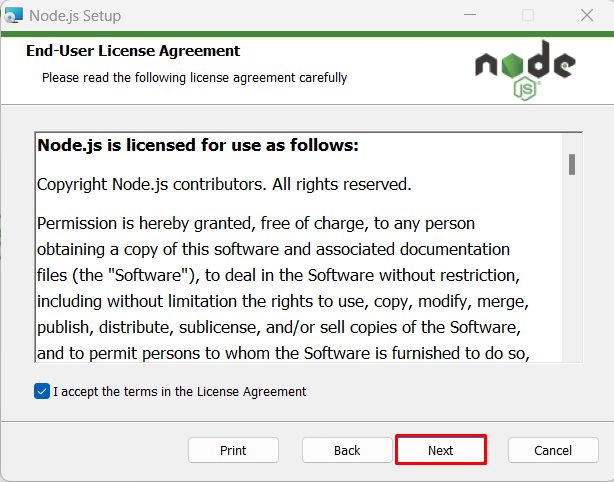
- Accept the license agreement.
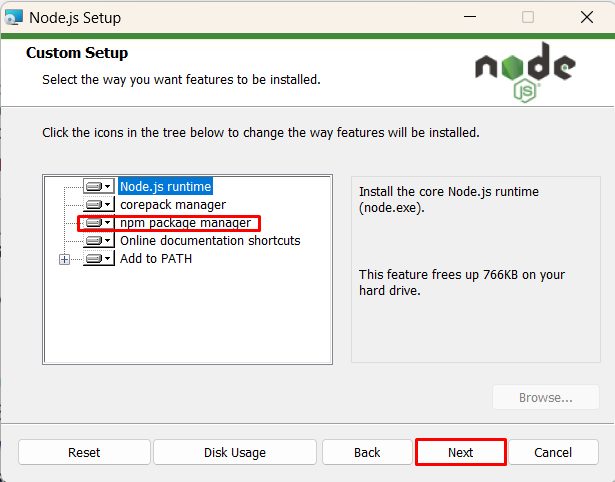
- Keep the default folder and the components, including npm package manager and Add to PATH.
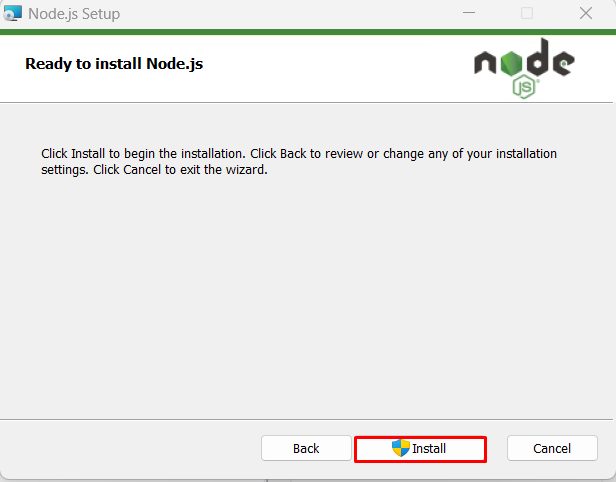
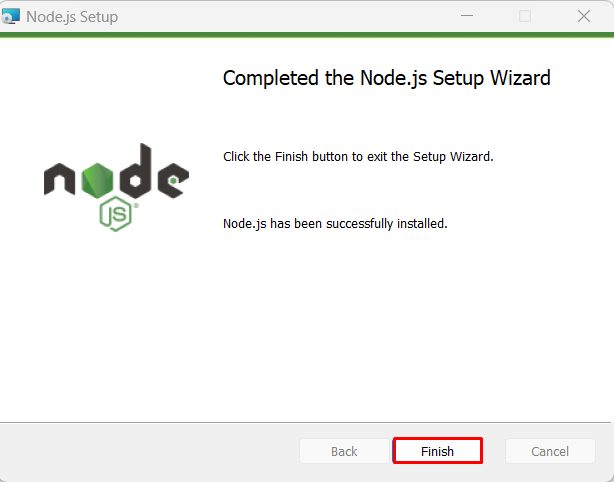
- Click Install, then Finish.
Step 3: Check Node.js and npm
Open a new Command Prompt:
node -v
npm -v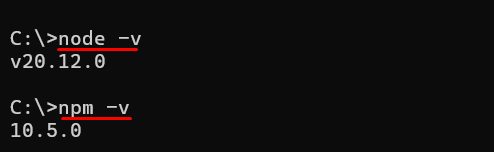
Step 4: Create a React app
The tool create-react-app is no longer advised by the React team. A modern way is Vite:
npm create vite@latest my-app -- --template react
cd my-app
npm install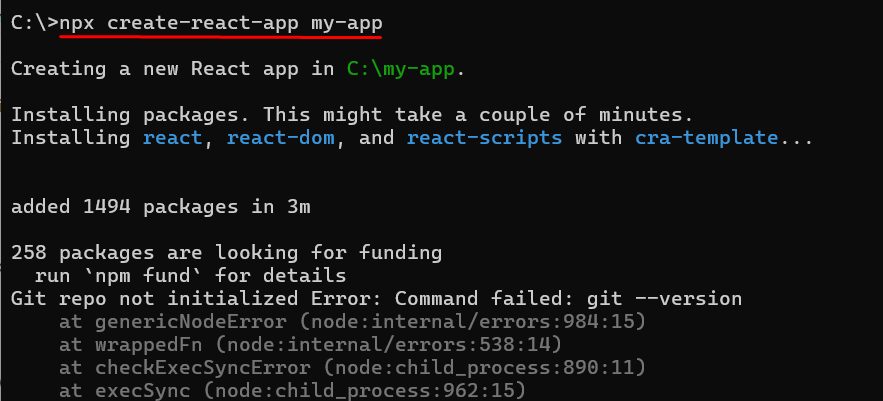
The older way, which still works:
npm install -g create-react-app
npx create-react-app my-app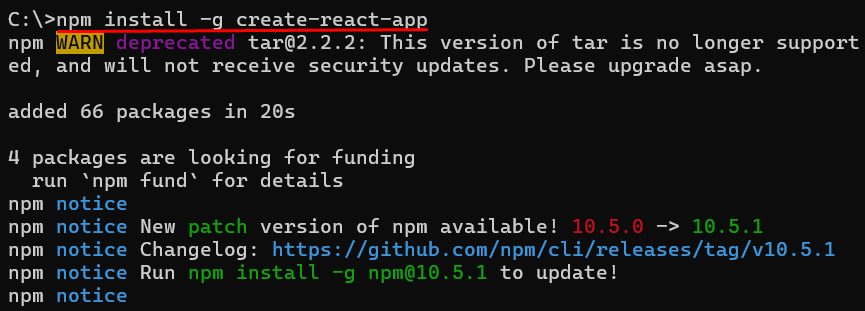
Step 5: Start the app
With Vite:
npm run devWith create-react-app:
cd my-app
npm start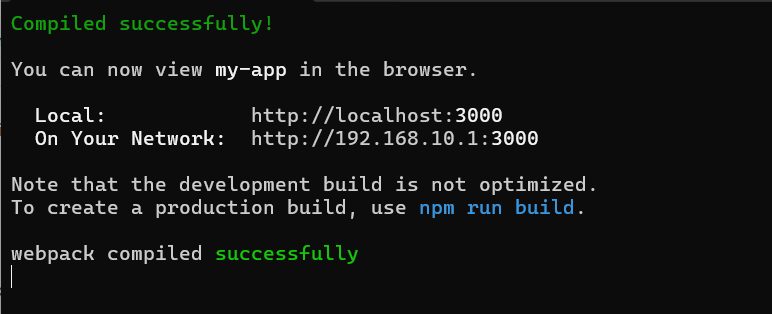
Open the address that the terminal shows (http://localhost:5173 for Vite, http://localhost:3000 for create-react-app). You see the React start page.
The development build is not optimized. When you are ready to publish, make a production build with npm run build.
Quick recap
- Install Node.js LTS.
- Create the app with Vite (
npm create vite@latest). - Run it with
npm run dev.