

Before you start
Spark needs Java. Open Command Prompt and check that it is installed:
java --version
If the command is not found, install a JDK first.
Step 1: Download Spark
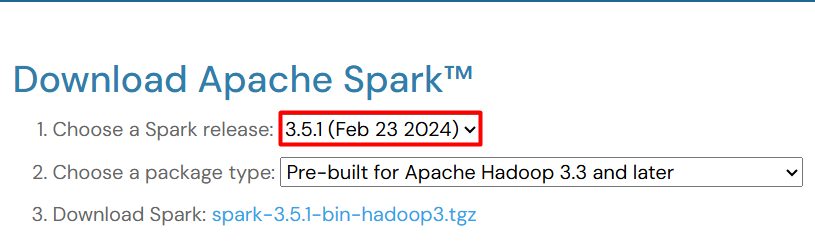
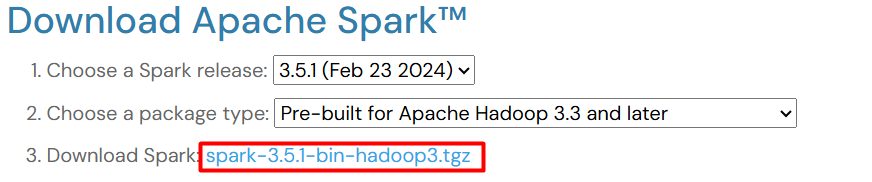
Go to the Apache Spark download page and pick a release and a package type. Download the .tgz file.
Step 2: Extract Spark
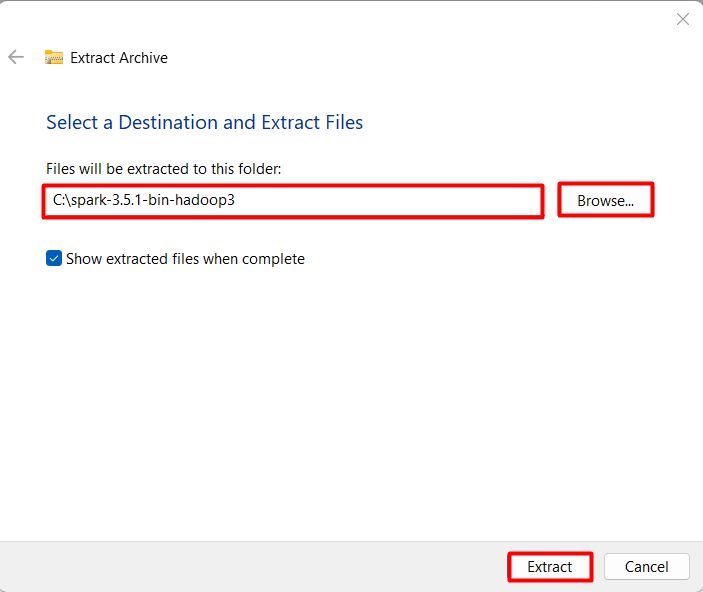
Extract the archive to a short path such as C:\spark. A short path with no spaces avoids many errors.
Step 3: Set the environment variables
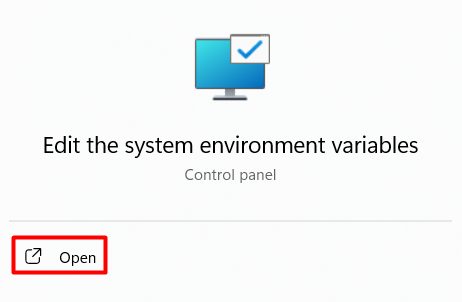
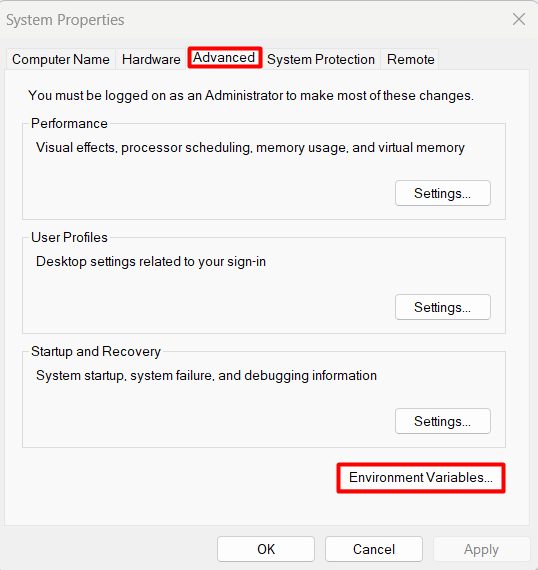
- Search for Edit the system environment variables in the Start menu and open it.
- Click Environment Variables.
- Under System variables, click New. Set the name to
SPARK_HOMEand the value to your Spark folder, for exampleC:\spark.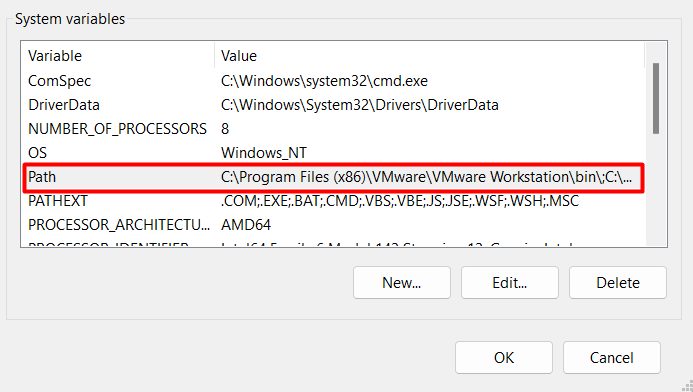
- Select Path, click Edit, and add
%SPARK_HOME%\bin.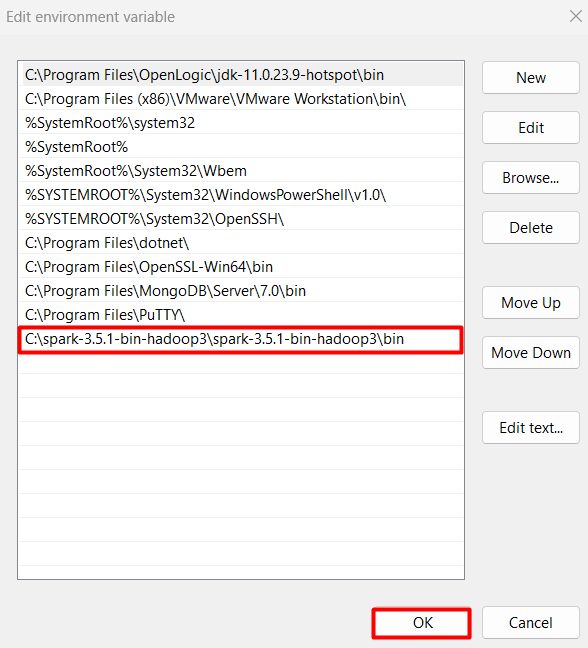
Note: On Windows, Spark also needs
winutils.exe for Hadoop. Place it in a bin folder and point HADOOP_HOME to the parent folder if Spark shows Hadoop errors.Step 4: Check the installation
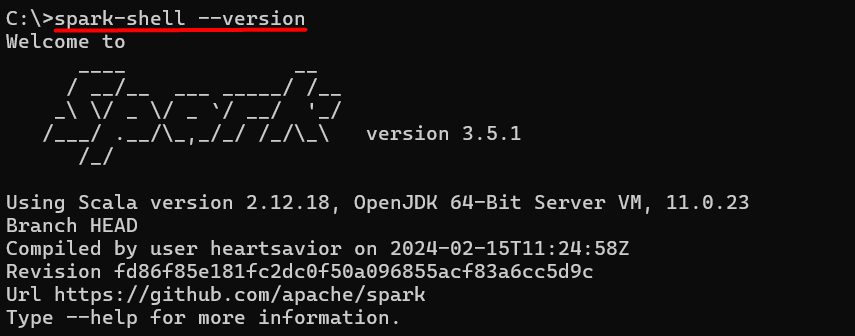
Open a new Command Prompt and run:
spark-shell --version
The Spark version banner appears.
Quick recap
- Install Java first and check it with
java --version. - Extract Spark to a short path like
C:\spark. - Set
SPARK_HOMEand add%SPARK_HOME%\binto Path. - Run
spark-shell --versionin a new window to confirm.