

What is SSMS?
SQL Server is a program from Microsoft that keeps data in an organized way, like a big digital filing cabinet. SSMS stands for SQL Server Management Studio. It is the window you use to look inside that cabinet. You can create databases, add users, run queries and make backups. A query is a short written question or command for the database.
SSMS is separate from SQL Server. Installing SQL Server does not always install SSMS. You need admin rights and a working internet connection.
Steps
- Open a browser on the server.
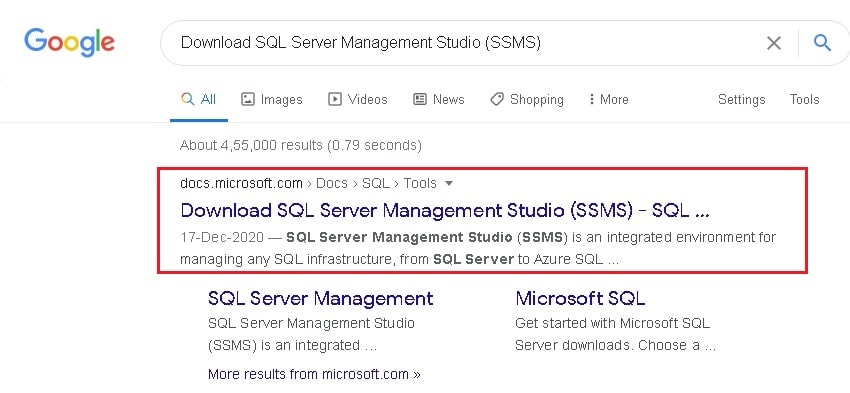
- Search for "SSMS download Microsoft".
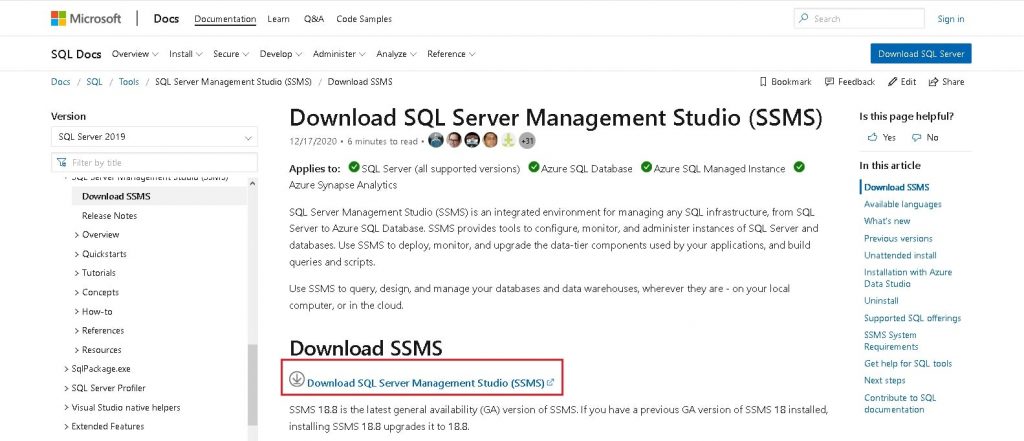
- Open the official Microsoft Learn page for SQL Server Management Studio.
- Click the link to download the latest SSMS installer. The file name starts with
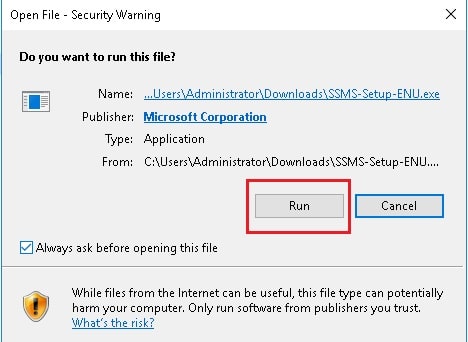
SSMS-Setup. - Open the Downloads folder and double-click the file.
- Click Yes if Windows asks for permission.
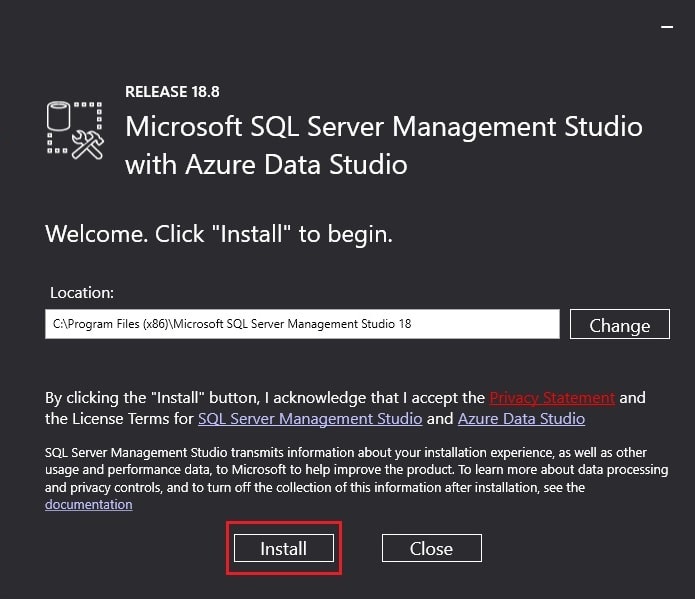
- On the first screen, keep the default install folder, or click Change to pick another.
- Click Install.
- Wait while files are copied. This can take several minutes.
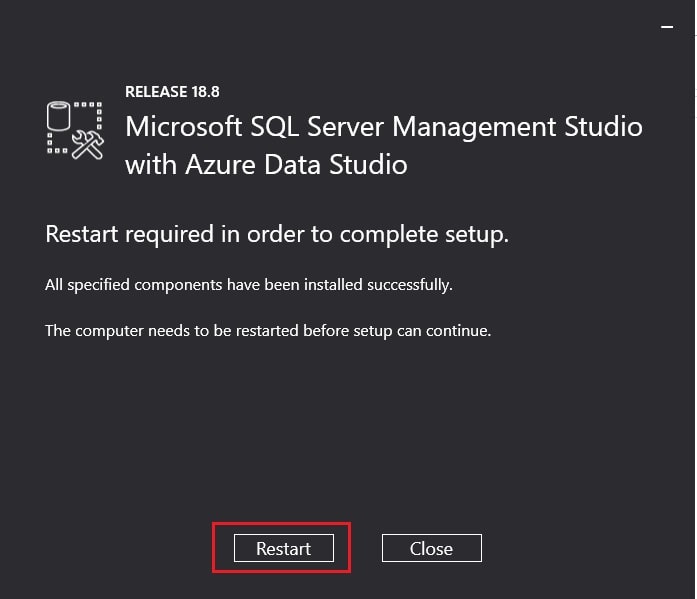
- When you see "Setup Completed", click Restart if asked, or Close.
Open SSMS for the first time
- Click Start and type SQL Server Management Studio.

- Open it.
- In the Connect to Server box, set Server type to Database Engine.
- For Server name, type the name of your SQL Server. On the same machine you can often use
localhostor.\SQLEXPRESSfor the Express edition. - Choose Windows Authentication if you are on the server with an admin account. Or choose SQL Server Authentication and type a login and password.
- Click Connect.
If your server uses an encrypted connection and a certificate warning appears, you may need to click Options and tick Trust server certificate. Only do this on a server you trust.
On the left, you will see Databases, Security and more. Click the small arrow to open each one.
If the install fails
- Check that Windows is up to date.
- Free some disk space.
- Restart the server and try again.
- Right-click the installer and choose Run as administrator.
Quick recap
- SSMS is the free window-based tool for SQL Server.
- Download it from Microsoft and run the installer.
- Open it and enter your server name and login.
- Click Connect to start managing databases.