

Ways to install Swift on Windows
- WinGet, the Windows package manager.
- The installer (.exe). Download the x86_64 build for 64-bit PCs or the arm64 build for ARM devices.
- Scoop, a command-line installer.
- Docker, to run Swift in a container.
The installer is the simplest way for most users.
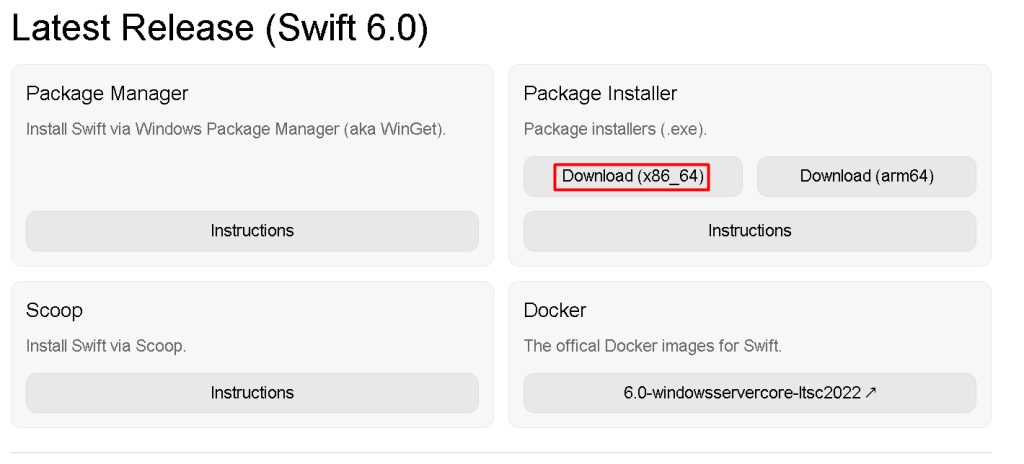
Note: Swift on Windows needs Visual Studio build tools (C++ tools and a Windows SDK). Install them first if the installer asks for them.
Install with the installer
Step 1: Accept the terms
Run the downloaded file and accept the license terms.
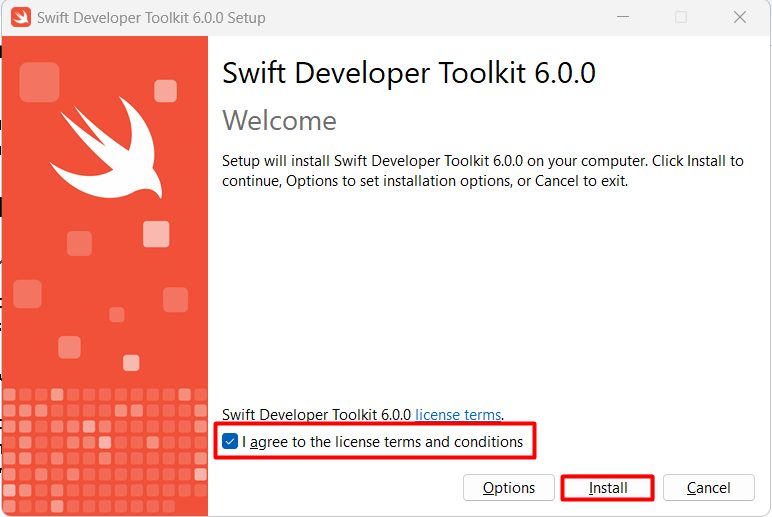
- Options lets you change the install settings.
- Cancel closes the installer.
Step 2: Install
Click Install and wait until it finishes.
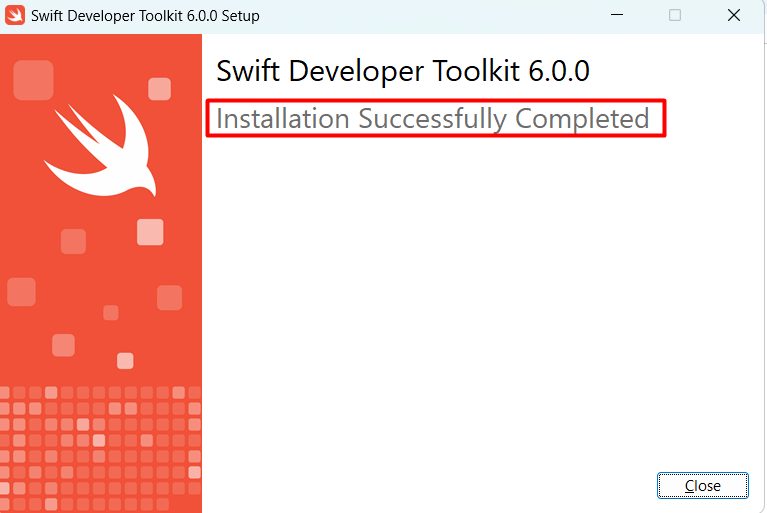
Check it
Open a new Command Prompt and run:
swift -v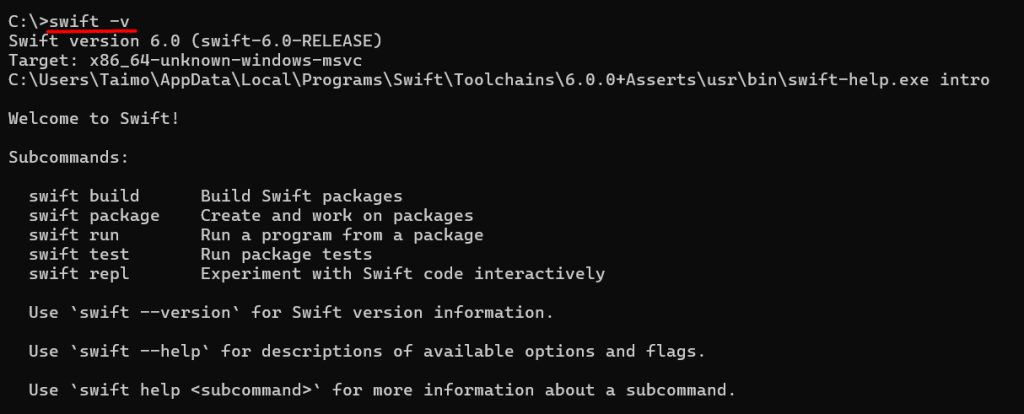
Features of Swift
- Fast compiler and fast programs.
- Modern syntax that is easy to read.
- Memory safety that prevents many common bugs.
- Generics to write code that works with many types.
- Closures to pass functions as values.
Quick recap
- Download the installer and accept the terms.
- Check with
swift -vin a new window.