

TeamViewer versions
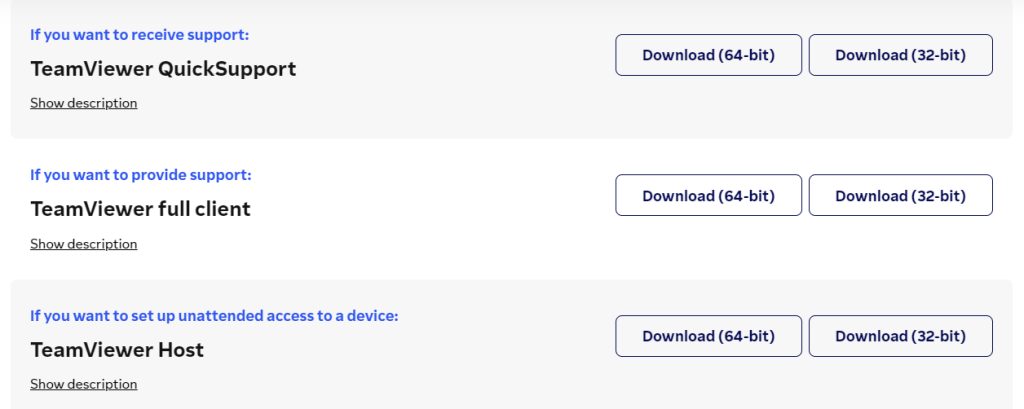
- QuickSupport is for one-time support sessions. It runs without installation.
- Full version gives complete remote control and file transfer.
- Host is for unattended access to a computer, such as a server or office PC.
Download TeamViewer
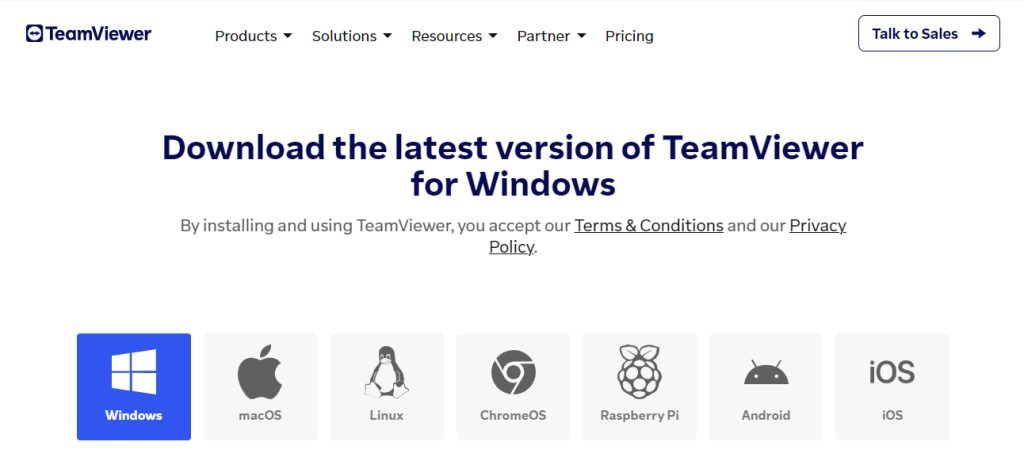
Open the TeamViewer website and go to the download page for Windows.
Pick the version you need and download it.
Install TeamViewer
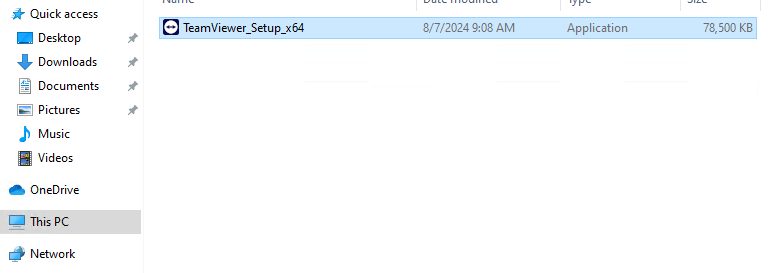
- Open the downloaded file, usually in your Downloads folder.
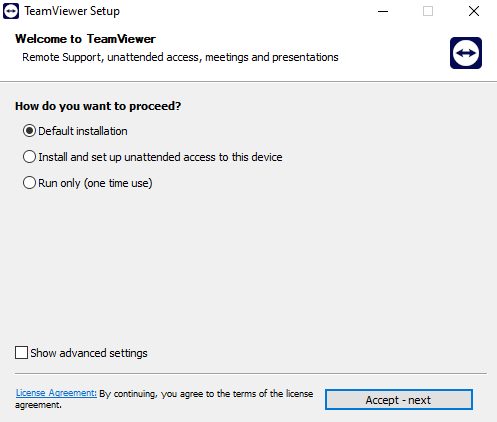
- On the setup screen choose Default installation, then accept the license terms and click Accept - finish.
- Advanced options let you pick the install folder, add a desktop shortcut or install for all users. Companies can also deploy TeamViewer to many PCs at once.
Check the installation
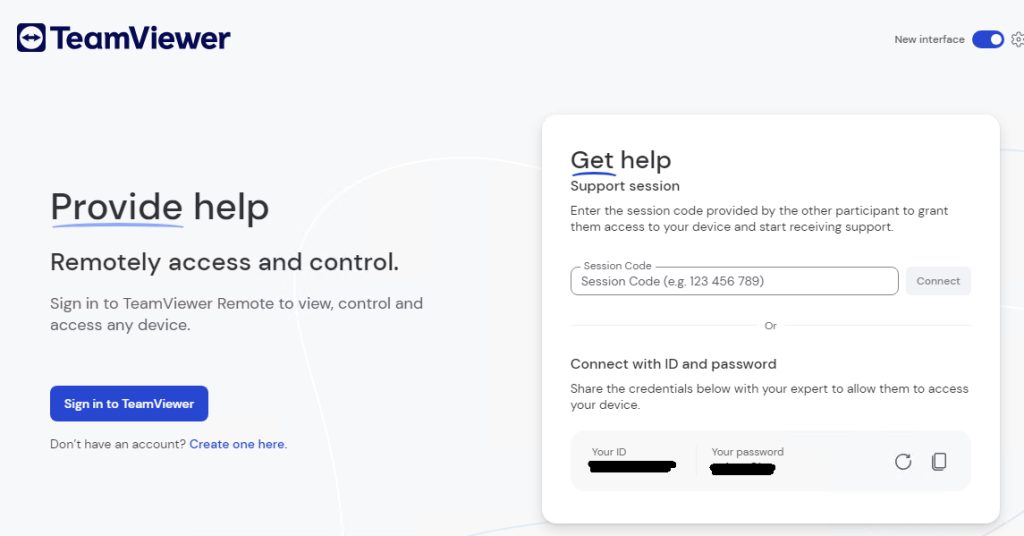
TeamViewer opens and shows your ID and a password. Share them to let someone connect, or enter a partner ID to connect to another device.
Important notes
- Keep TeamViewer updated.
- Use a strong password and do not share your ID and password with people you do not know.
- Close TeamViewer when you do not need it.
Quick recap
- Pick QuickSupport, Full or Host.
- Run the installer with the default options.
- Connect with the ID and password.