

Step 1: Download Terraform
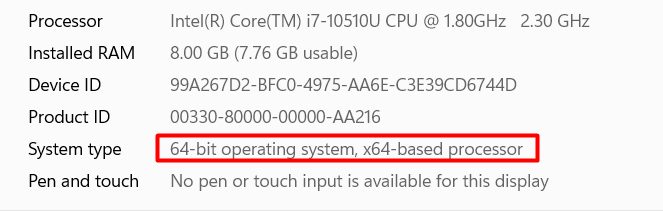
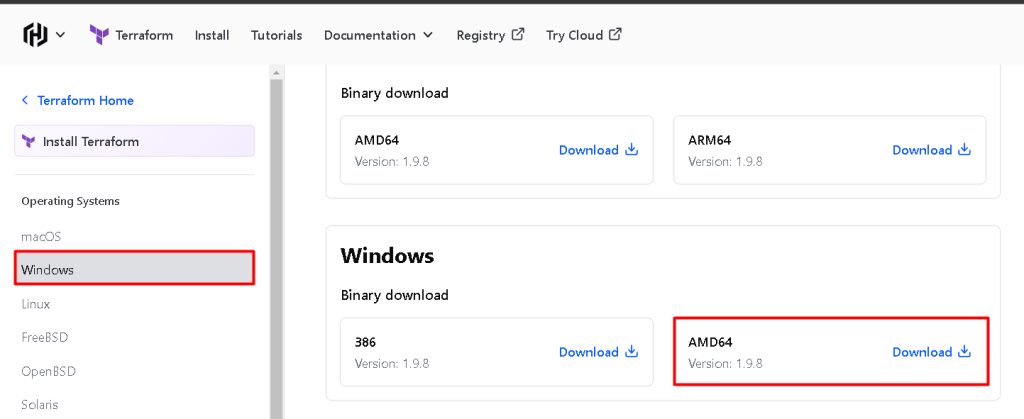
Open the Terraform download page and choose the Windows tab. Pick the build for your system:
- 386 is for 32-bit Windows.
- AMD64 is for 64-bit Windows, which most PCs use.
Step 2: Extract the zip
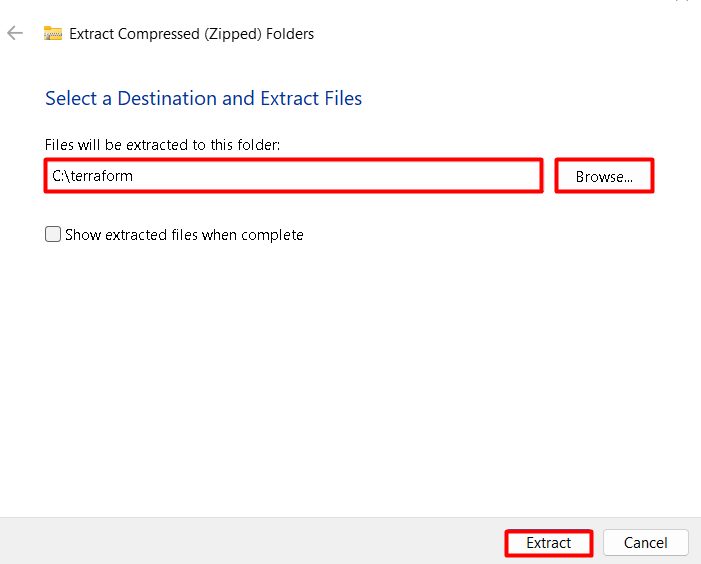
Extract the zip file to a folder such as C:\terraform. It contains one file, terraform.exe.
Step 3: Add Terraform to Path
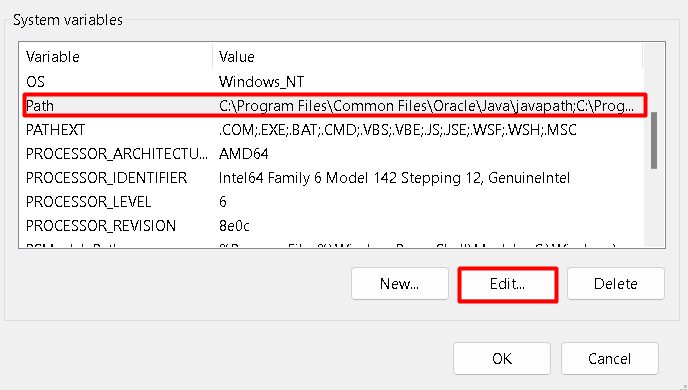
- Search for Edit the system environment variables and open it.
- Click Environment Variables.
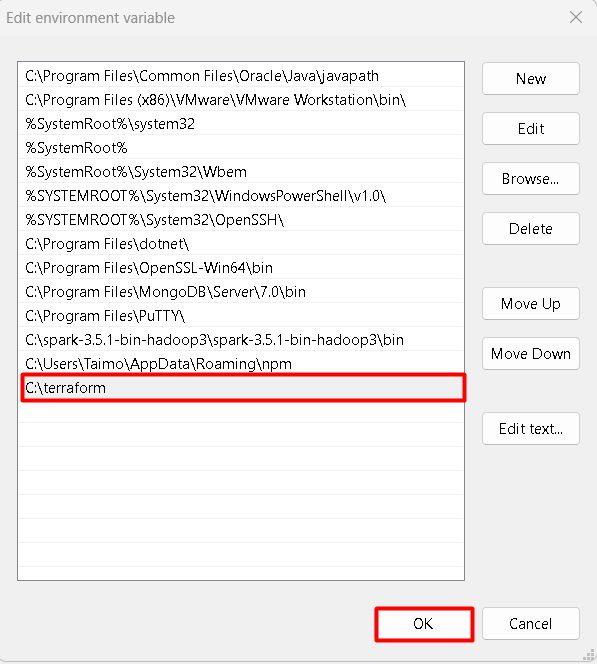
- Under System variables, select Path and click Edit.
- Click New and enter the folder, for example
C:\terraform. - Click OK on all windows.
Step 4: Check it
Open a new Command Prompt:
terraform --version
Key features of Terraform
- Infrastructure as code. Describe servers and networks in files.
- Multi-cloud. Works with many cloud providers.
- State management. Tracks what exists.
- Modules. Reuse the same setup.
- Execution plans. See changes before applying them.
- Resource graph. Builds resources in the right order.
Quick recap
- Download, extract, add the folder to Path.
- Run
terraform --versionin a new window.