

Requirements
- OS: 64-bit Windows 10 or later.
- CPU: a dual-core processor with SSE2 support.
- RAM: 8 GB, 16 GB or more is better.
- Graphics: a card with DirectX 10 support or newer.
- Disk: 20 GB free, plus space for your projects.
Useful extras:
- .NET Framework and Visual Studio for writing C# code.
- Git for version control.
- Up-to-date graphics drivers.
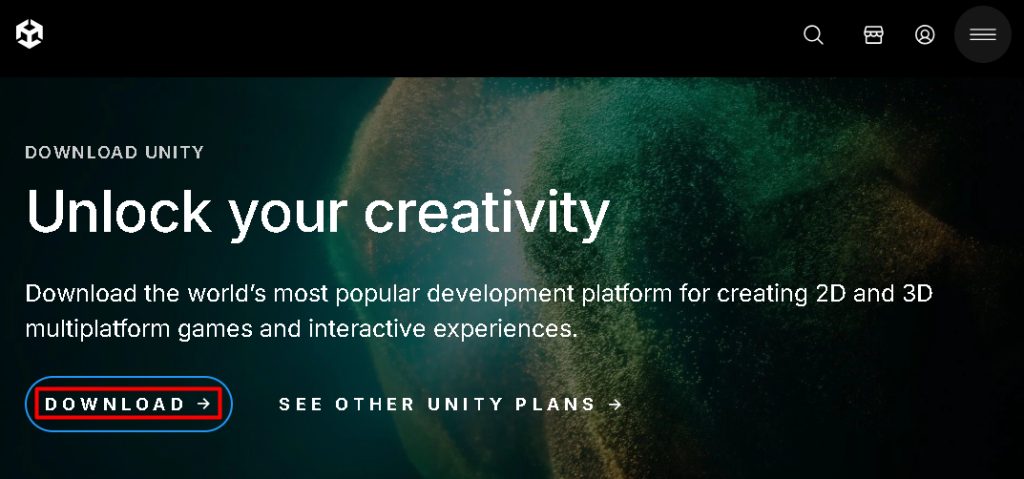
Step 1: Download the installer
Download the Unity Hub installer from the Unity website.
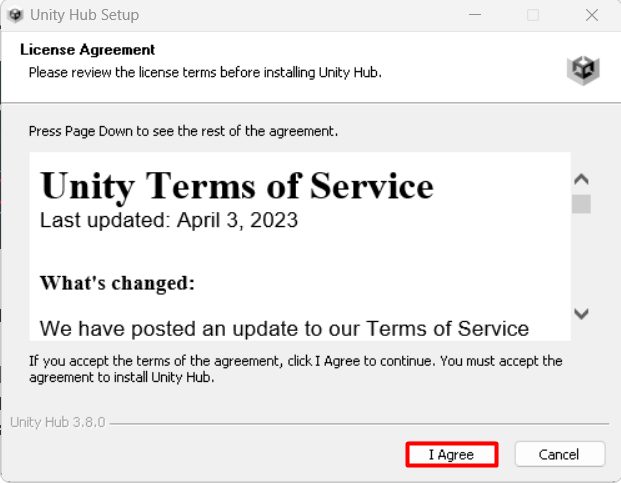
Step 2: Accept the terms
Run the installer and accept the license terms.
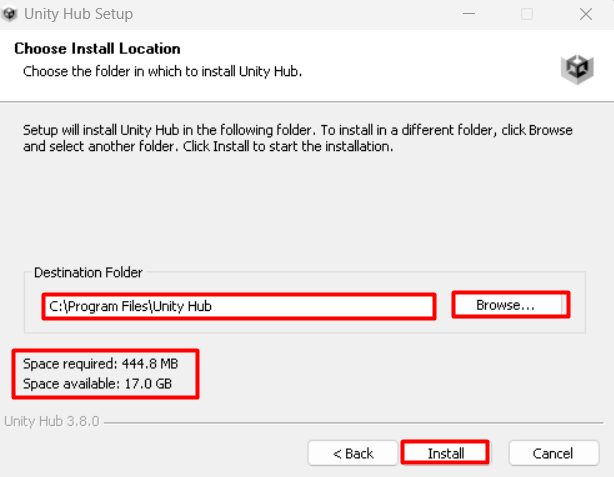
Step 3: Choose the install location
Select a folder with enough space and click Install.
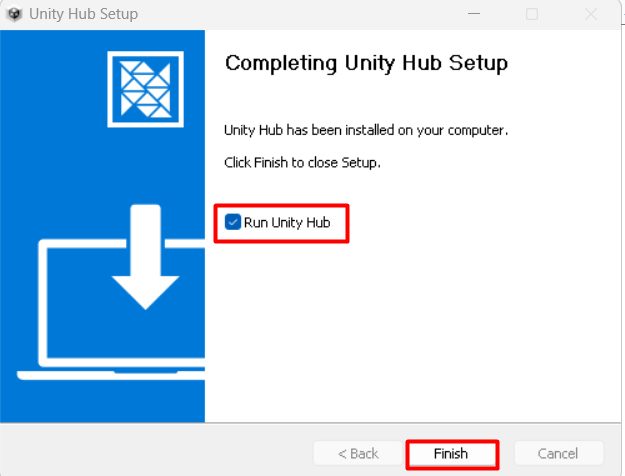
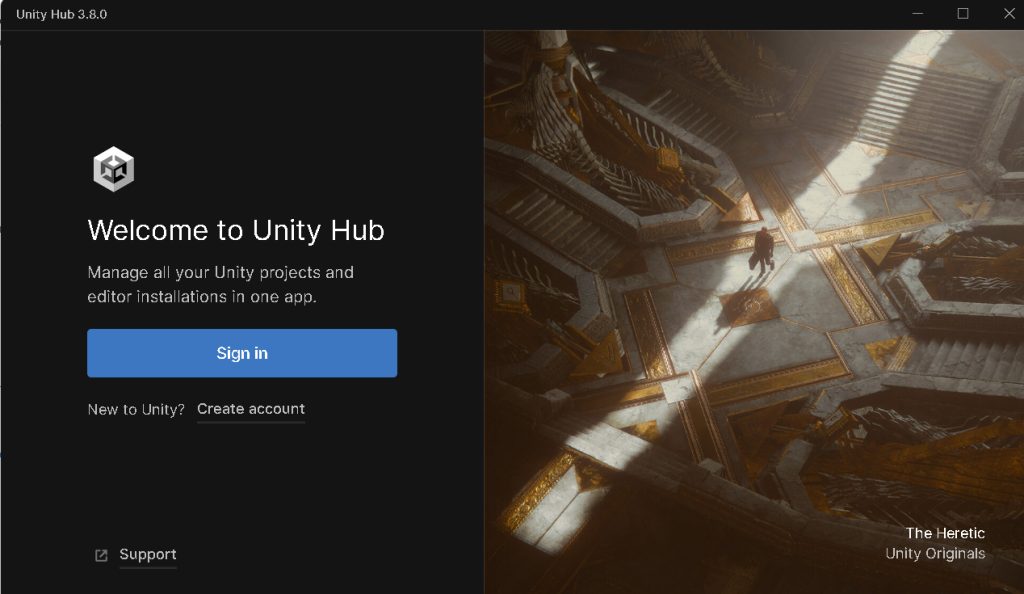
Step 4: Open Unity Hub
When the installer ends, run Unity Hub.
Step 5: Sign in
Sign in or create a Unity ID. Then install an editor version from the Installs tab.
Features of Unity
- Multi-platform. Build for desktop, mobile, web and more.
- Versatile. Used for 2D, 3D and interactive apps.
- Asset Store with ready-made tools and assets.
- Large community and many tutorials.
Quick recap
- Install Unity Hub, sign in, then add an editor version.