

What is virtualization
With VirtualBox you can run another operating system inside a window on your PC. You can:
- Run Linux or older Windows versions next to your main system.
- Test software in a sandbox without risk to your PC.
- Keep legacy apps that do not run on your current system.
- Give each virtual machine its own RAM and CPU share.
Requirements
- A 64-bit processor.
- At least 4 GB of RAM, with 2 GB or more for the virtual machine.
- About 300 MB of disk for VirtualBox, plus space for each virtual disk.
- Hardware virtualization (Intel VT-x or AMD-V) turned on in the BIOS.
Install VirtualBox
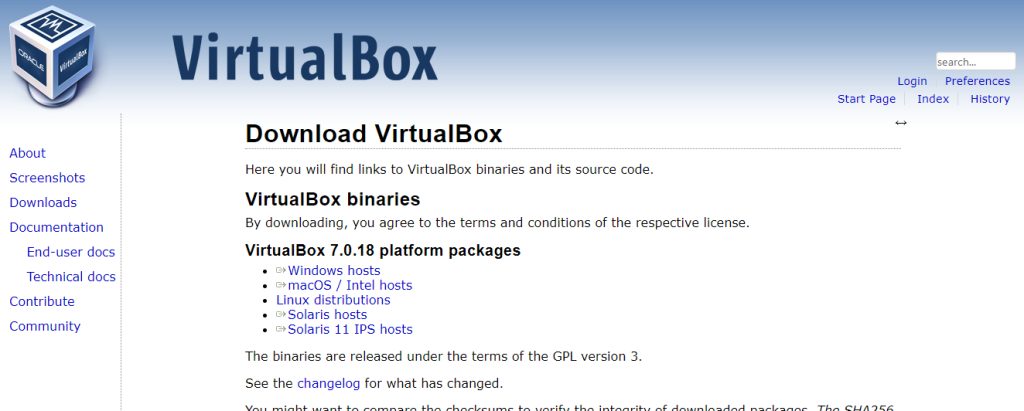
- Open the official VirtualBox website and download the Windows installer.
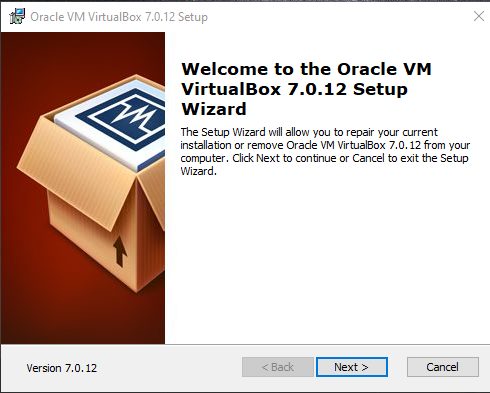
- Open the installer from your Downloads folder and click Next.
- The next screen lets you customize the features and the install folder. The defaults are fine for most people.
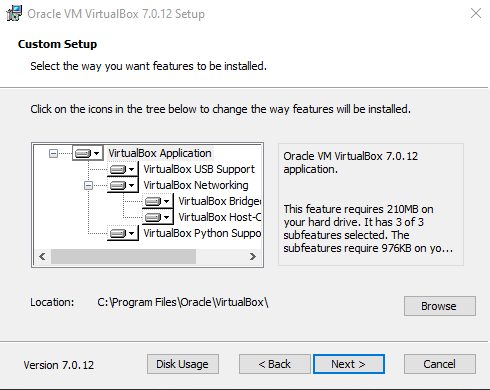
- The options include a desktop shortcut, a Start menu entry and file associations.
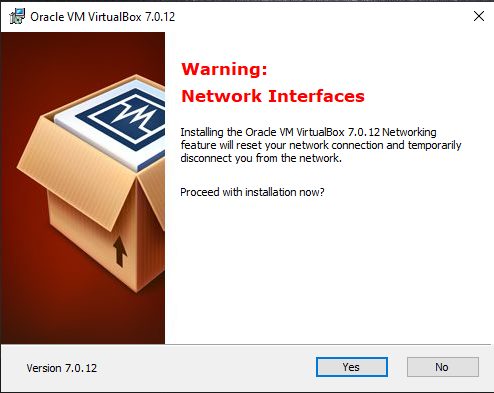
- A warning says the network connection will briefly drop. This is normal because VirtualBox installs its network adapters.
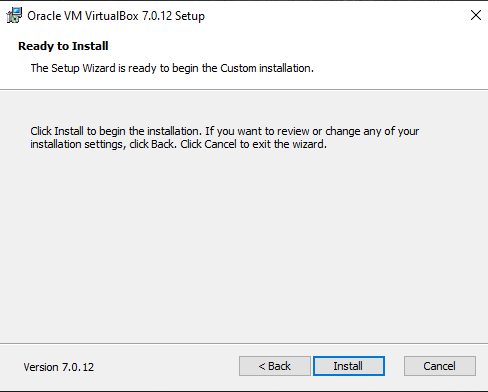
- Click Install, then Finish.
Create a virtual machine
- Click New.
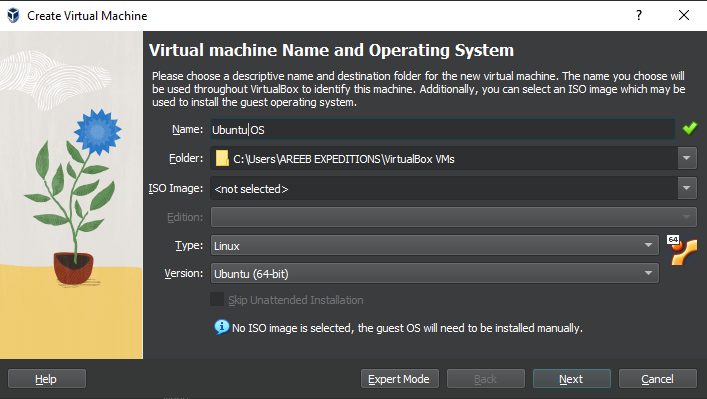
- Enter a name and choose the OS type and version.
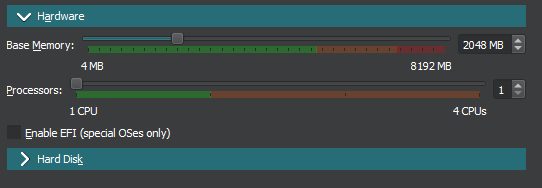
- Set the memory (RAM) size.
- Choose the hardware settings.
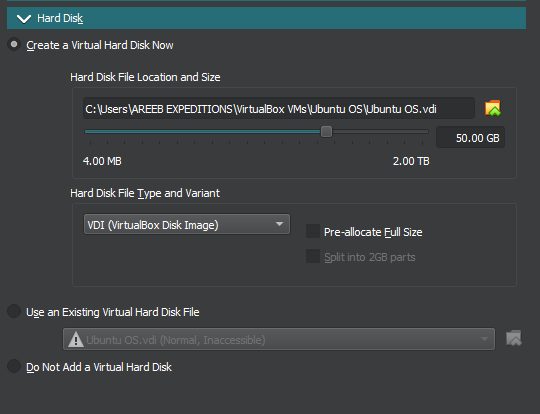
- Create a virtual hard disk and set its size.
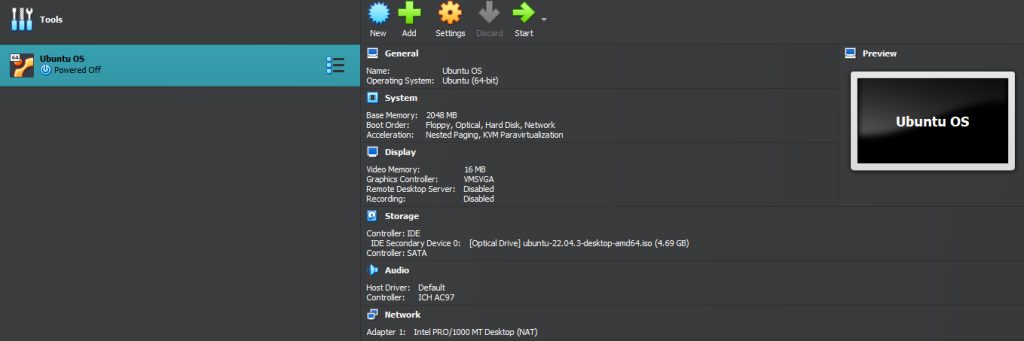
- Click Start and select the ISO file of the guest system to install it.
Tip: Install the Guest Additions inside the guest system for better graphics and a shared clipboard.
Quick recap
- Enable virtualization in BIOS first.
- Install VirtualBox, create a VM and boot from an ISO.