

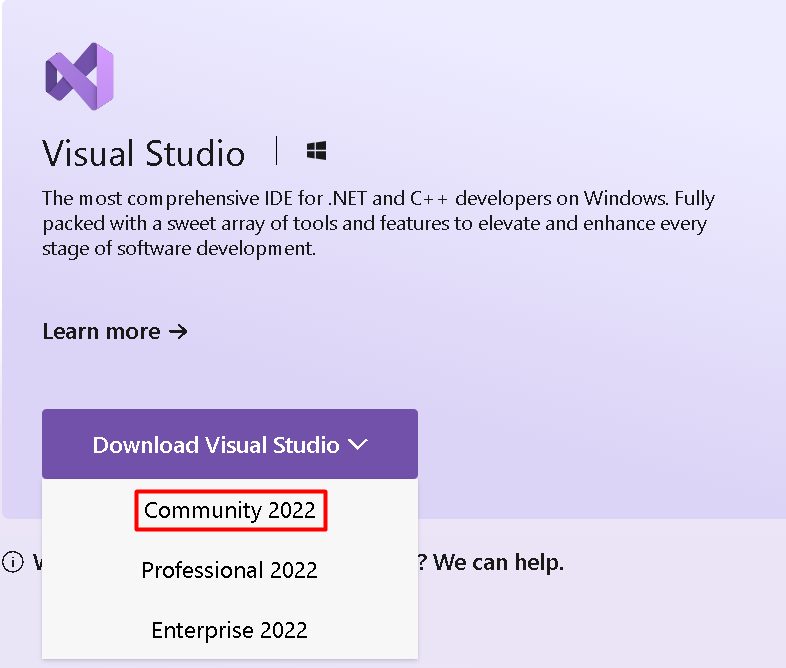
Step 1: Download the installer
Download Visual Studio from the Microsoft website. Choose the edition you need, such as Community, which is free for individuals and small teams.
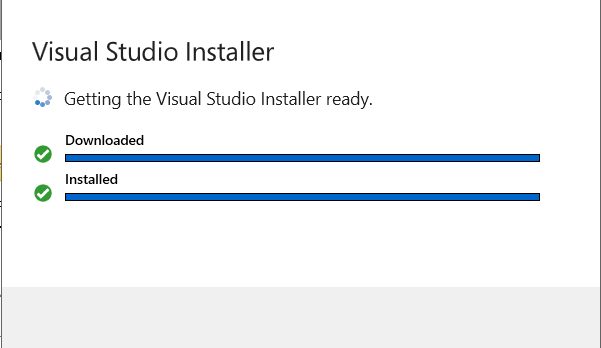
Step 2: Start the installer
Run the downloaded file. It sets up the Visual Studio Installer.
Step 3: Choose what to install
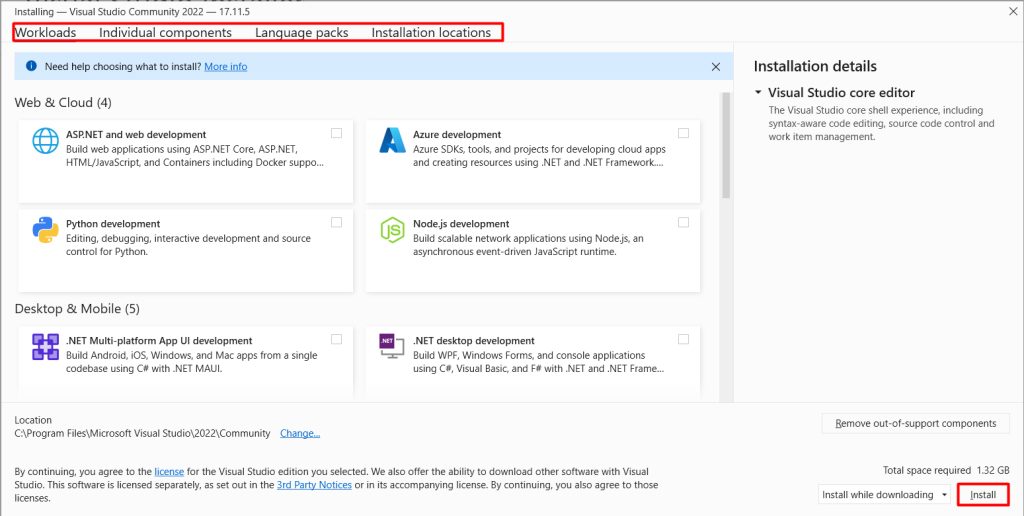
- Workloads are sets of tools for a type of work, like web development, desktop apps or .NET.
- Individual components let you add single tools or SDKs.
- Language packs add other interface languages.
- Installation location sets the folder.
Step 4: Choose the install method
- Install while downloading begins quickly and installs as files arrive.
- Download all, then install gets everything first, which is better for slow or unstable connections.
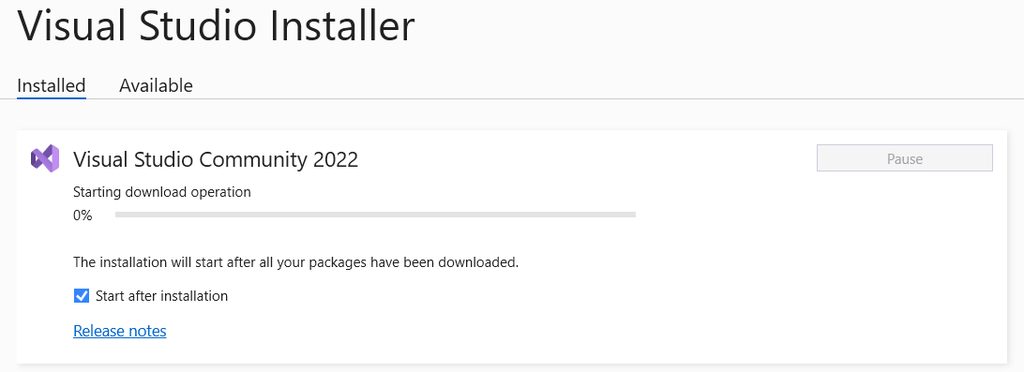
Click Install and wait for the process to end.
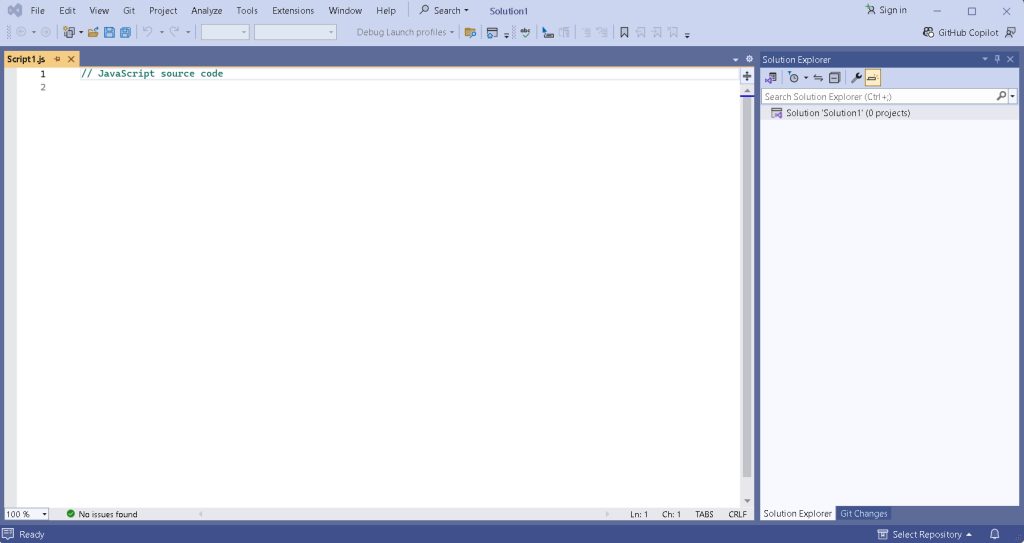
Features
- Code editor and debugging tools.
- Project management for large solutions.
- Extensions from the marketplace.
- Cross-platform development for web, desktop, mobile and cloud.
Benefits
- Higher productivity with IntelliSense and refactoring.
- Team work with Git support.
- Consistent code quality with built-in analysis.
- A large community and strong support.
Quick recap
- Download the installer, choose workloads and install.