

System requirements
- OS: Windows 10 or later, 32-bit or 64-bit.
- Processor: 1.6 GHz or faster.
- Memory: 1 GB RAM.
- Disk: 200 MB of free space.
Download VS Code
Download from the official website. There are a few choices:
- User installer installs for your account only and needs no admin rights.
- System installer installs for all users.
- ZIP file runs without an installer.
- CLI is a command-line version.
Install VS Code
- Find the downloaded installer and run it.
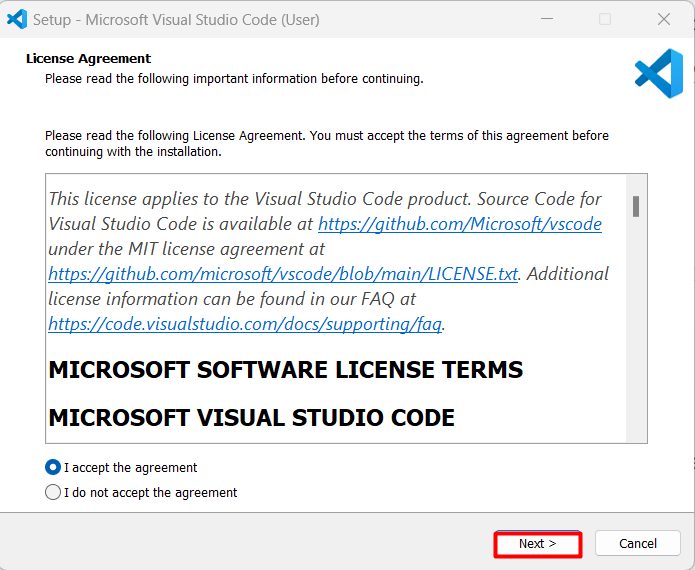
- Read and accept the license agreement.
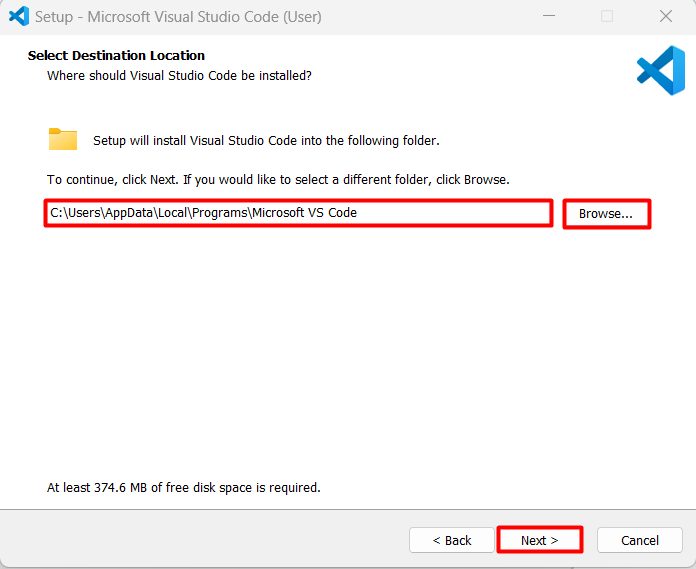
- Choose the install folder.
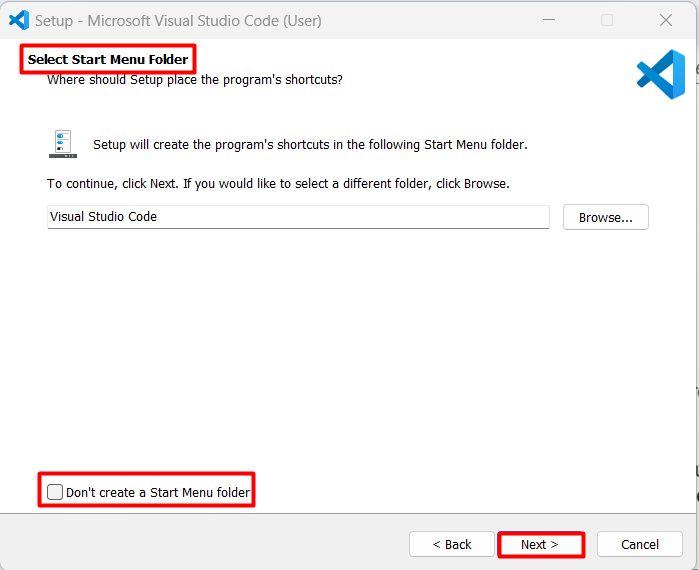
- Choose the Start menu folder.
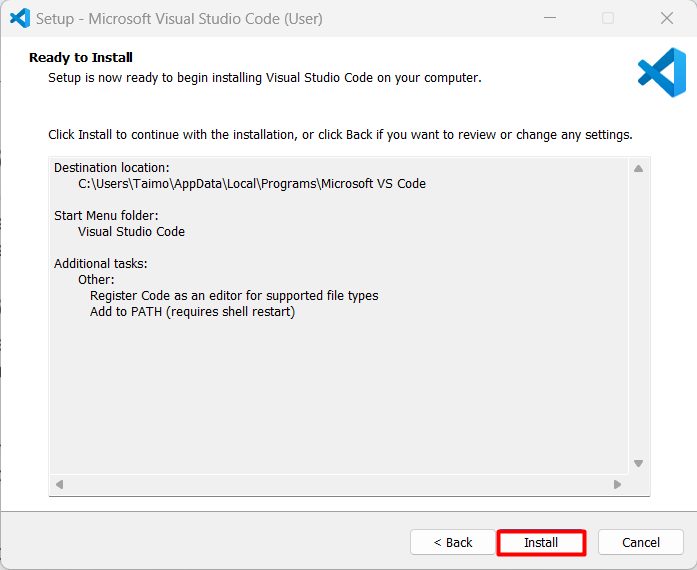
- Select the additional tasks. Useful ones are:
- Add "Open with Code" to the context menu
- Add to PATH
- Create a desktop icon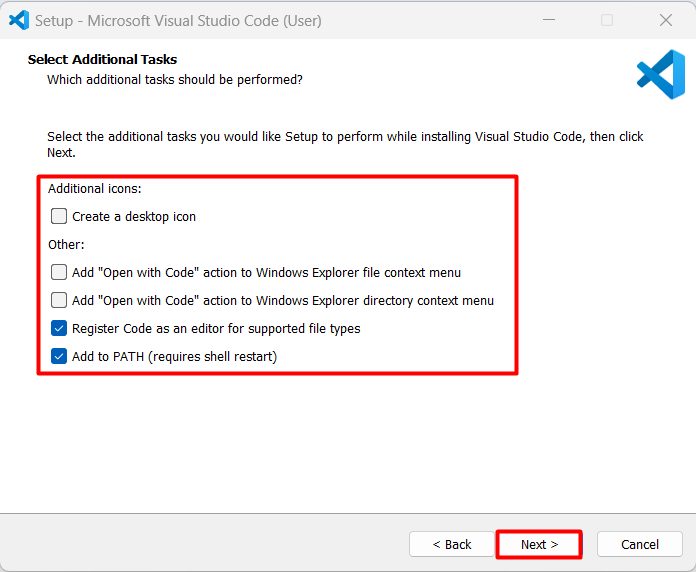
- Click Install.
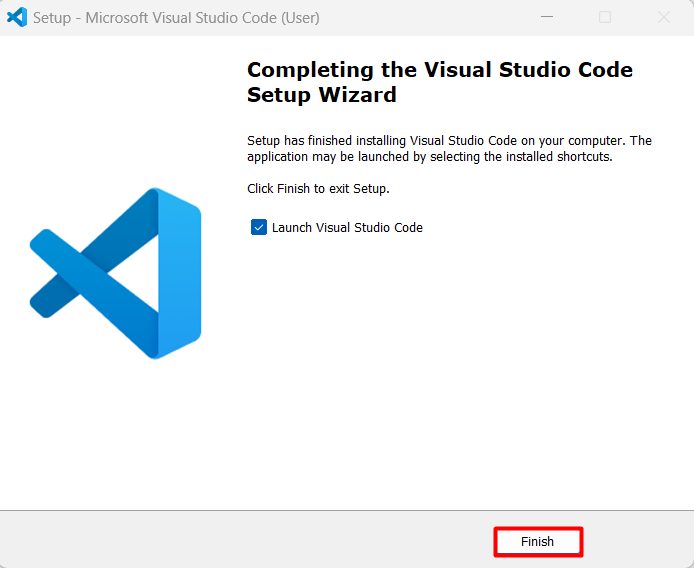
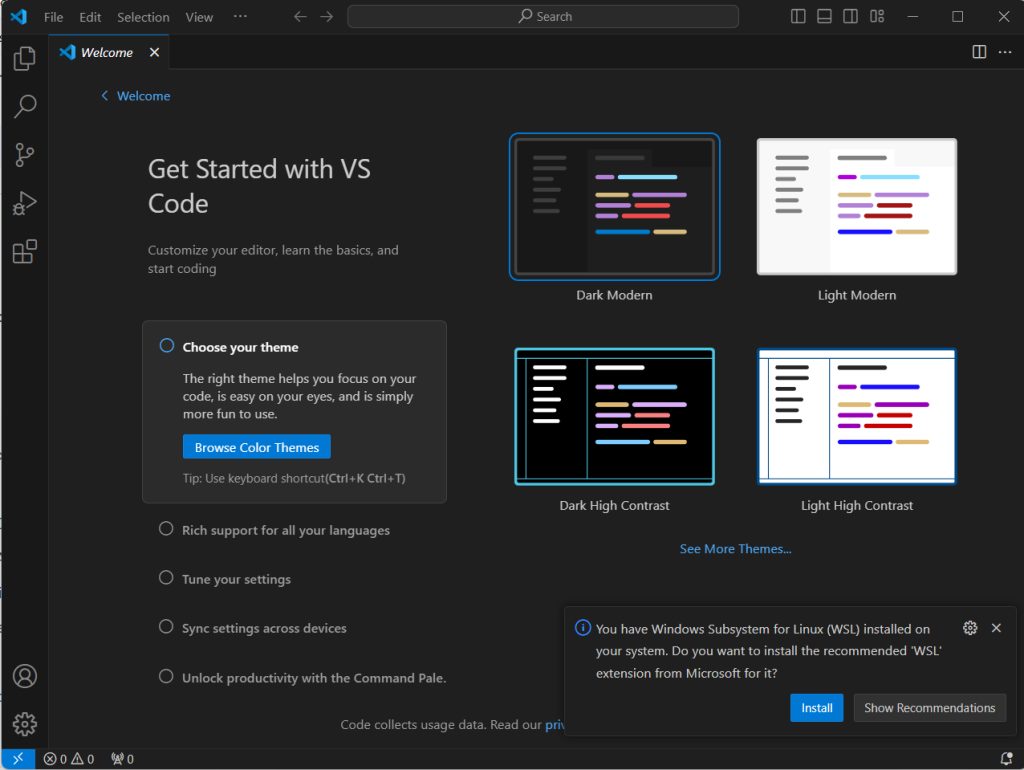
- Click Finish and launch VS Code.
FAQ
What do I need to install it? Any Windows 10 PC with 1 GB of RAM and 200 MB of space.
Do I need admin rights? No, use the user installer. The system installer needs admin rights.
Quick recap
- Download, run the installer and tick "Add to PATH".
- Launch VS Code from the Start menu.