

Why choose VLC
- It plays nearly every audio and video format.
- It is free with no hidden costs.
- It gets regular updates and fixes.
- It is small and light.
- It has many options for playback, subtitles and audio.
Install VLC
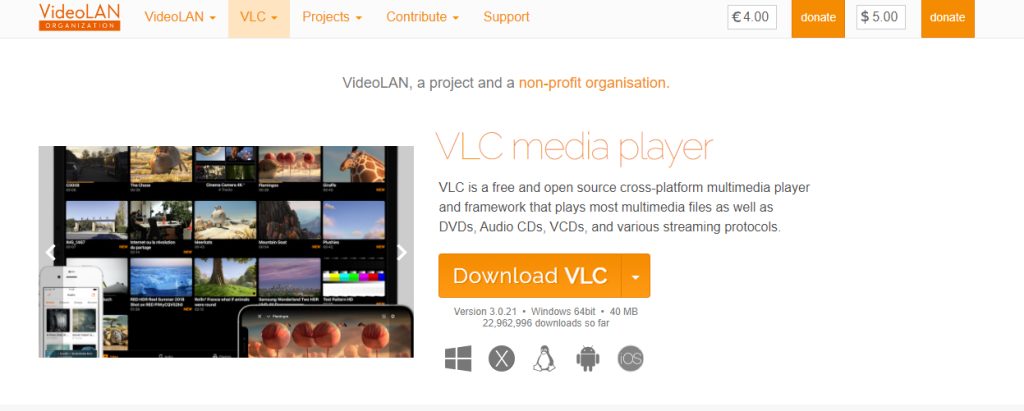
Step 1: Download the installer
Open the official VLC website and click Download VLC.
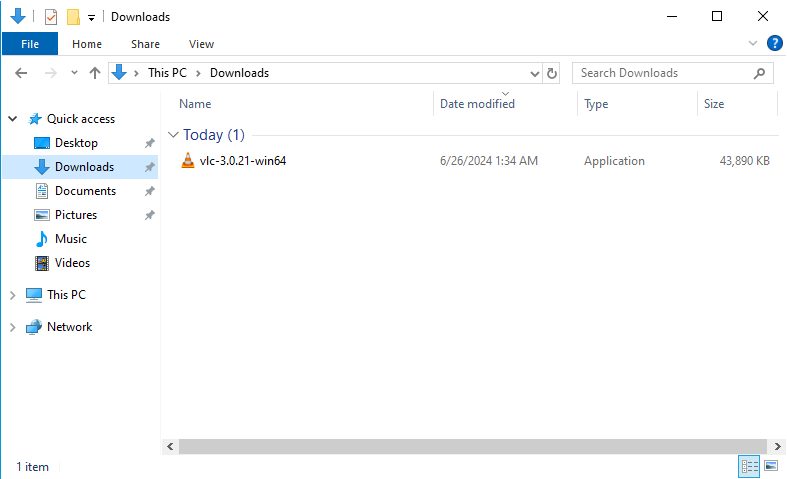
Step 2: Run the installer
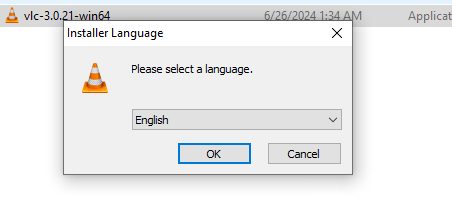
Step 3: Choose the language
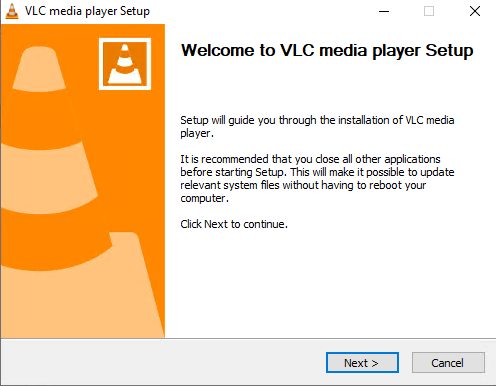
Click Next on the setup screen.
Step 4: Accept the license
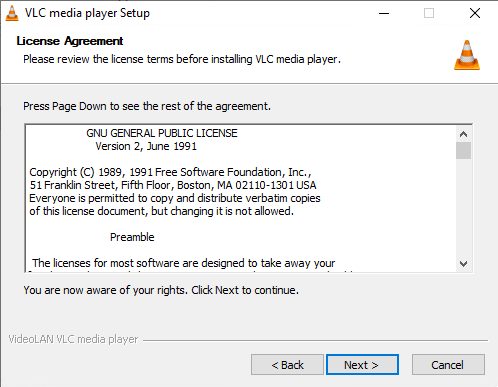
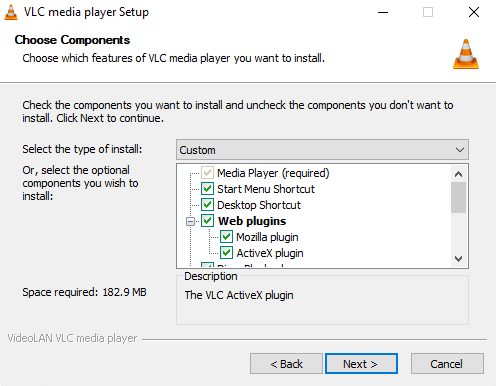
Step 5: Choose components
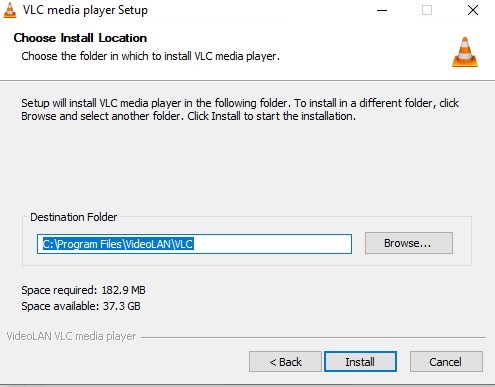
Step 6: Choose the install folder
Step 7 to 9: Start menu, options and install
Keep the defaults and click Install.
Step 10: Wait for it to finish
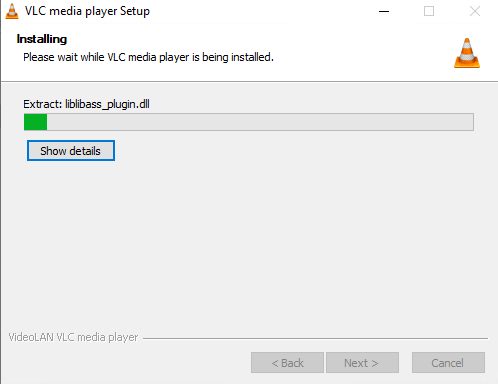
Step 11: Finish
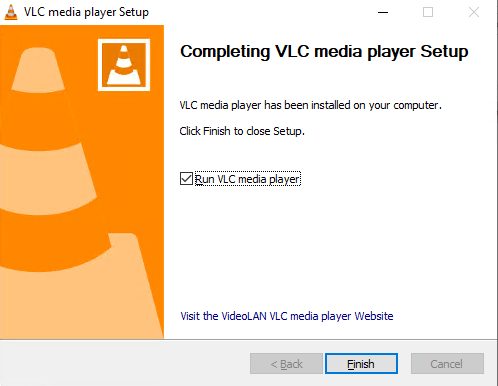
Use VLC
Start VLC from the Start menu.
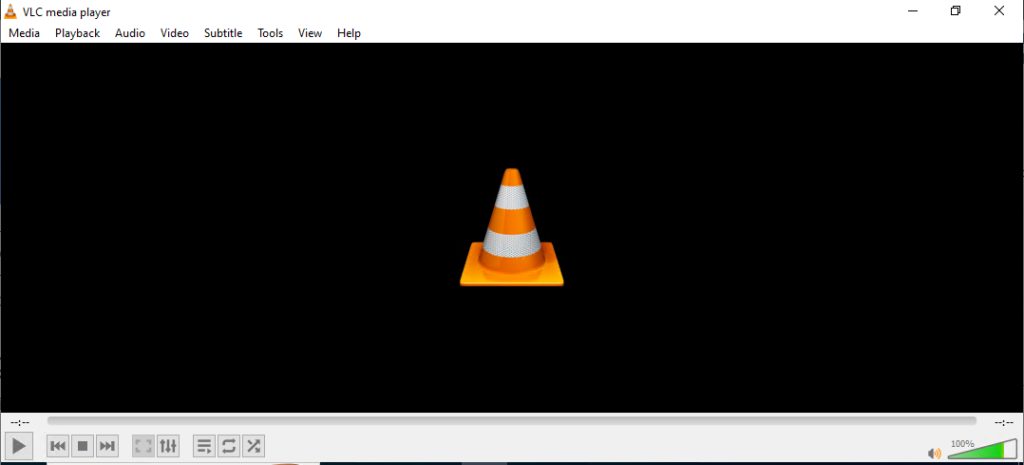
- Drag a file into the window, or choose Media > Open File.
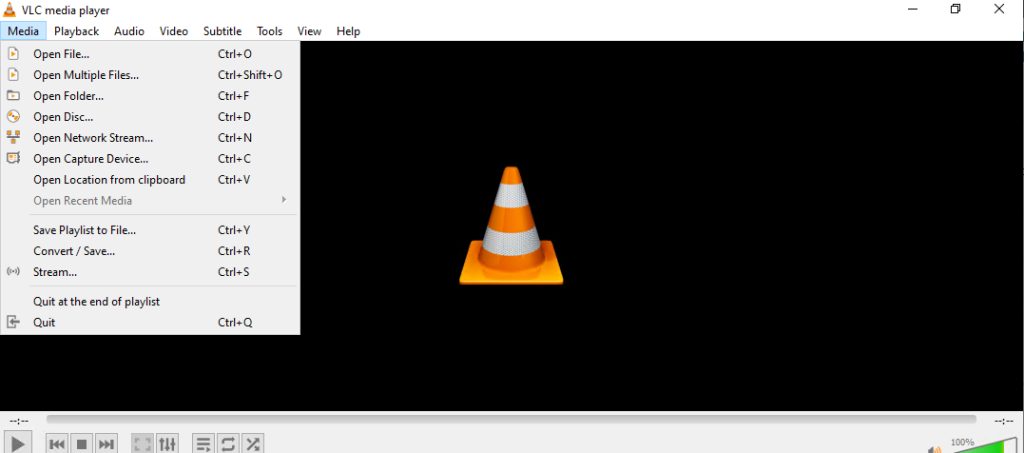
- Use the controls at the bottom for play, pause, volume and seeking.
- Open Tools > Preferences for audio, video and subtitle options.
Quick recap
- Download from the VLC site and click through the wizard.
- Open files with Media > Open File.