

Which VMware product
- Workstation Player is the lighter option for running virtual machines.
- Workstation Pro is the full version with advanced features such as snapshots and clones.
Check the VMware site for the current licensing terms of each product.
Requirements
- 64-bit Windows 10 or later.
- A 64-bit processor, 2 GHz or faster.
- 4 GB of RAM or more.
- About 200 MB of disk space for the installer, plus space for virtual machines.
- Hardware virtualization enabled in the BIOS.
Download
Go to the VMware website and download the Windows installer.

Install Workstation Player
- Run the installer as administrator.

- On the welcome screen click Next and accept the license terms.
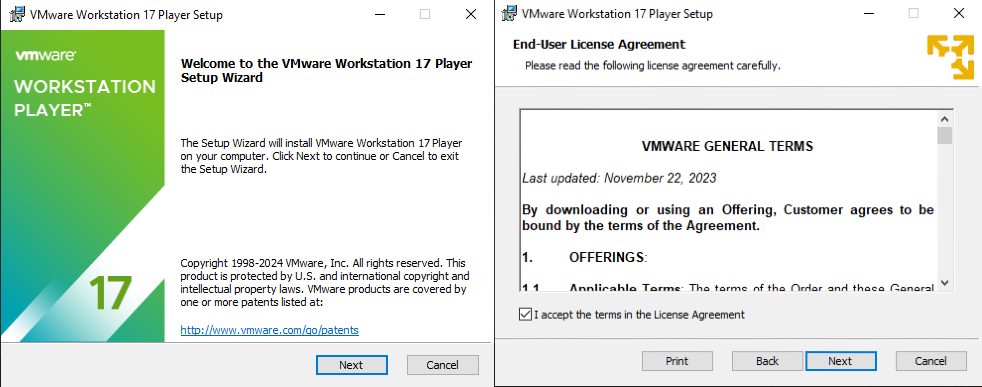
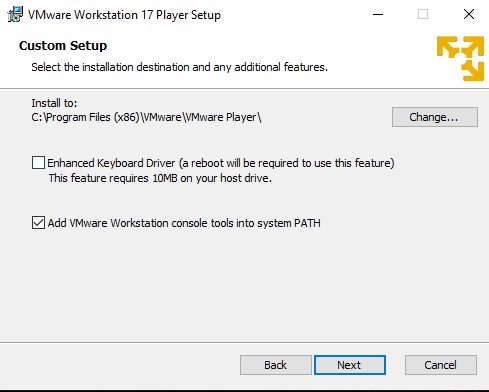
- Choose the install folder and optional extras such as the enhanced keyboard driver.
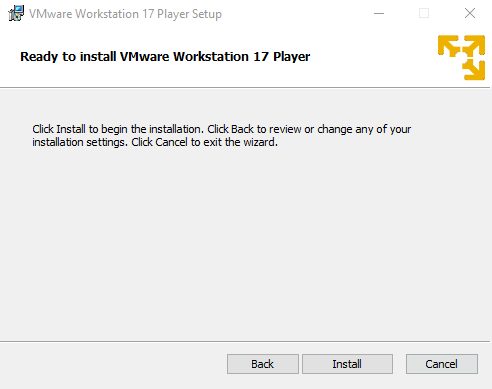
- Choose shortcuts, then click Install.
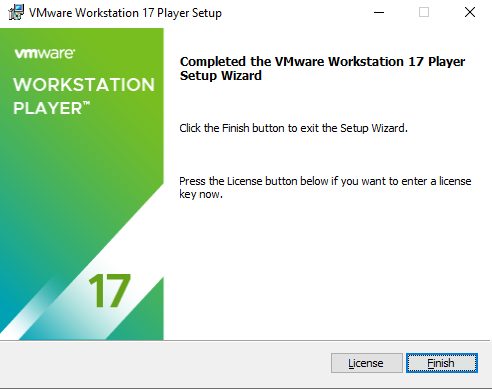
- Click Finish.
Install Workstation Pro
The steps are almost the same. Enter your license key when asked.
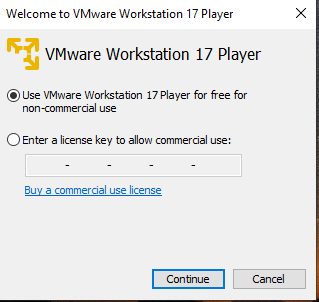
Create a virtual machine
- Open VMware Workstation.
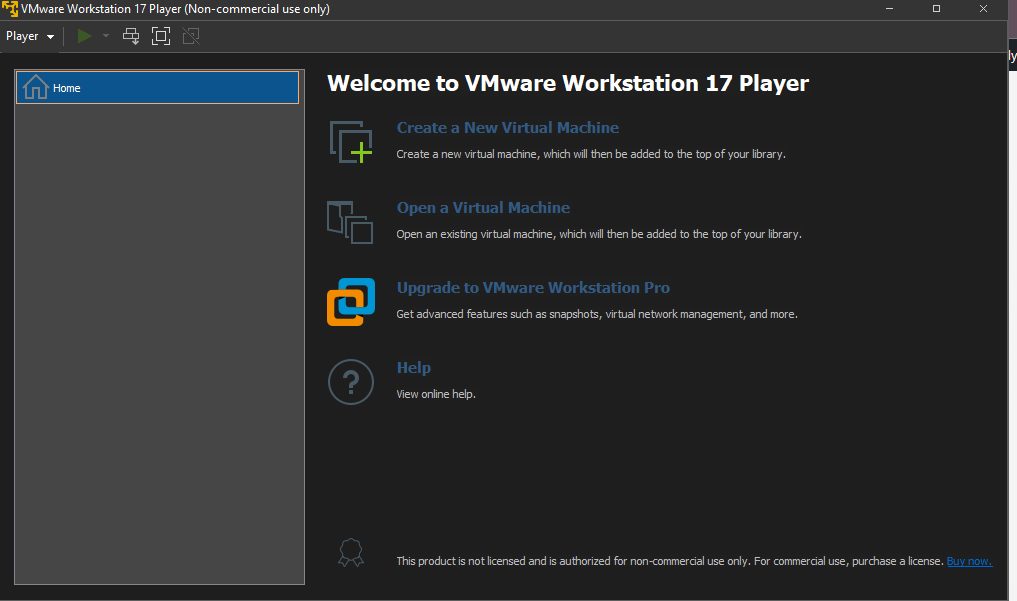
- Click Create a New Virtual Machine.
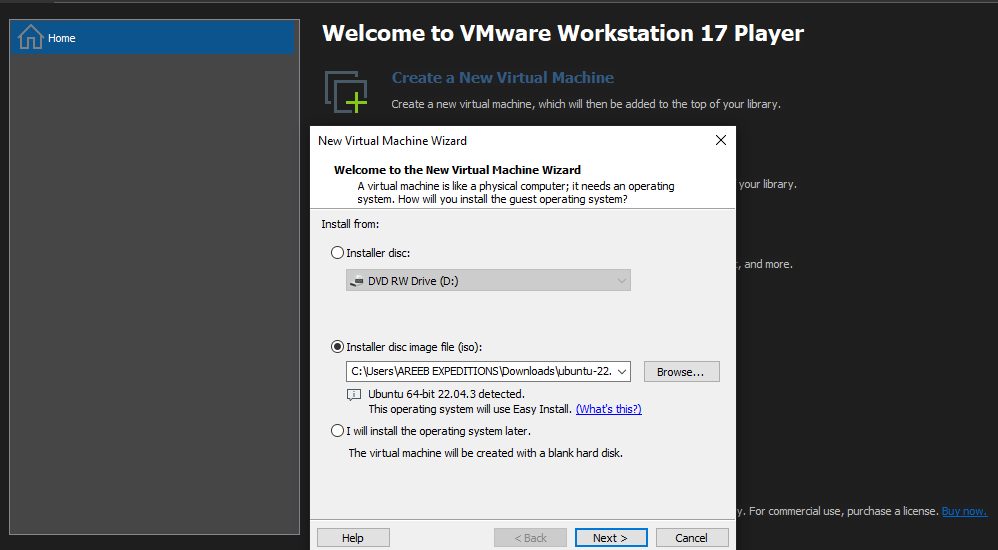
- Choose how to install the guest system:
- Installer disc image (ISO) if you have an ISO file.
- Install later to add the OS afterwards. - Select the guest OS type and version.
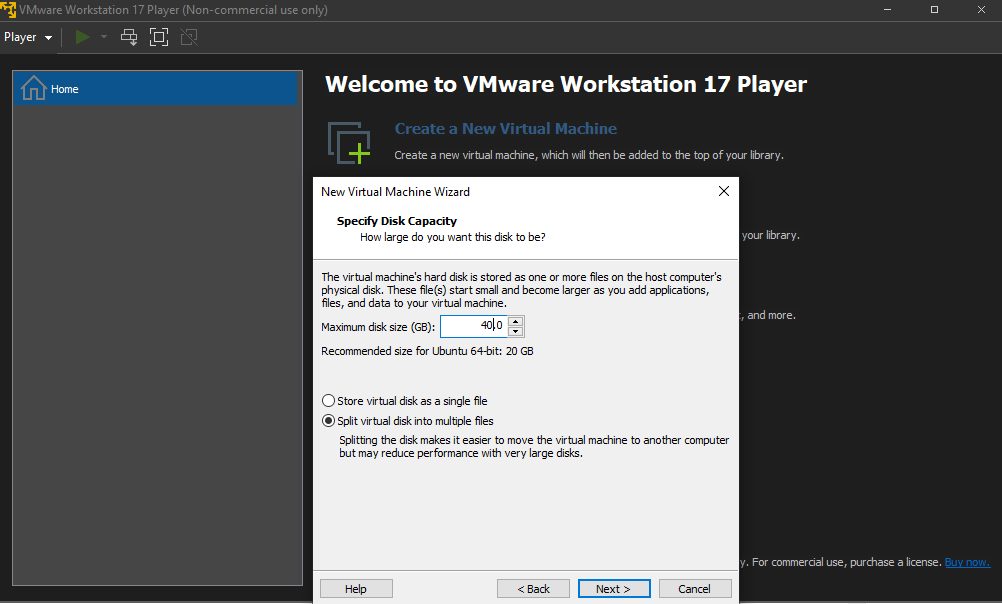
- Name the machine and set the disk size.
- Review the virtual hardware and click Finish.
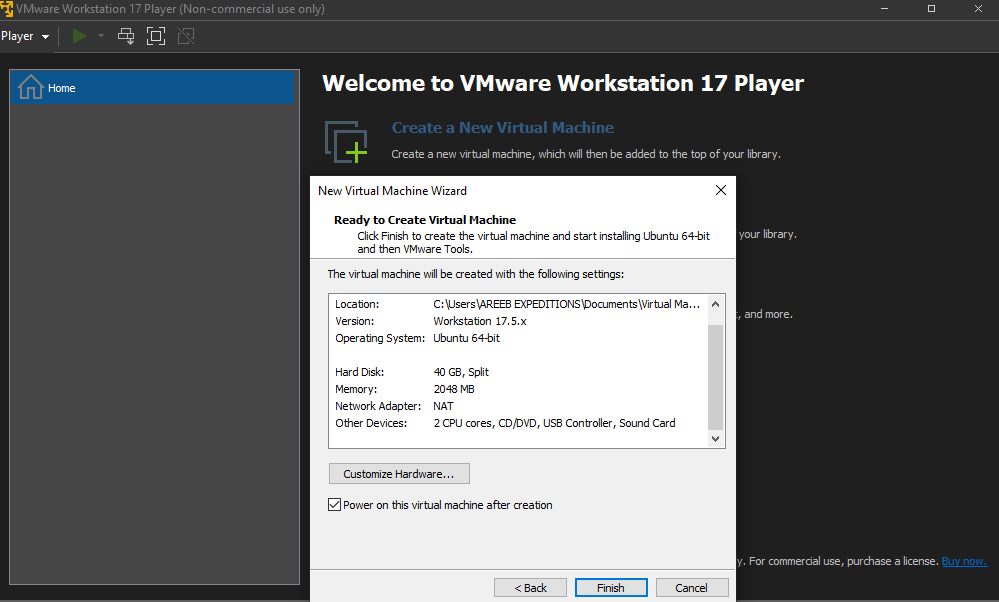
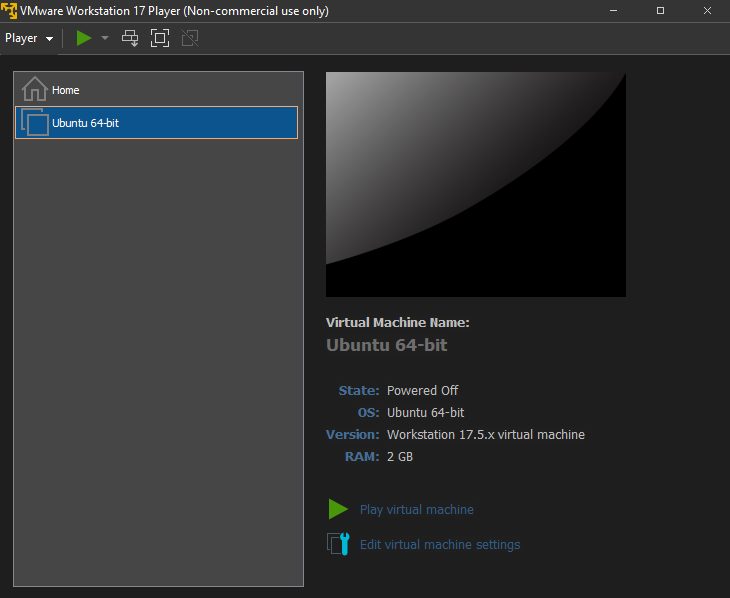
- Power it on and finish installing the guest system.
Quick recap
- Enable virtualization in BIOS, run the installer and follow the wizard.
- Create a VM from an ISO file.