

Step 1: Download GNU Wget
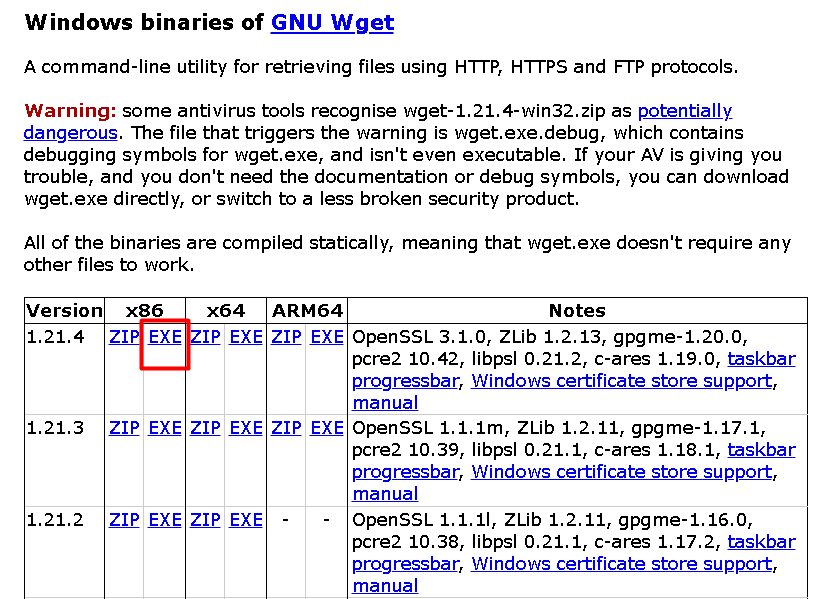
Search for GNU Wget for Windows and open a trusted binaries page, then download the 64-bit zip.
Step 2: Choose the latest version
Pick the most recent build for your system type (32-bit or 64-bit).
Step 3: Put wget on the Path
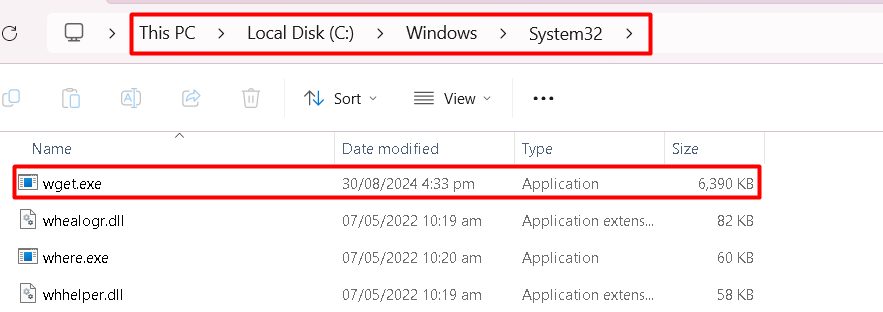
Extract the zip. Copy wget.exe to C:\Windows\System32. That folder is already on the Path, so the command works from anywhere. You need admin rights for this.
Another way is to keep it in its own folder, like C:\wget, and add that folder to the Path variable.
Step 4: Check it
Open a new Command Prompt:
wget -V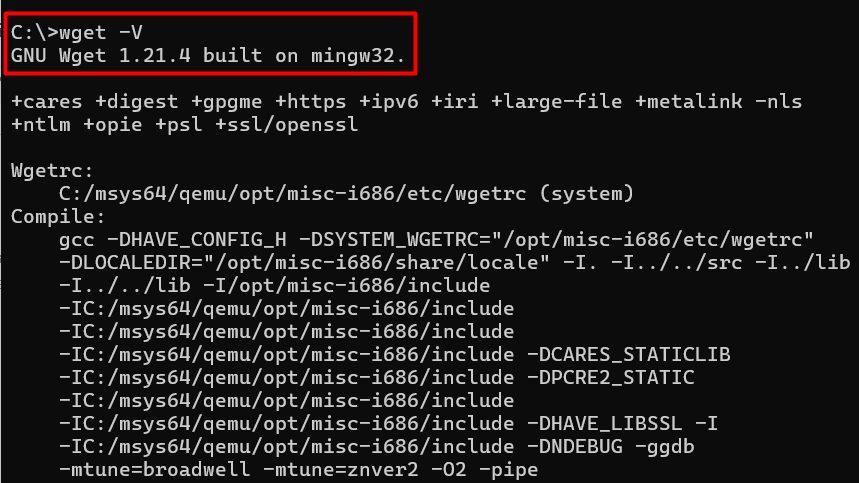
Features of wget
- Resume broken downloads.
- HTTP cookies support.
- Proxy servers support.
- Authentication support.
- Command-line use, good for scripts.
- Recursive downloads of whole sites.
Common problems
- "wget is not recognized". The file is not in a Path folder. Move it, or add its folder to the Path, then open a new window.
- Files do not download. Check the URL, your internet connection and any proxy.
Common options
-a fileappends messages to a log file.-bruns in the background.-ccontinues a partial download.-O namesaves with a different name.-P foldersaves into a folder.-rdownloads recursively.
Example:
wget -c https://example.com/file.zipQuick recap
- Put
wget.exein a Path folder and runwget -V.