

What you need
- A compatible host. Windows 10 or 11 Pro, Enterprise or Education. Hyper-V is not in the Home edition.
- A Windows 11 ISO from the Microsoft website.
- Enough disk space. At least 64 GB for the virtual disk, plus space for the files.
- Enough RAM. At least 4 GB for the VM.
Step 1: Enable Hyper-V
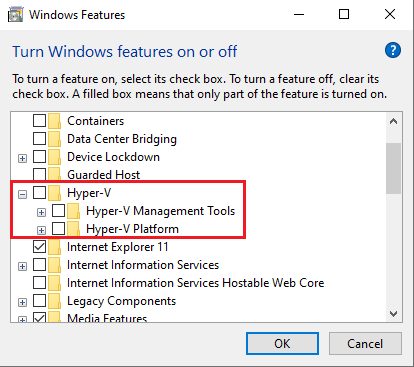
- Open the Start menu, search for Turn Windows features on or off and open it.

- Tick Hyper-V (with both sub-items) and click OK. Restart the PC when asked.
Step 2: Open Hyper-V Manager
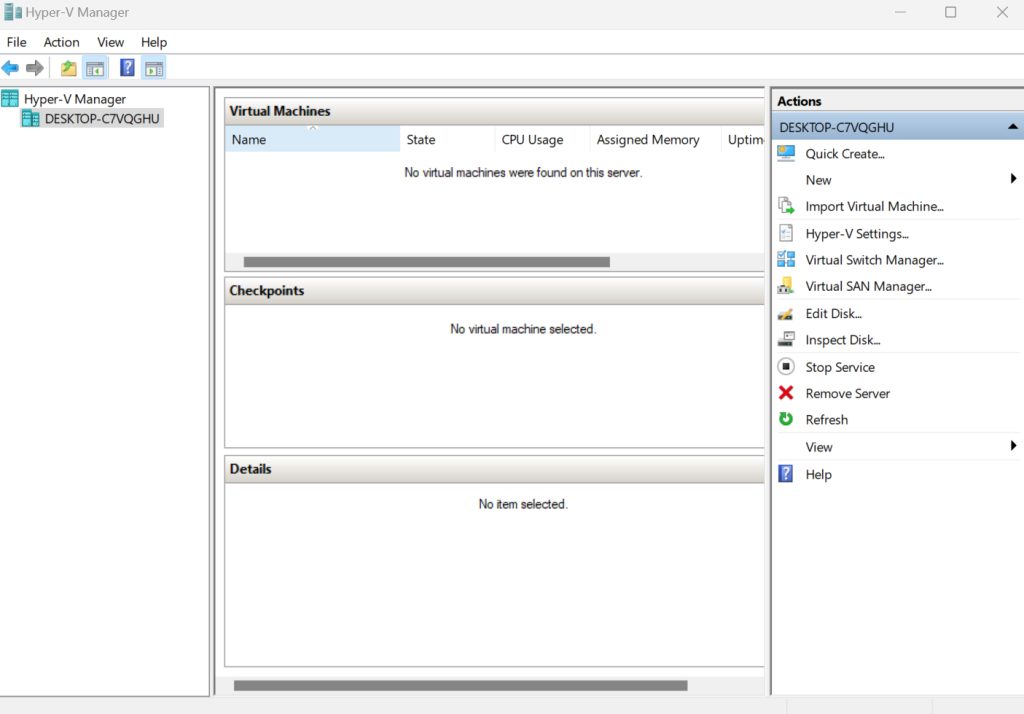
Search for Hyper-V Manager in the Start menu and open it.
Step 3: Create the virtual machine
- Click Action > New > Virtual Machine.
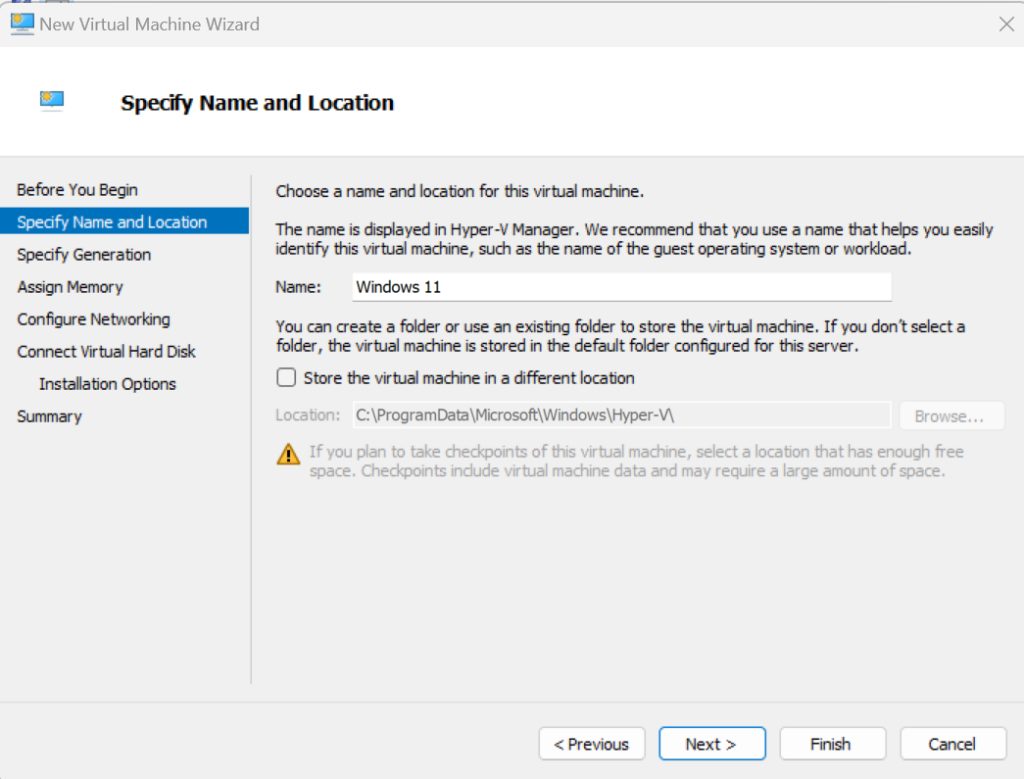
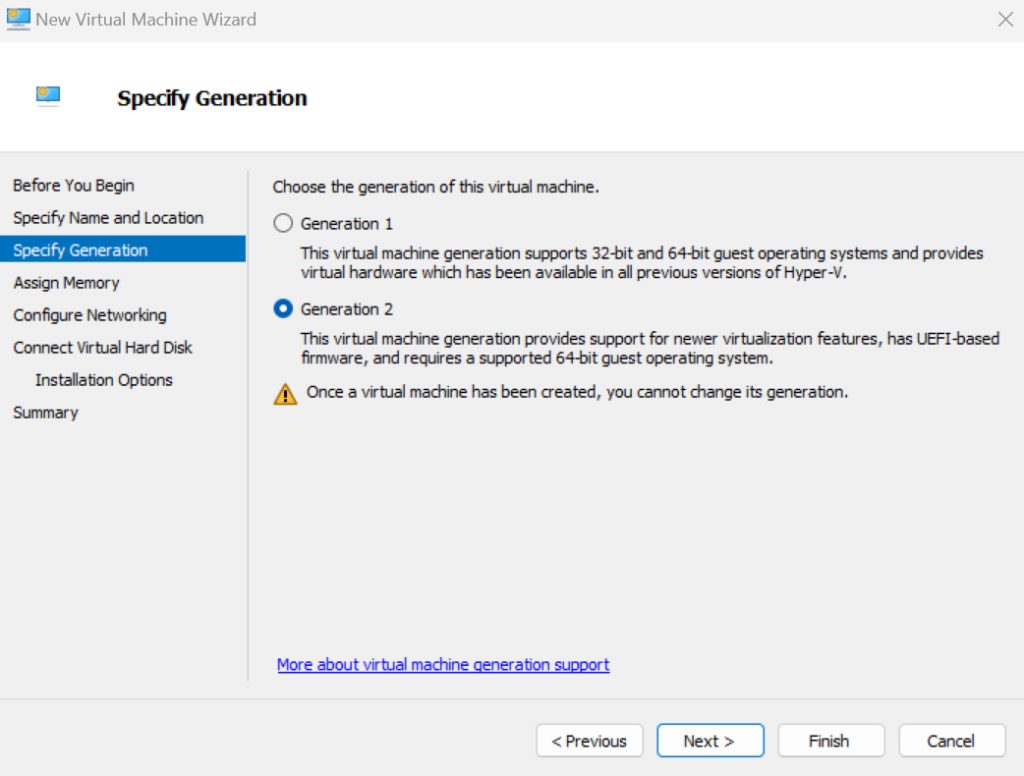
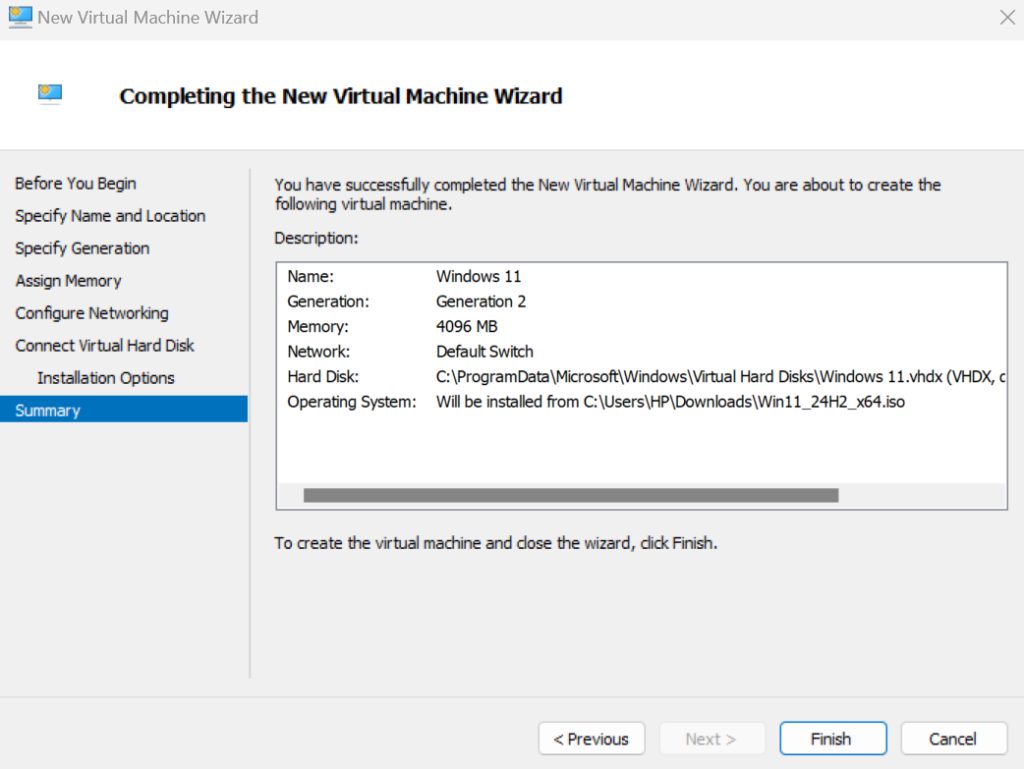
- Enter a name and choose Generation 2. Windows 11 needs it.
- Assign memory, 4096 MB or more.
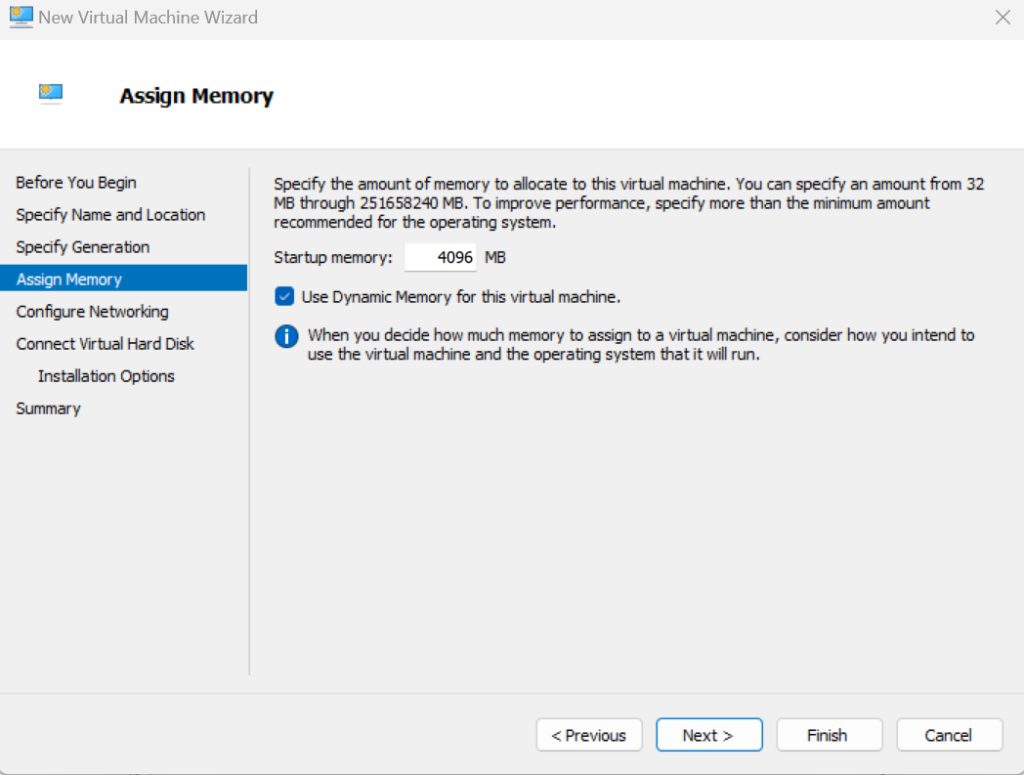
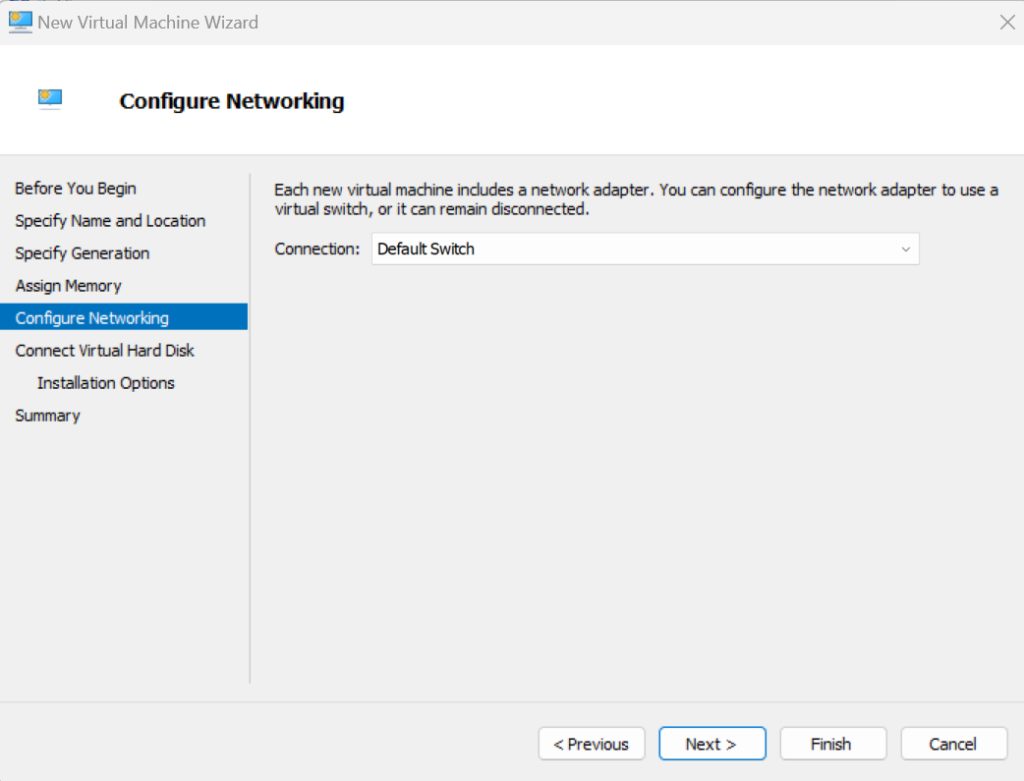
- Choose a virtual switch for networking, such as the Default Switch.
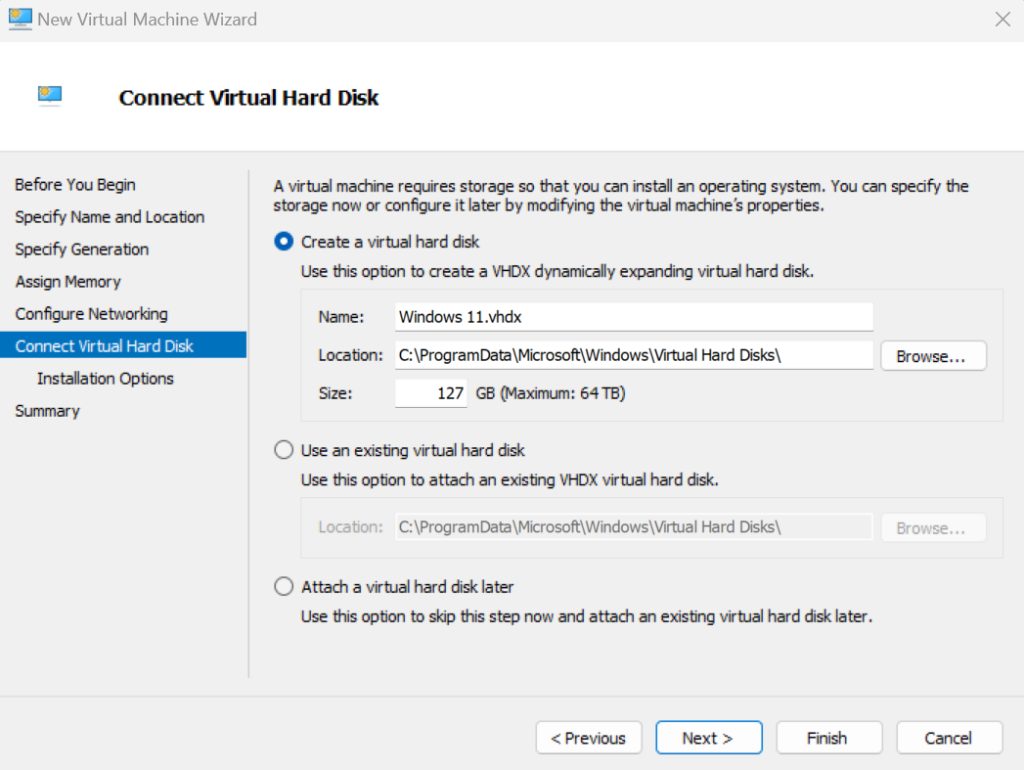
- Create a virtual hard disk of 64 GB or more.
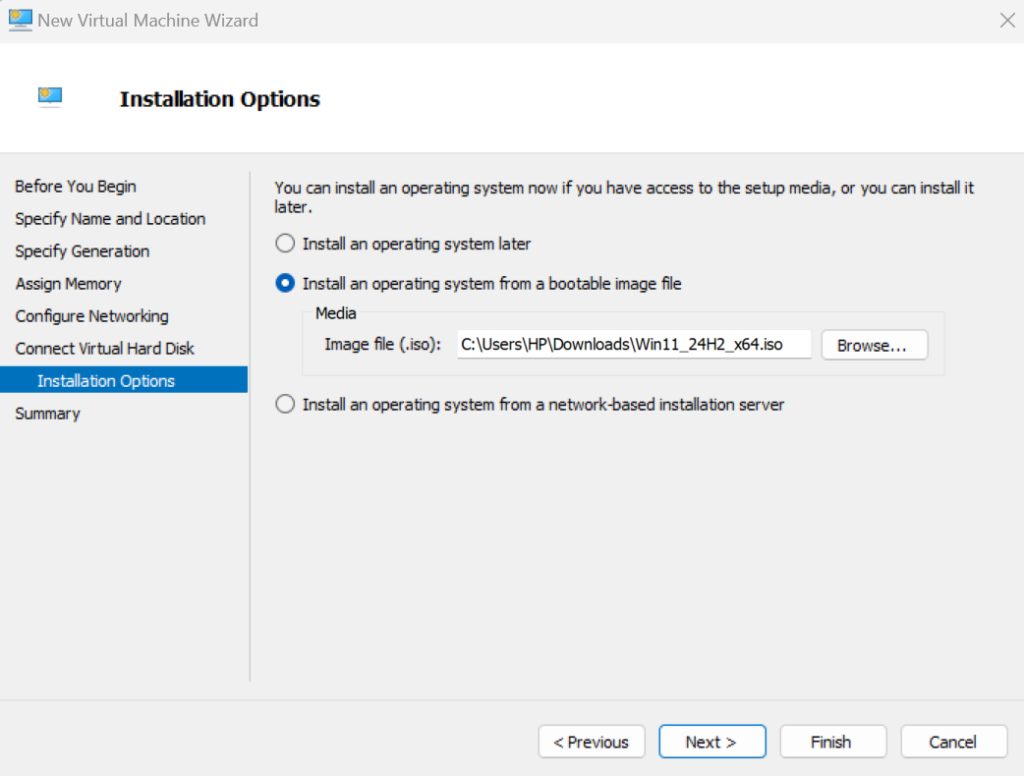
- Select Install an operating system from a bootable image file and pick the Windows 11 ISO.
- Review the summary and click Finish.
Step 4: Enable TPM and Secure Boot
Windows 11 needs a TPM 2.0 chip. Before you start the VM:
- Right-click the VM and open Settings > Security.
- Tick Enable Trusted Platform Module and keep Secure Boot on.
Step 5: Install Windows 11
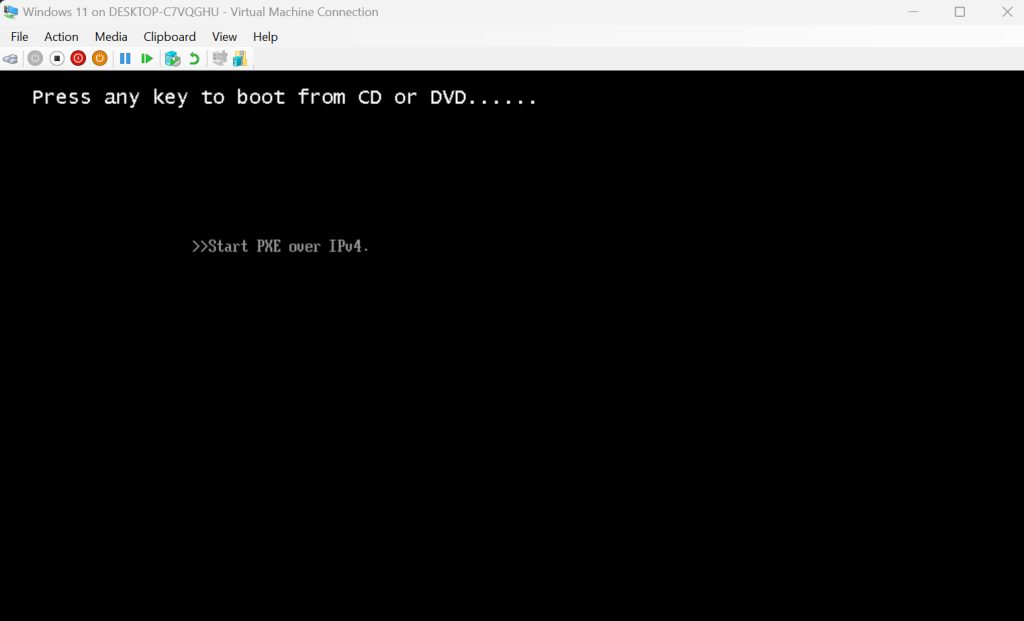
- Right-click the VM, choose Connect and then Start.
- Press any key when it asks to boot from the DVD.
- Follow the installer: language, Install now, Custom install, and select the virtual disk.
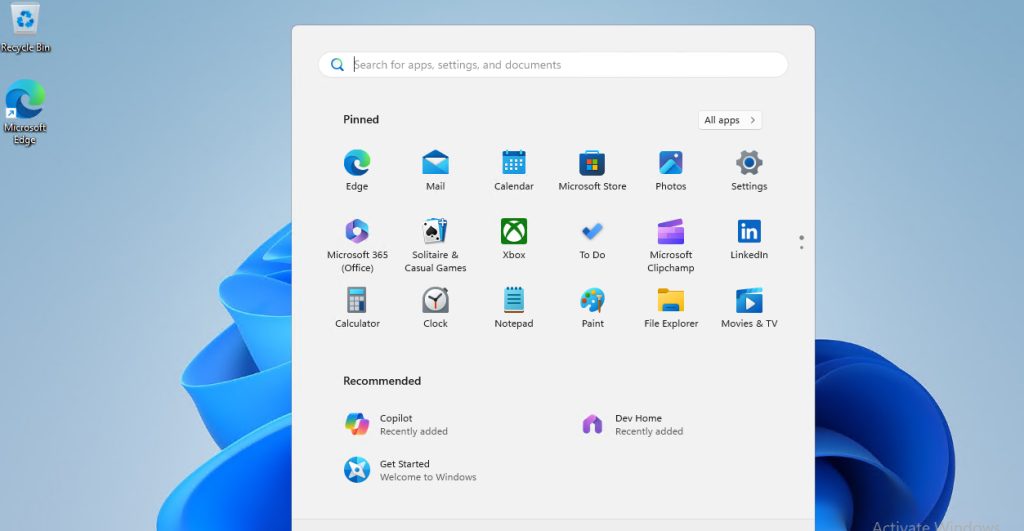
Step 6: Finish and update
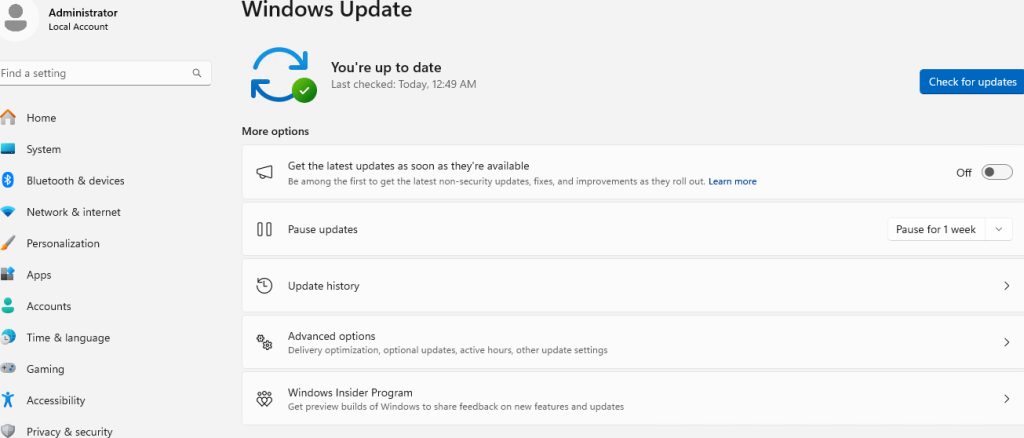
After setup, run Windows Update to get the drivers and the latest fixes. Hyper-V integration features are already part of Windows 11.
Important notes
- If installation fails, check that the VM is Generation 2 with TPM and Secure Boot on.
- Performance depends on the RAM and CPU cores you give to the VM.
Quick recap
- Enable Hyper-V, create a Generation 2 VM and attach the ISO.
- Enable TPM before the first start.