

What is WSL
Windows Subsystem for Linux lets you run a Linux terminal and Linux tools directly on Windows, without a separate virtual machine setup.
Requirements
- Windows 10 version 2004 or later (build 19041 or higher), or Windows 11.
- Virtualization enabled in the BIOS.
Quick way
On current Windows versions one command does everything. Open PowerShell as administrator:
wsl --installIt enables the features and installs Ubuntu. Restart when asked. The steps below show the manual way.
Method 1: Enable WSL with PowerShell
dism.exe /online /enable-feature /featurename:Microsoft-Windows-Subsystem-Linux /all /norestart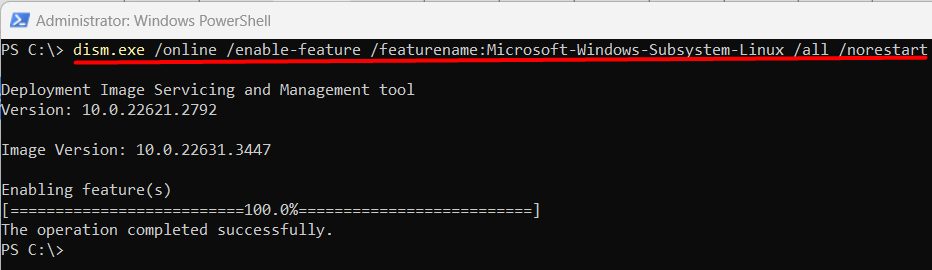
Also enable the virtual machine platform for WSL 2:
dism.exe /online /enable-feature /featurename:VirtualMachinePlatform /all /norestartRestart the PC.
Method 2: Enable WSL in Windows settings
- Search for Turn Windows features on or off.
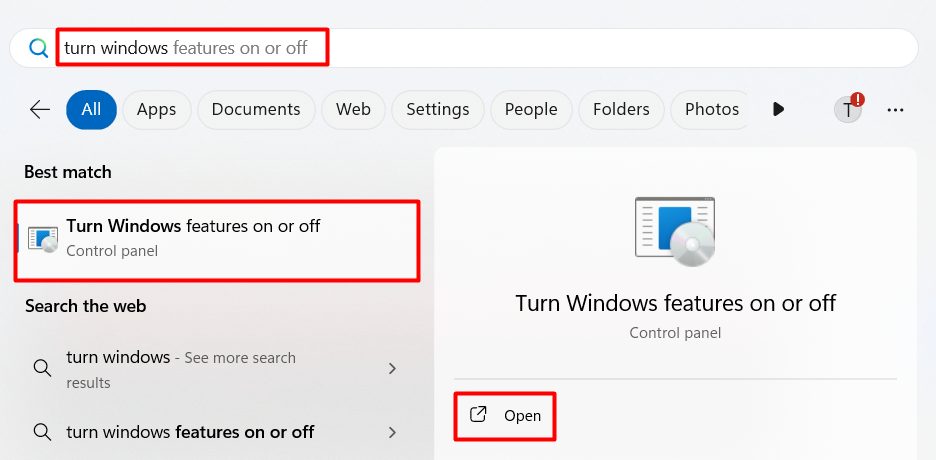
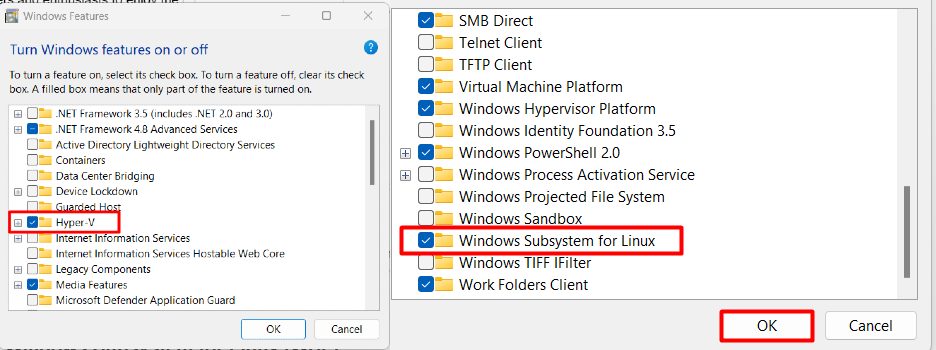
- Tick Windows Subsystem for Linux and Virtual Machine Platform, then click OK.
Install a Linux distribution
List the available distributions:
wsl.exe --list --online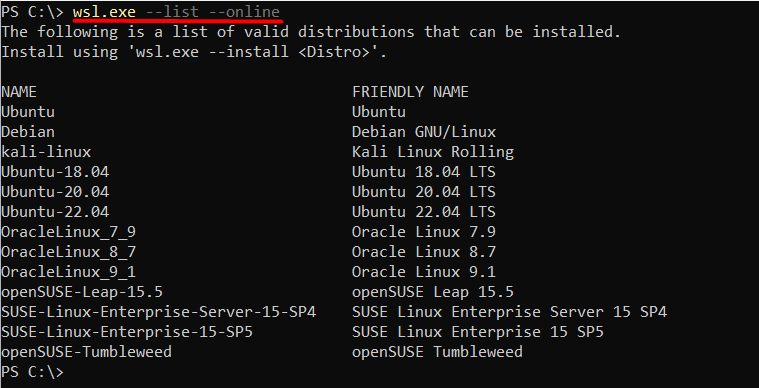
Install one:
wsl --install Ubuntu-22.04
When it finishes, create a Linux username and password.
Benefits of WSL
- Smooth integration. Open Windows files from Linux and the other way around.
- Full terminal with Linux commands and tools.
- Customizable. Install the packages you like.
- Fast. It uses fewer resources than a full virtual machine.
Quick recap
- Run
wsl --installor enable the features manually. - Pick a distribution with
wsl --list --online.