

Why use SendGrid
By default WordPress sends mail with the PHP mail() function. It has no sign-in and many servers block it or mark it as spam. A service such as SendGrid sends the mail for you with good delivery. A shop that uses WooCommerce, for example, needs customers to get their order emails.

Step 1: Create a SendGrid account
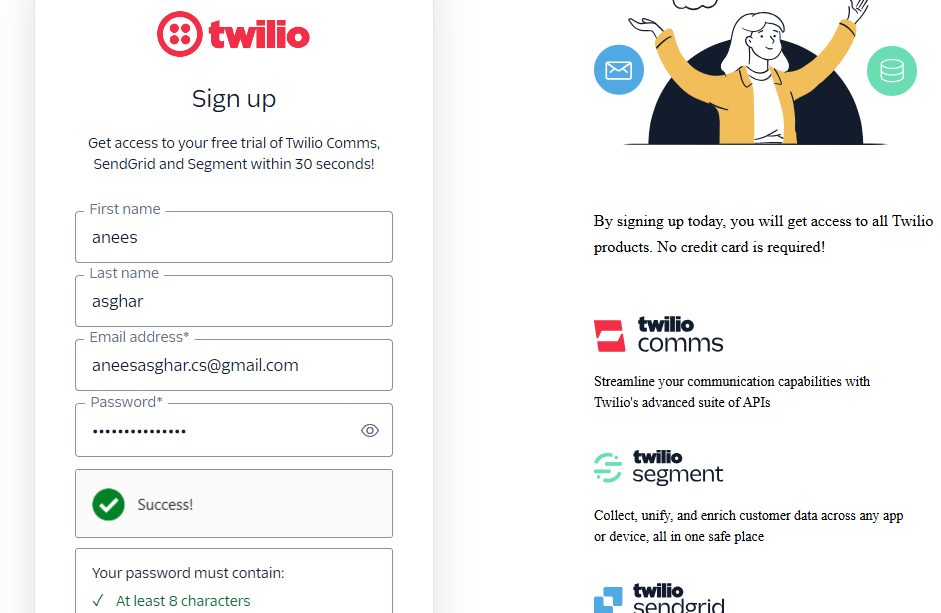
- Open the SendGrid website and click Start for free.

- Fill in your details and click Continue.
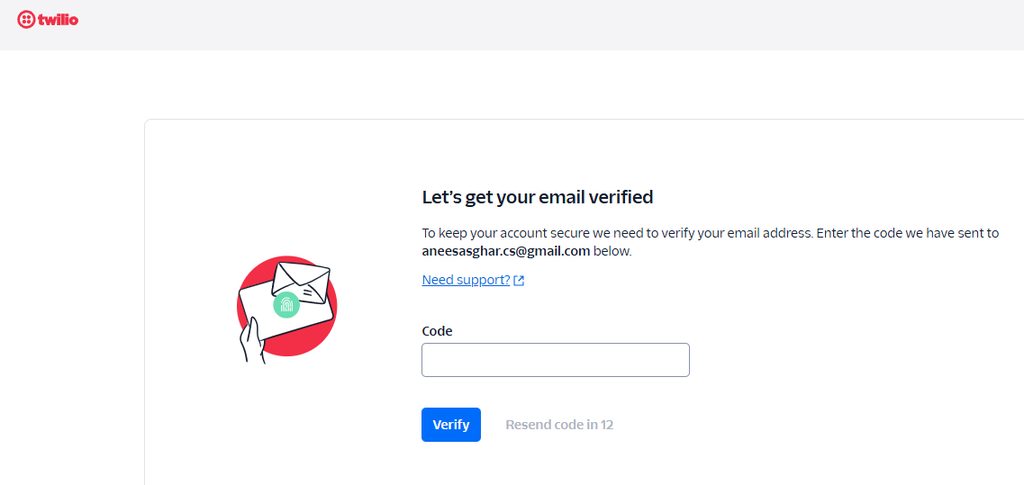
- Enter the code that SendGrid sends to your email to verify it.
Step 2: Create a sender identity
You can use a single sender address or authenticate your whole domain. Domain authentication is the better choice for delivery.
Option 1: Single sender
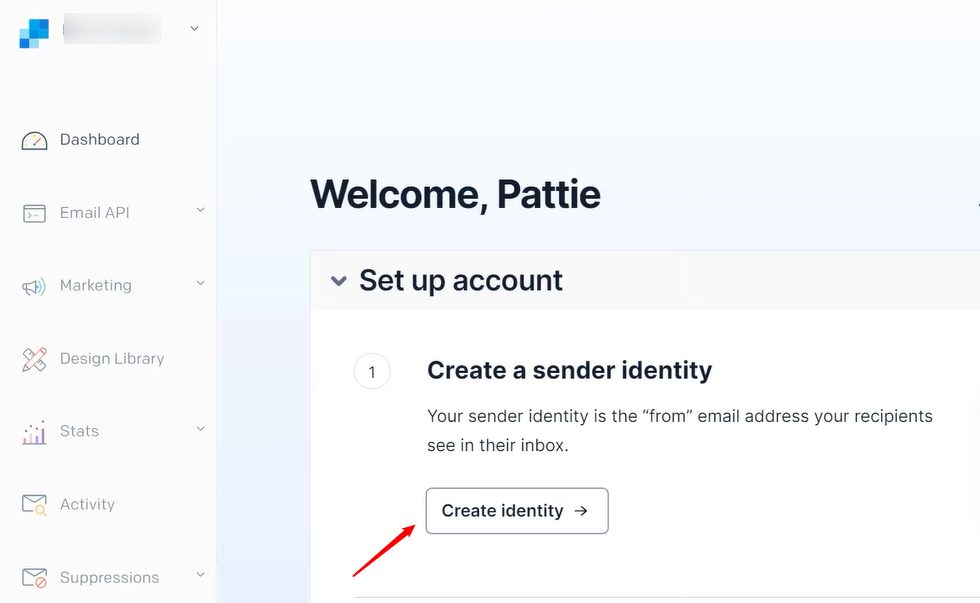
- In SendGrid, click Create Identity.
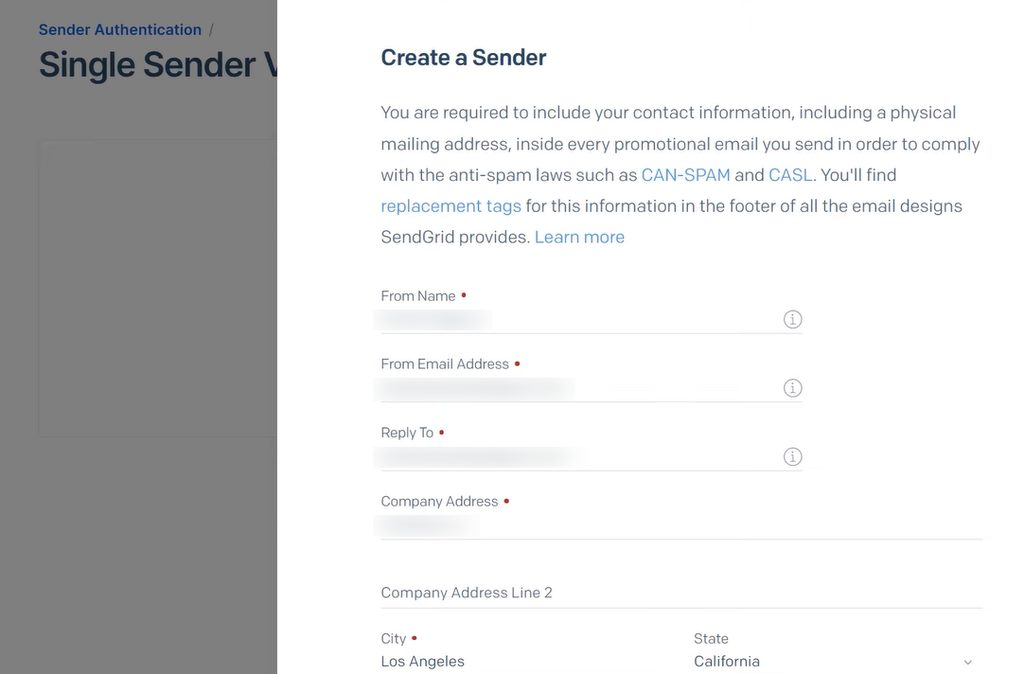
- Enter your details and click Create.
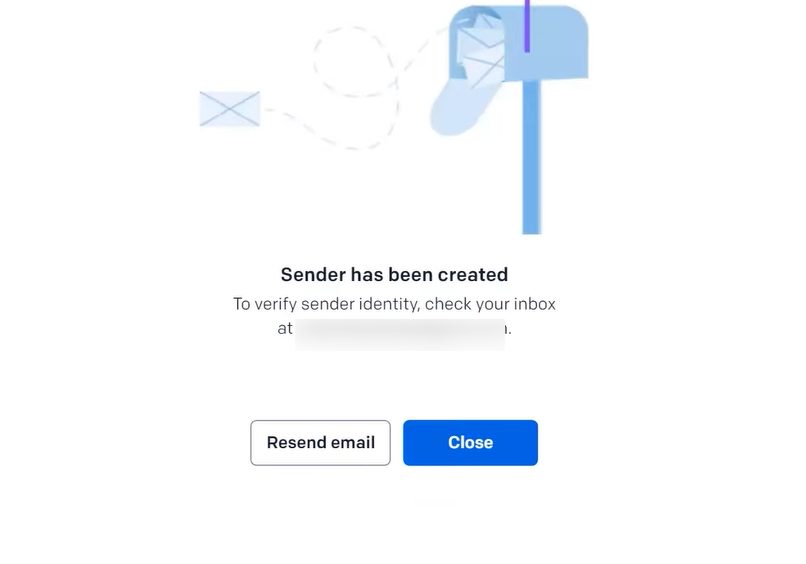
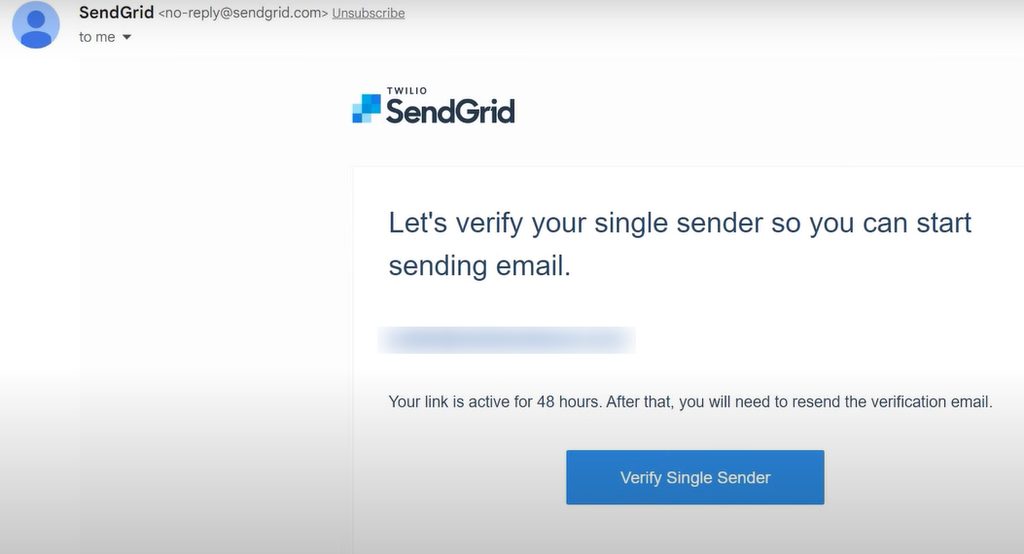
- Open the confirmation email and click the link.
Option 2: Authenticate your domain (recommended)
Domain authentication proves that you own the domain. It protects your reputation.
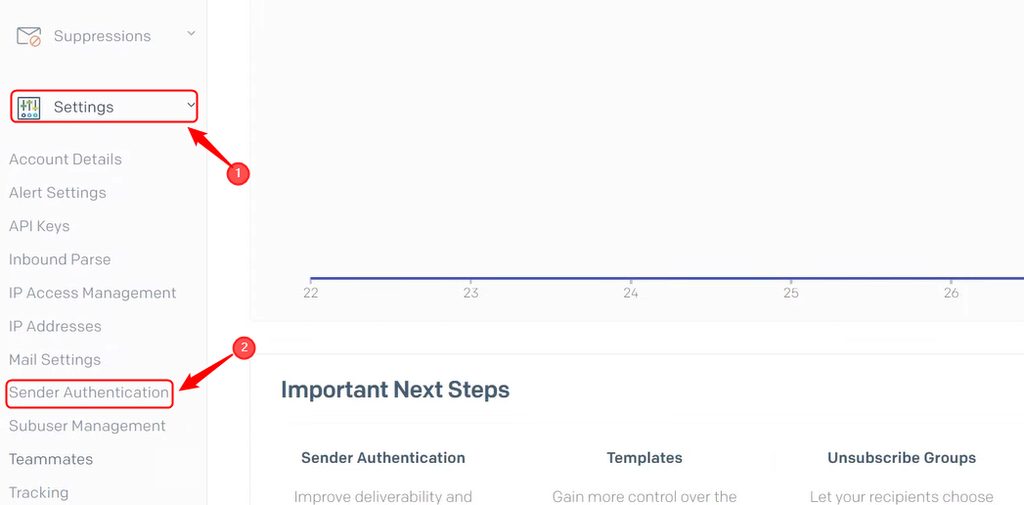
- In SendGrid, go to Settings, then Sender Authentication, and click Authenticate Your Domain.
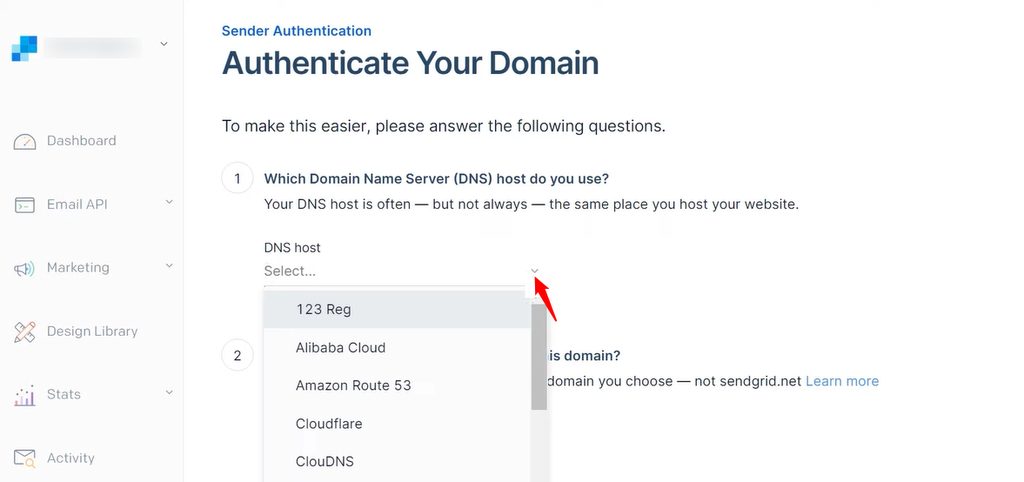
- Choose your DNS provider. If it is not in the list, pick Other Host (Not Listed).
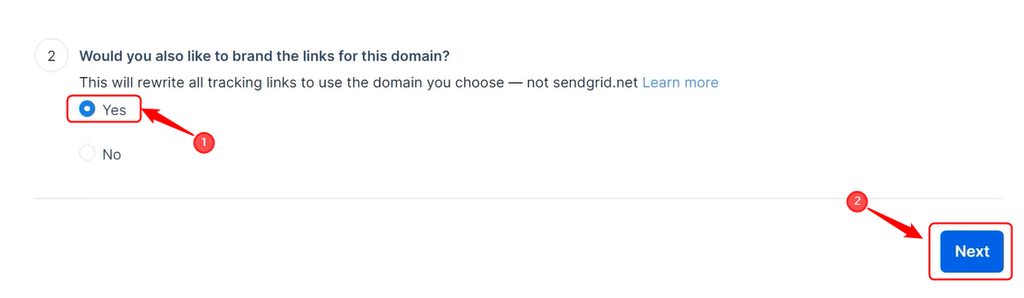
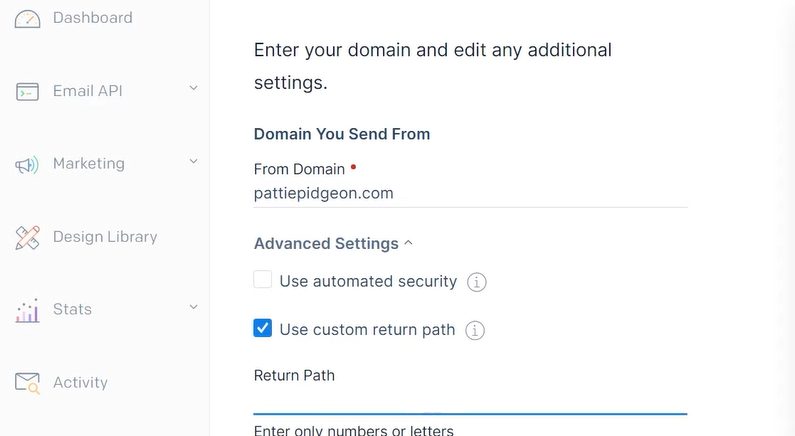
- Enter the domain you send from.
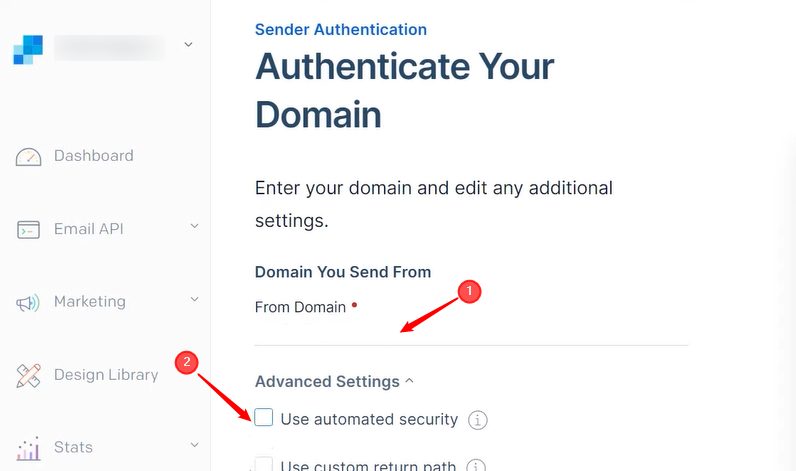
- Open the additional settings and keep the defaults, unless you know you need a change.
- SendGrid shows the DNS records to add.
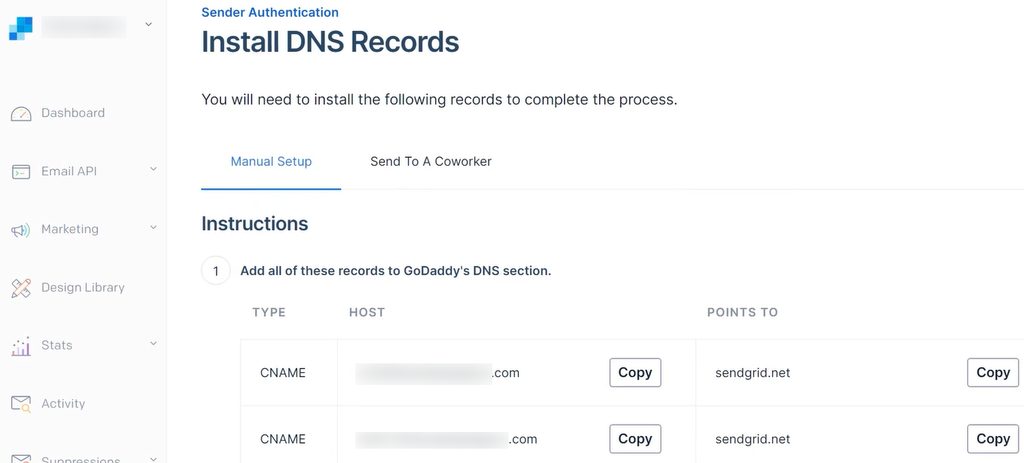
Add the DNS records
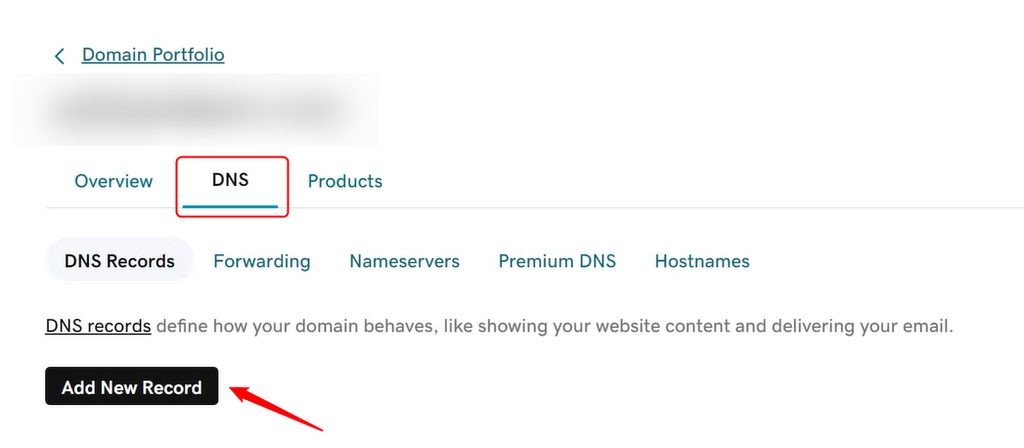
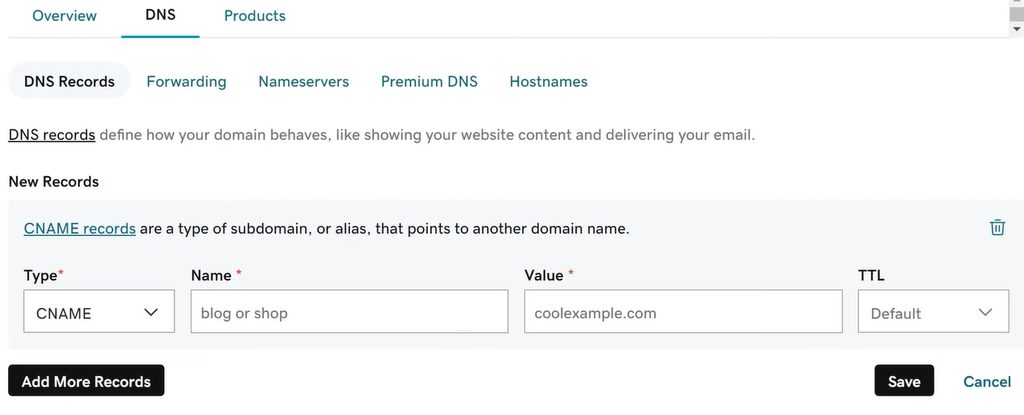
Add every record that SendGrid shows in the DNS zone of your domain. Do this in the control panel where your DNS is managed, for example in the DNS zone editor.
- Open the DNS editor and click Add new record.
- Enter the type, host and value exactly as SendGrid shows them.
- Go back to SendGrid and click Verify.

DNS changes can take some time. Try again later if the check fails.
Step 3: Create an API key
- In SendGrid, go to Settings, then API Keys, and click Create API Key.
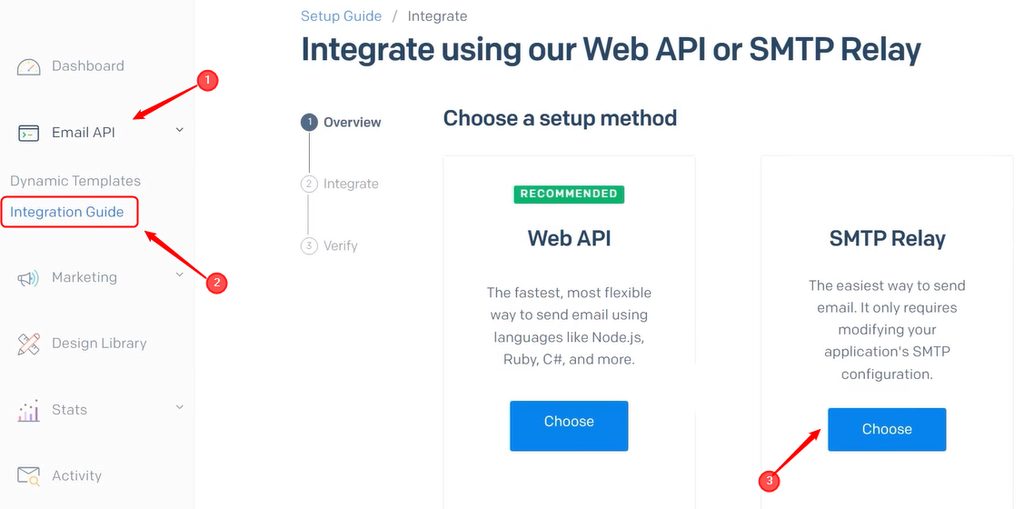
- Give it a name and choose the access level. Restricted Access with only Mail Send is the safest. Click Create & View.
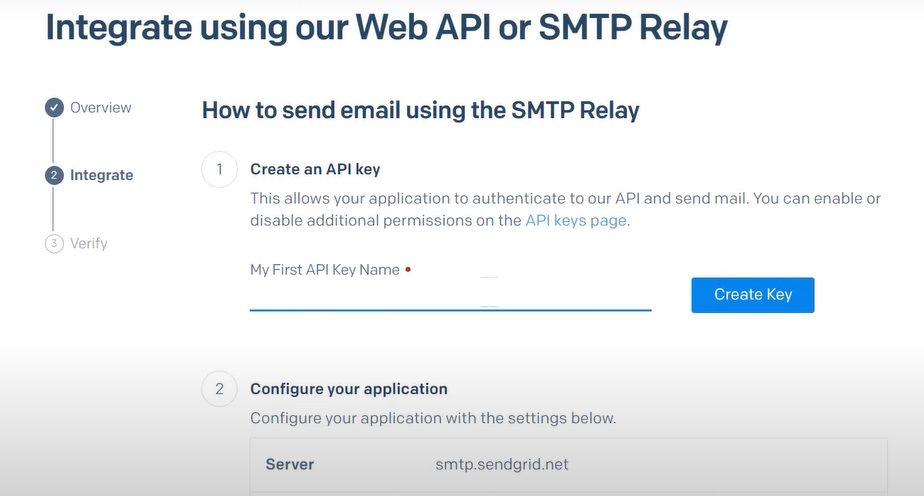
- Copy the key. SendGrid shows it only once.
Step 4: Set up WP Mail SMTP
- In WordPress, install and activate the WP Mail SMTP plugin.
- Go to WP Mail SMTP, then Settings.
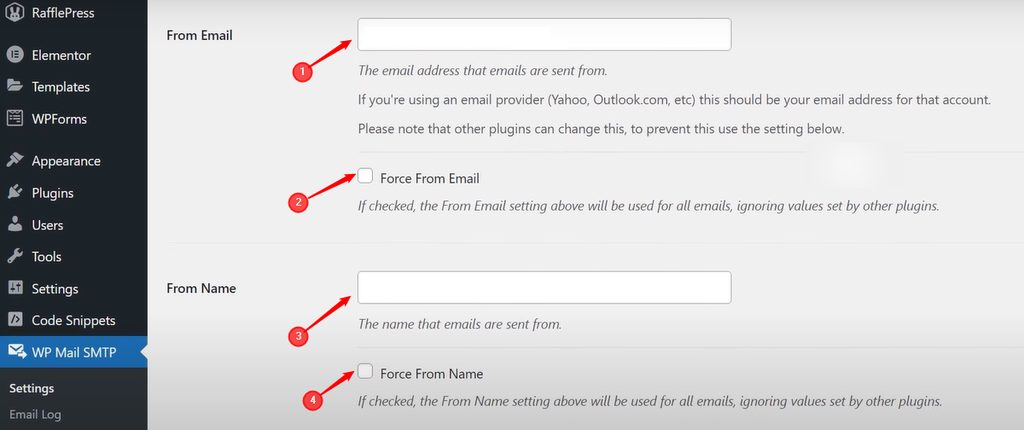
- Enter the From Email (it must match your verified sender or domain) and the From Name.
- Under Mailer, select SendGrid.
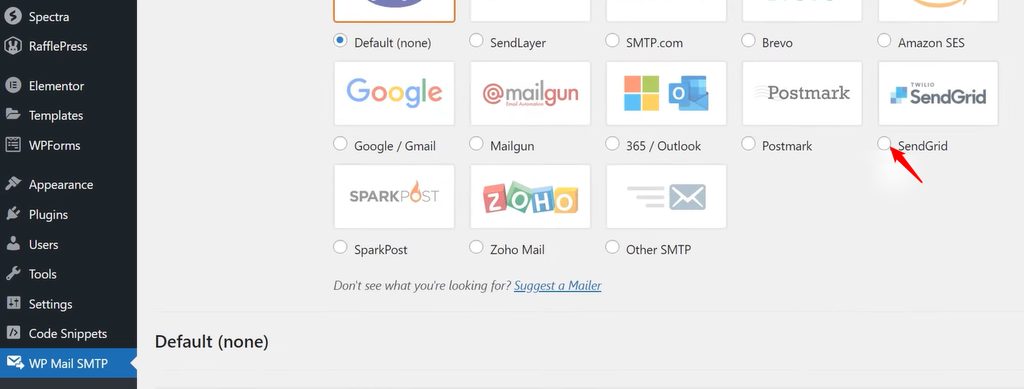
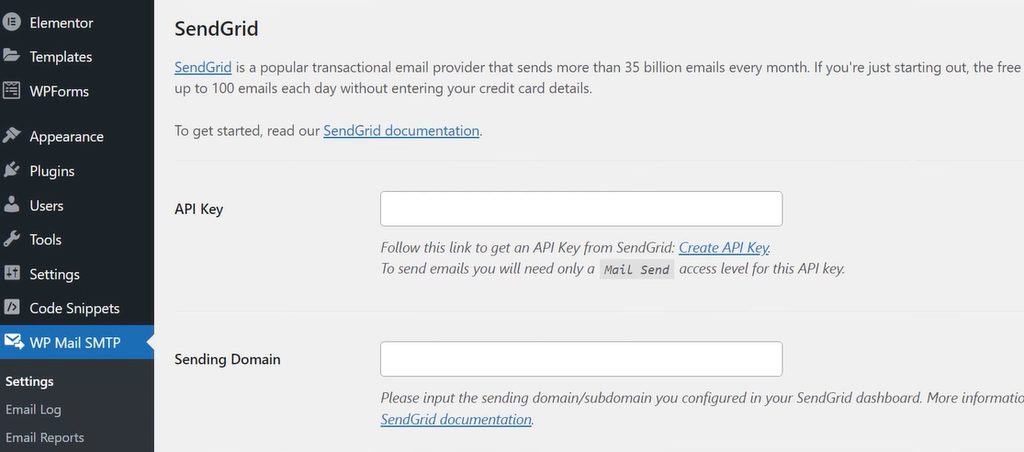
- Paste the API key into the field API Key.
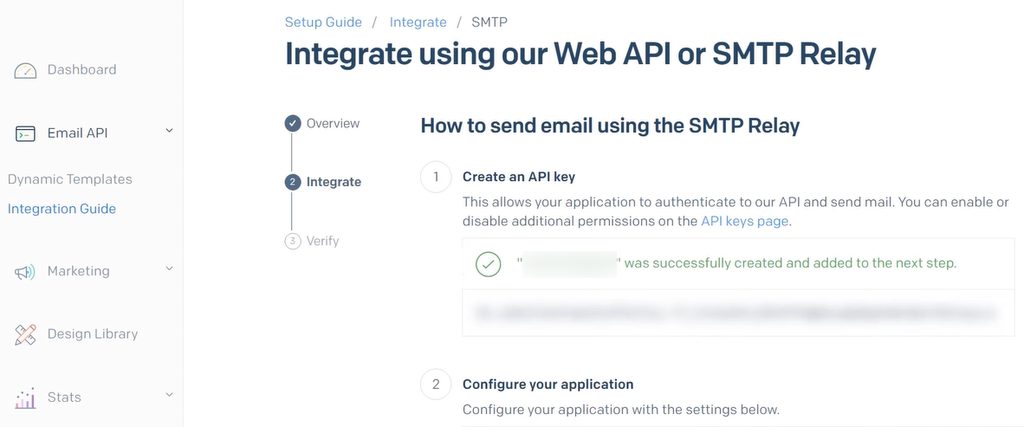
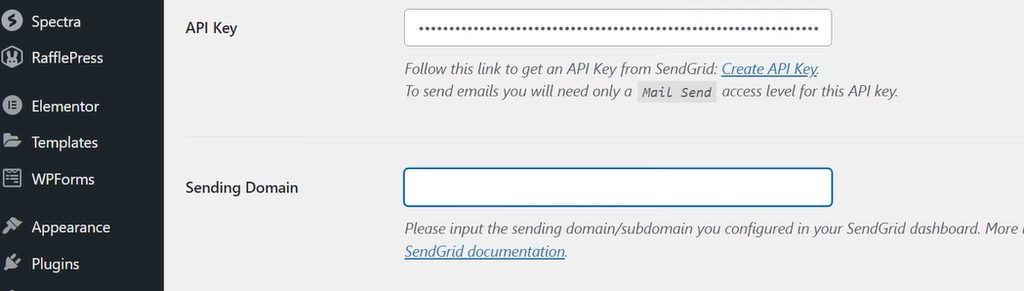
- Click Save Settings.
Step 5: Send a test email
- In WP Mail SMTP, open the Email Test tab.
- Enter an address and click Send Email.
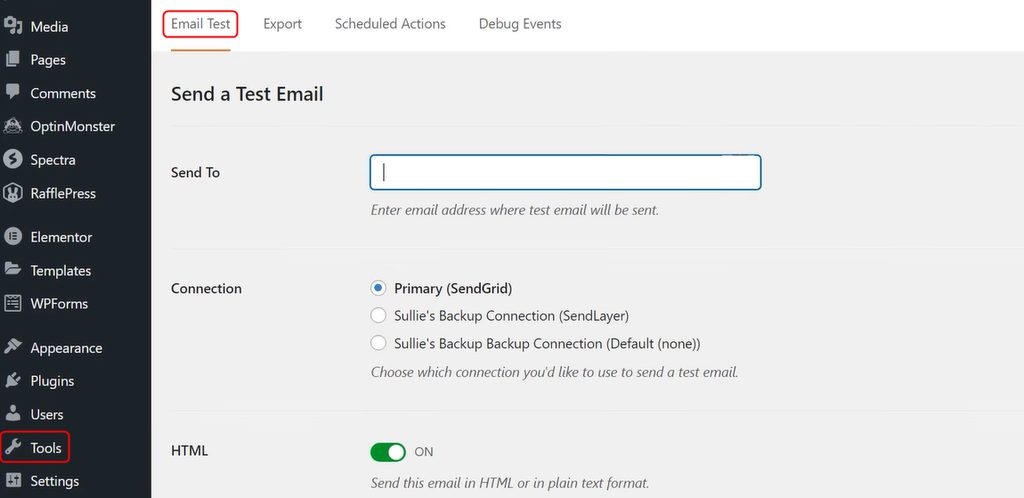
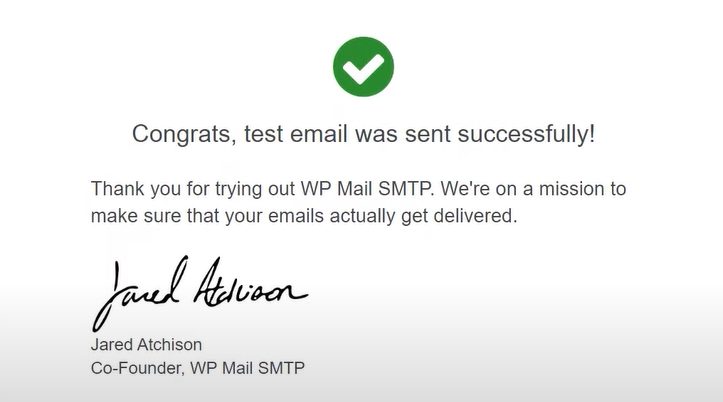
- The plugin shows a success message, and the mail arrives in the inbox.
Quick recap
- Create a SendGrid account and verify your sender or domain.
- Make an API key with the right to send mail.
- Enter the key in WP Mail SMTP and send a test.