

What it means
You try to install a plugin or theme and WordPress says Installation failed: Destination folder already exists.
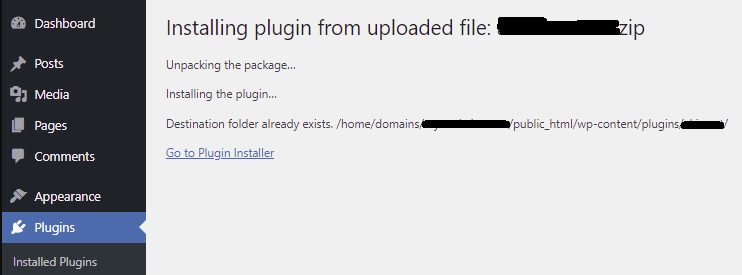
Usual reasons:
- You installed the plugin or theme before and turned it off, but did not delete it.
- An earlier install stopped half way and left a folder.
- You uploaded the files by FTP and then tried to install it from the dashboard.
Method 1: Replace the existing folder
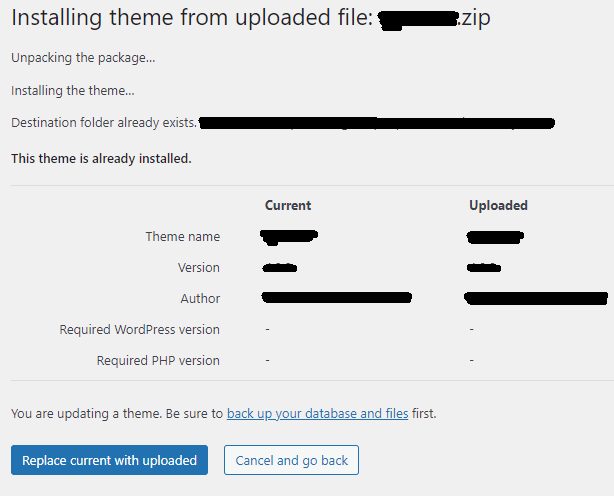
If the upload page offers it, choose Replace current with uploaded. In WordPress 5.5 and later, WordPress shows a comparison page when you upload a newer version of a plugin or theme.
- Go to Plugins, then Add New, and click Upload Plugin. Upload the zip file.
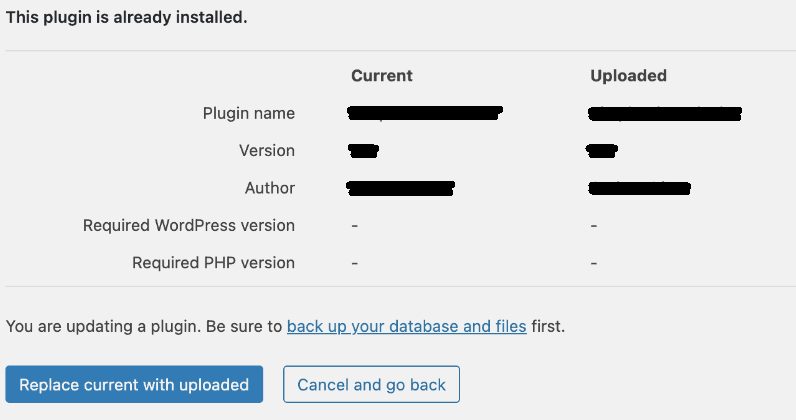
- When WordPress finds the existing version, click Replace current with uploaded.
Method 2: Delete the folder with File Manager
- Log in to cPanel and open File Manager.
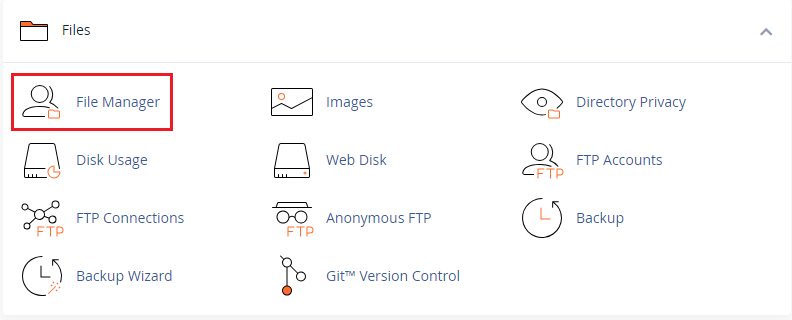
- Go to the folder of your site, then
wp-content, and openplugins(orthemes). - Find the folder that has the name of the plugin or theme.

- Right-click the folder and choose Delete. Be sure it is the right folder.
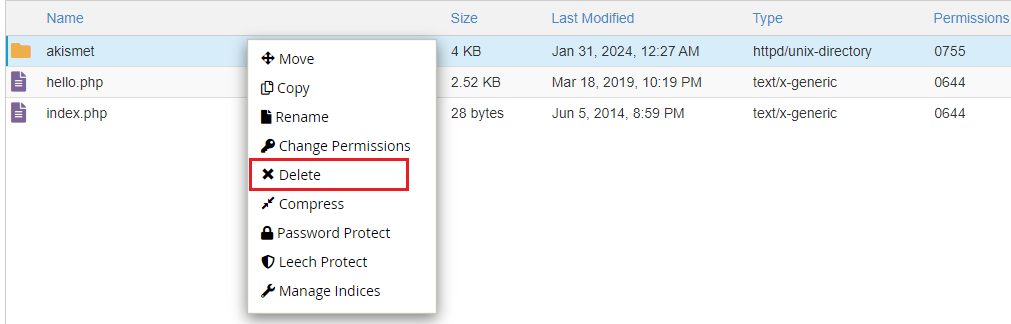
- Install the plugin or theme again.
Method 3: A file manager plugin
- Search the plugin directory for a trusted file manager plugin and install it.
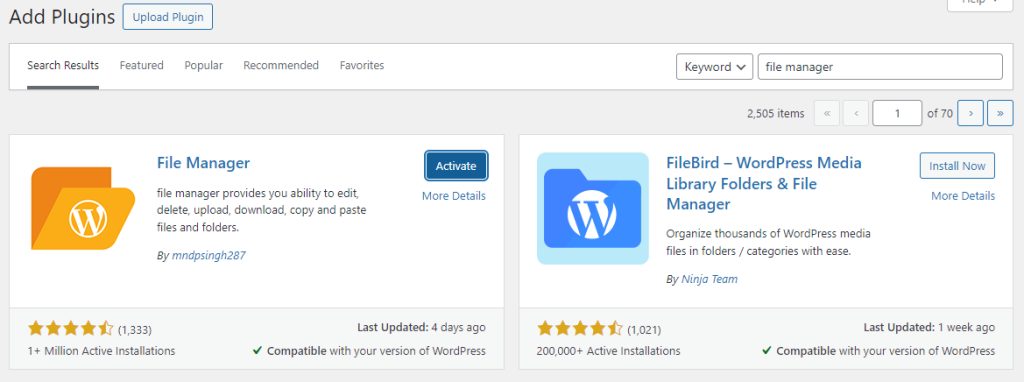
- Open it, find the folder and delete it. Then install again.
Method 4: WP-CLI (server side)
- Connect to the server with SSH.
- Go to the folder of WordPress:
cd /var/www/html/your-website-folder- Delete the plugin, replacing
plugin-namewith the real folder name:
wp plugin delete plugin-nameFor a theme, use wp theme delete theme-name.
Important
- Take a full backup before you delete anything.
- Delete the right folder. If the plugin holds data, export it first.
- Install the plugin again, and activate it.
Quick recap
- The folder is already there.
- Replace it from the upload page, or delete it with File Manager or WP-CLI.
- Back up first.