

Why hide wp-admin
- Fewer brute-force attacks. Bots try thousands of passwords on
/wp-login.php. - Less noise from bots.
- Lower server load from failed login attempts.
Hiding the login page is one layer of defense. It does not replace strong passwords and updates.
Method 1: Use a plugin
Plugins such as WPS Hide Login or the login URL feature of iThemes Security (now Solid Security) are the safest and easiest way.
With WPS Hide Login
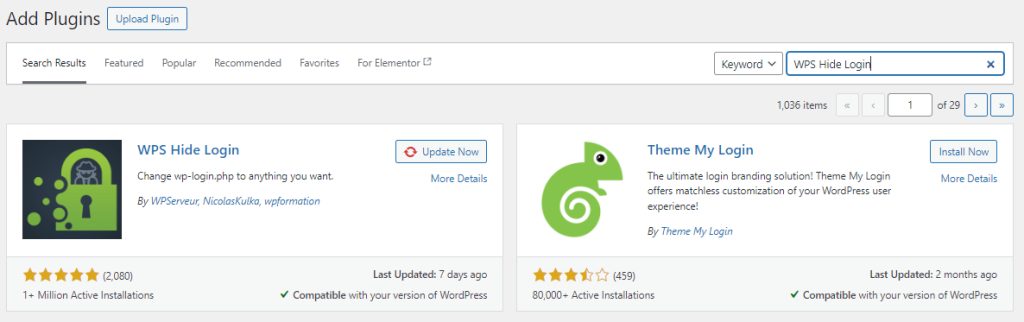
- Go to Plugins, then Add New. Search for WPS Hide Login, install and activate it.
- Go to Settings, then WPS Hide Login. Type a new login address, for example
my-secret-login, and click Save Changes.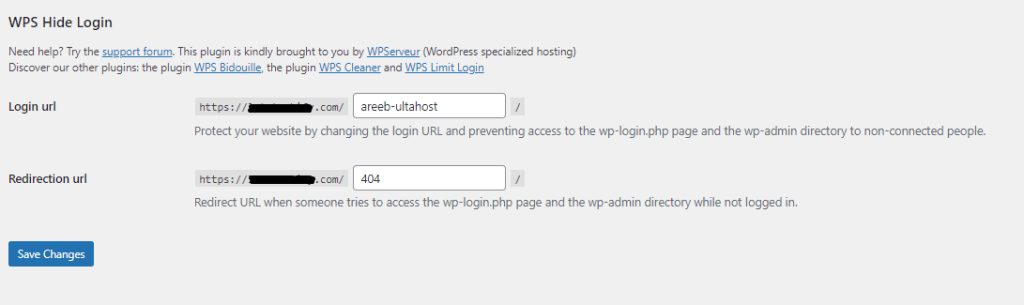
- Your login page is now at
https://example.com/my-secret-login. Save the address in a safe place.
Method 2: Use .htaccess
On Apache you can rewrite a custom address to the login file. Make a backup of .htaccess first. Example:
RewriteRule ^new-login$ /wp-login.php?new-login=1 [L,QSA]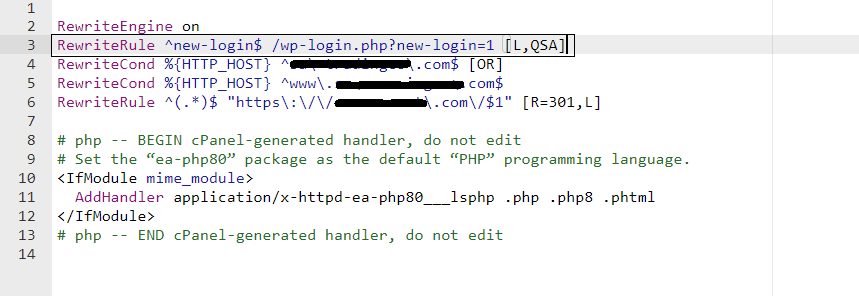
This rule alone does not block direct access to /wp-login.php. Add a rule that blocks wp-login.php for visitors who do not use the secret query, or use a plugin instead.
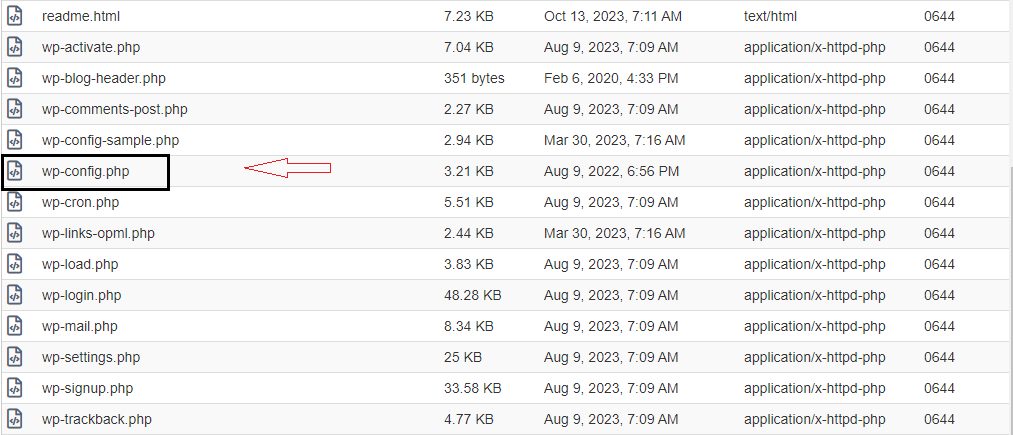
Method 3: Use wp-config.php
You can change cookie names and keys in wp-config.php, and force SSL for logins:
define('AUTH_COOKIE', 'your_custom_cookie_name');
define('LOGGED_IN_COOKIE', 'your_custom_cookie_name');
define('SECURE_AUTH_COOKIE', true);
define('FORCE_SSL_ADMIN', true);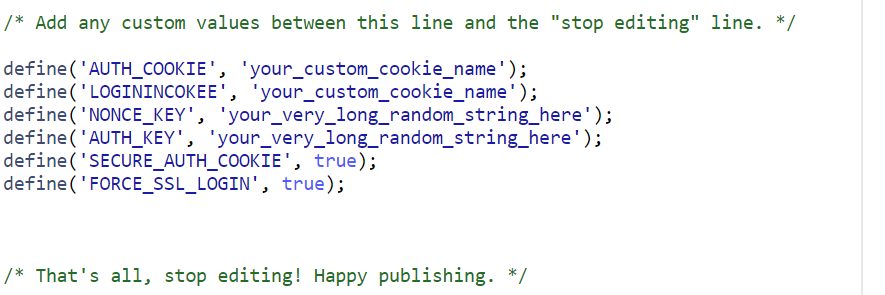
Use new random values for the security keys (AUTH_KEY and the others). You can make them with the WordPress secret-key service.
Method 4: Rename the admin folder
This is not advised. If you rename wp-admin, you must replace all mentions of it in the files and the database, and update the keys in wp-config.php. A WordPress update will bring the folder back.
Best practices
- Keep WordPress, themes and plugins updated.
- Use strong passwords and a password manager.
- Turn on two-factor authentication.
- Limit login attempts.
- Back up your site on a regular basis.
Quick recap
- A login URL plugin is the easiest way.
- Combine it with 2FA and login limits.
- Keep a note of the new address.